
Document analysis and chat with files using AI
SmartFiles is a service that uses AI to analyse documents, automatically reading each uploaded document to convert it into a four-part report and enabling questions about the document or entire folder. It reads 15 formats including PDF, Word, Excel, text files and images. Answers are generated only from files the person has permission to view.

What tasks does AI perform in SmartFiles?
In SmartFiles, AI performs the following tasks: document summary, four-part deep report, chat with document and folder, folder summary, invoice data extraction, inbox folder suggestion, version difference summary, and scanned PDF reading (first 10 pages). Summaries and reports run automatically upon upload; chat works when the user asks.
| Service | What it does | When does it work |
|---|---|---|
| Short summary | States what the document is in a single paragraph; visible in the file list | Immediately after upload |
| Deep report | Generates Summary, Key Points, Structure, and Notable Details sections | Immediately after upload |
| Chat about the document | Answers questions asked about a single document from the document’s own text | When a user asks |
| Chat with folder | Reads all documents in a folder together to provide an answer | When a user asks |
The same services work for mail and attachments in the corporate email product SmartMail: AI-powered email summary and attachment analysis. All AI services of the DBLinx family DBLinx AI on the page.
How to start document analysis with AI?
The file uploads and analysis starts automatically. There is no need to open a menu, trigger a process, or wait; once the summary is ready, it appears automatically in the file list.
- File is dragged and dropped
Once the upload finishes, the document begins reading in the background; work continues during this time.
- Summary visible in list
A short summary appears next to the file. You can understand what a forty-page contract is about without opening it.
- Ask curious questions
"How many days before must termination notice be given?" The answer comes directly from the document, not from guesswork.
What sections make up the document report?
Document summary and detailed report are generated together; the summary appears in the list, the report in the file details.
A short summary appears in the list; a detailed report is also saved and opens when requested.
Summary
States what the document is in a single paragraph. In most cases, this is all that is needed.
Key Points
Lists the items the decision-maker needs to know about.
Structure
Describes how the document is structured: number of sections, headings, and content locations.
Notable Details
Highlights likely overlooked clauses — penalty conditions, dates, exceptions.
AI summary in the mobile app
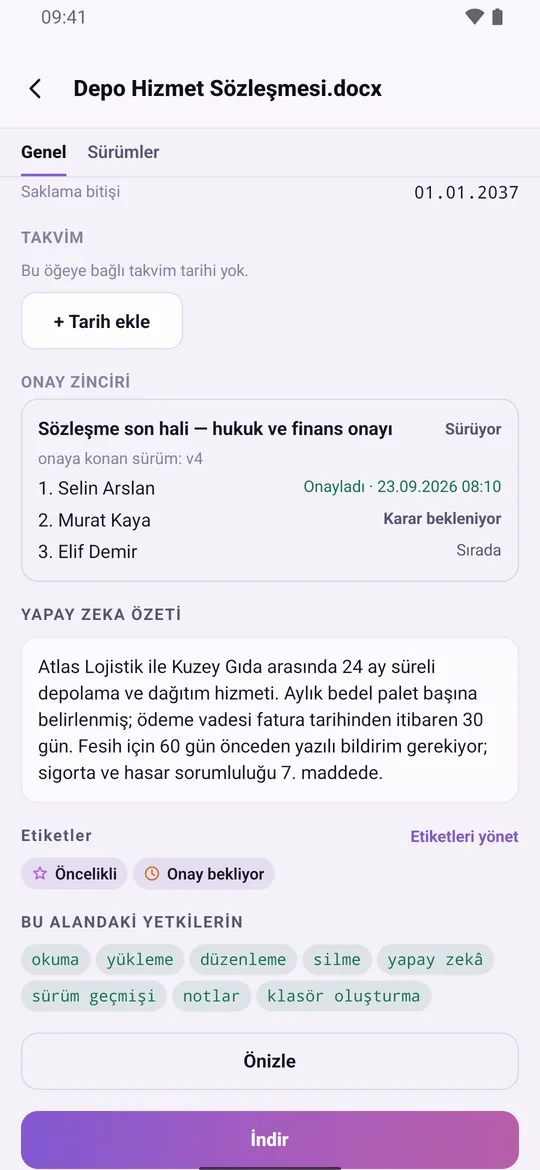
The AI summary of the document is located in the file details of the SmartFiles mobile app; the essence of the contract can be read without opening it on the phone. On the same screen, the file's tags and the user's own permissions in this area are visible.

How to ask questions about a document and folder?
Analysis provides a summary; chat answers the question asked. 'Which is the highest line item in this table?', 'When is the delivery date?' — the question goes directly to the file.
A question can be asked of a single document or an entire folder. Asking for a 'status summary' without reading all progress reports in a project folder is one of the most common scenarios.
Responses are generated only from documents where the relevant person has view permission. AI does not describe a document that cannot be viewed.
Which files can be read?
Documents from which text can be extracted are processed directly. Images are evaluated through image analysis; this allows scanned documents or screenshots to be understood as well.
- Word (docx)
- Excel (xlsx)
- Text (txt)
- CSV
- Markdown
- JSON
- Log
- YAML
- INI
- Conf
- PNG
- JPG
- GIF
- WebP
The purple colour indicates four types of image analysis — a scanned archived document or a screenshot is evaluated in this way.
How is AI usage managed?
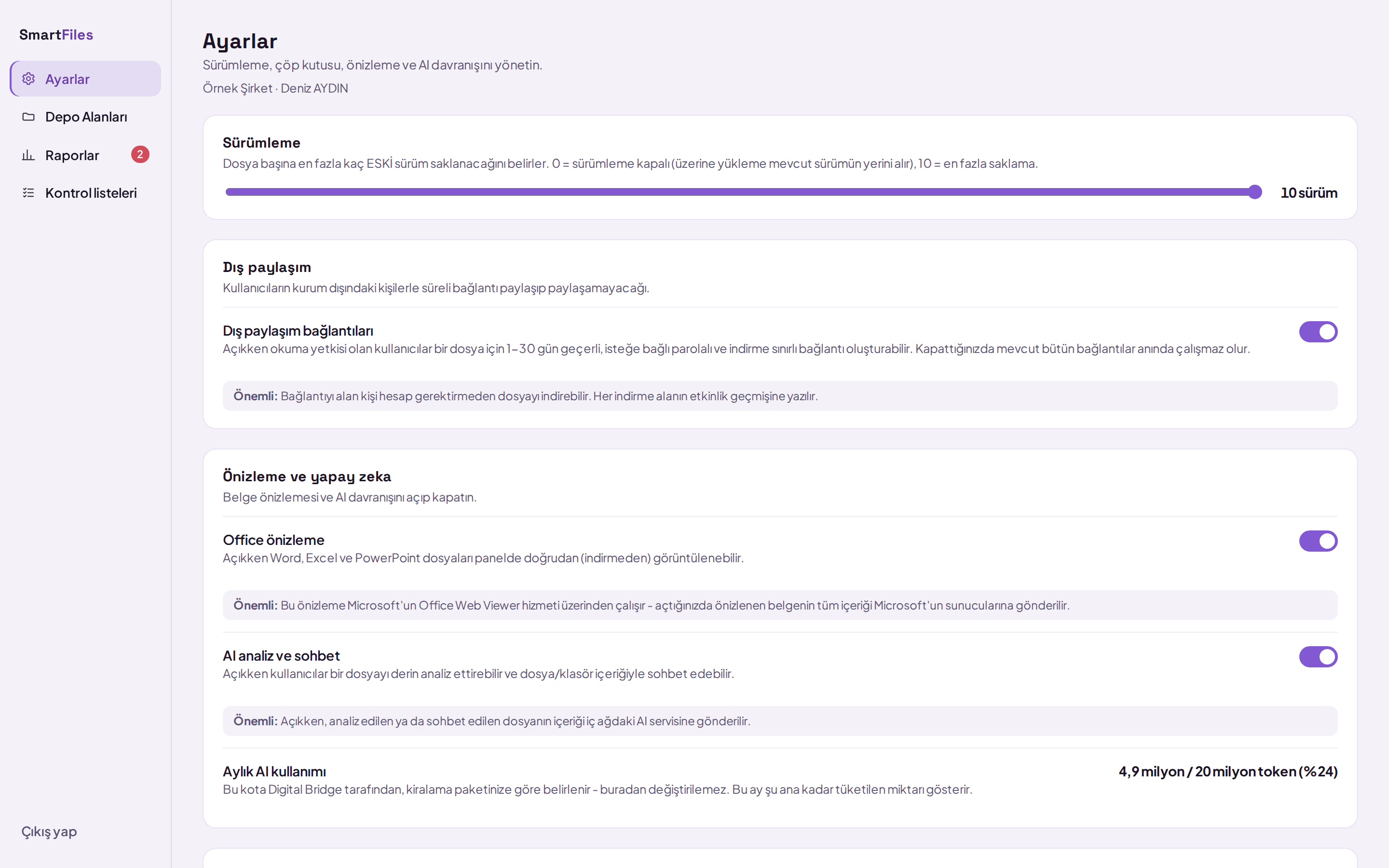
A monthly usage cap is defined and monitored from settings. When the cap is reached, only analysis stops; access to files is not cut off, and the rest of the product continues to work.
Artificial intelligence can be completely disabled. When left enabled, the organization administrator decides who can use it: 'Artificial intelligence' is one of the eight permission categories and is granted on a per-person basis.
Two questions from corporate buyers: is cost predictable, and can it be closed in a sensitive archive? The answer to both is yes.
Where does data stay while documents are processed by AI?
Documents reside in the organization's own separate database and storage area; they are not stored alongside data from other organizations. Analysis requests pass through DBLinx's central AI layer and are charged against the organization's usage allowance.
The report is generated and stored once; the same document is not recalculated each time it is opened. The chat only reads files that the person has permission to view and does not open for persons without 'AI' permission. In a sensitive archive, this feature can be granted only to specific individuals or disabled across the organisation.
Ask questions while viewing and previewing documents without downloading them file preview, how versions are stored file version history described on the page.
Try with your own document
During the demo meeting, a contract is uploaded and read together with its summary. This is the most direct way to evaluate the product.
Search in scanned PDFs and document content
The first ten pages of PDFs without a text layer, which have been closed from the browser, are converted to text via image analysis; then they are summarized like other documents and become queryable. Thus, scanned paper contracts or official letters are not excluded from analysis.
The text of every read document is added to a searchable index. Words typed into the search box are searched not only in file names but also within document content, displaying the matching sentence. Even if AI is disabled, documents with readable text are added to the index.
Summarize a folder with one click
To understand what is inside a customer file, a tender, or a personnel folder, there is no need to open documents one by one. The Summarise folder with AI button writes a brief folder summary from the summaries of documents in the folder and its subfolders: which documents are in the folder, what seems missing, and which dates or conditions require attention. The same summary can be opened on mobile via Summarise folder in the folder menu.
The summary does not include or store private folders the person cannot see; it is regenerated whenever the folder changes. This process is available to users with AI permission in the area and counts towards monthly AI usage.
Read invoices and extract into a single table
The number, date, seller, buyer, tax ID (VKN) or personal ID number (TCKN), base amount, VAT, and total of invoices in a folder are consolidated into a single table and downloaded as a CSV file openable in Excel. e-Invoice and e-Archive XML files are read directly from the fields in the document without using AI; PDF invoices, scanned documents, and receipt photos are read using AI.
If an area read by AI is incorrect, it is corrected from the document's details; the correction also reflects in the table. Documents that are not invoices are not added to the table.

AI suggests which folder the document should go to
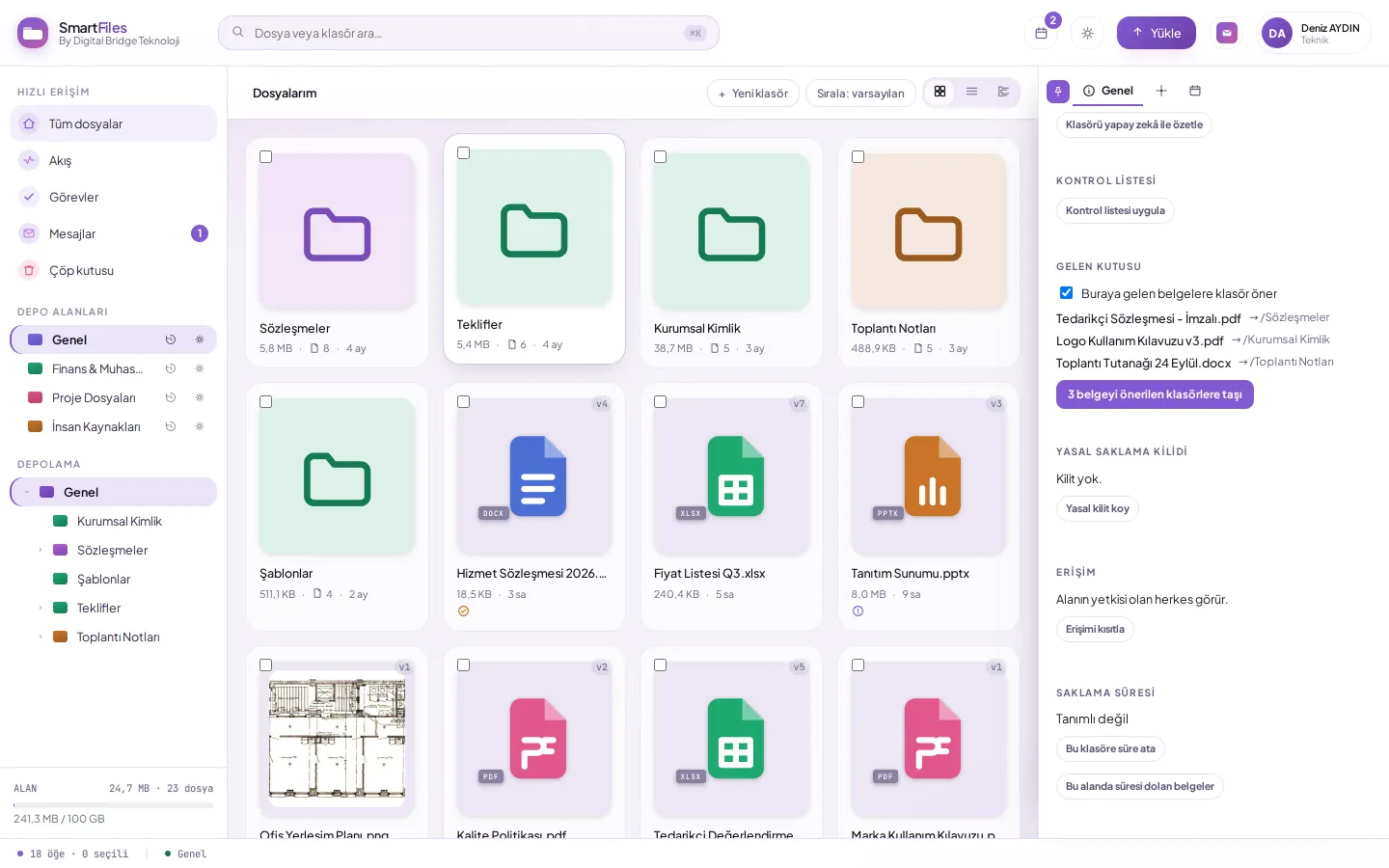
Make a folder the inbox for mixed incoming documents. After each document is summarised, its topic is compared with the folder names in the area, and the most suitable folder is suggested with justification. If no suitable folder exists, the document stays in place. You review suggestions and move documents in one go; no document is moved without your approval.
How to use the AI summary and chat with the document step by step?
Click the document; the summary appears in the AI summary section of the details panel.
For detailed reports and re-scoring, open the AI tab in the detail panel; if no summary exists, click Analyse, or click Re-analyse to refresh.
To ask a question, type it into the Ask about this file… box on the same tab and press Enter; the response is based on the document's content.
To ask questions about all documents in a folder, select the folder and follow the same steps.
Responses are added to the chat history; when you return to the same document, the history remains where it was.
Frequently asked questions
Which files does AI read?
Text is read from PDF, Word (docx), Excel (xlsx), text, CSV, Markdown, JSON, log, YAML, INI, and conf files; PNG, JPG, GIF, and WebP images are evaluated via image analysis. The first ten pages of scanned PDFs without a text layer are also read via image analysis.
Can answers be generated from others' documents?
No. The answer to a question asked about a document or folder is generated only from the content of files visible to the user; documents in restricted folders do not appear in questions from users without permission.
Can AI be turned off?
Yes. It is disabled globally for the organisation from Settings; the rest of the product is unaffected. When enabled, 'AI' is one of eight permissions and is granted per person; when the quota is exhausted, only analysis stops, but access to files continues.
Are password-protected documents analysed?
No. Because the content of password-protected documents cannot be read, they cannot be analysed; the document is still uploaded and stored.