
SmartFiles and standard file-sharing services
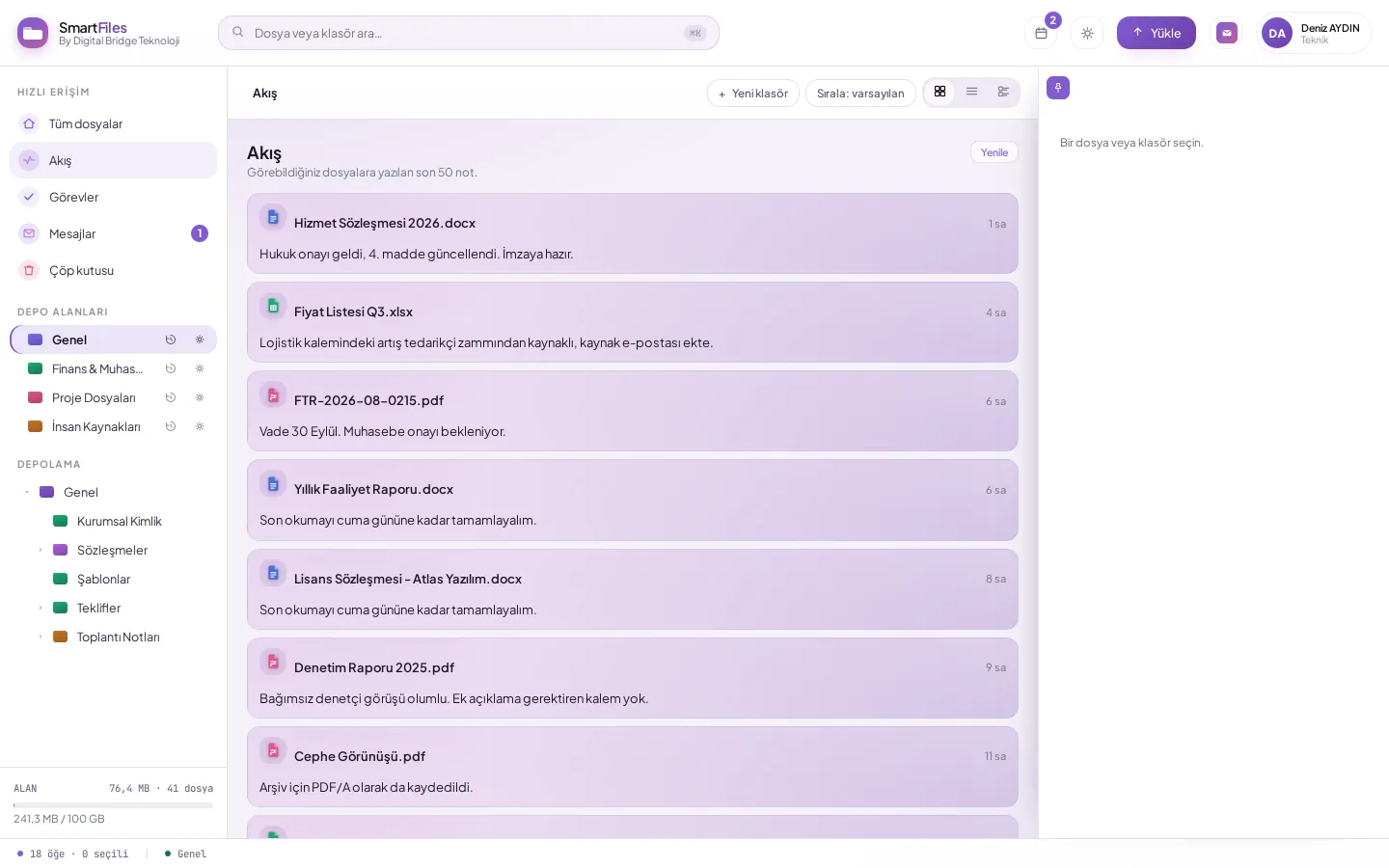
SmartFiles is an enterprise file management service offering department-based storage areas, up to eight independent permissions per area, automatic AI document reporting during uploads, and team collaboration on files. It also includes standard file sharing features such as uploading, folders, and sharing. The table below compares its distinct capabilities row by row.
Last updated: 23.09.2026
How does SmartFiles differ from standard file sharing?
SmartFiles is divided into four areas: structure and permissions, AI, versioning and security, teamwork and ecosystem. Each row in the table describes a capability currently working in the product; clicking the row name reveals its details.
The "Standard file sharing services" column summarises the general status in the basic packages of common cloud file sharing services. There are differences between services and packages; this column describes the typical state of the category, not a specific product.
| Skill | SmartFiles | Standard file sharing services |
|---|---|---|
| Layout and permissions | ||
| Department-based storage areas | Separate area for each department or project; with its own permissions, colour, tags, and statistics | Usually set up manually via folder sharing |
| Detailed permission | Eight independent permissions per area: read, write, edit, delete, folder, AI, history, note | Usually viewing or editing; intermediate options are limited |
| Access by department | Department added; access changes automatically when a person changes department | Usually managed person by person |
| Privacy of the hidden area | Areas without read permission do not appear in the list at all; links and notes are subject to the same restriction. | In most cases, the share name or path remains visible |
| Artificial intelligence | ||
| Automatic document report during upload | Summary, Key Points, Structure, Notable Details; short summary in list | Most do not have it or charge extra |
| Chat with documents and folders | Question for a single document or the entire folder; responses only from documents visible to you | In paid add-on packs, limited |
| Image analysis | Scanned documents and screenshots are also readable | Limited |
| Managing AI permissions | AI is a separate permission, granted per person; it can be disabled for the whole organisation | Usually enabled or disabled at account level |
| Version and assurance | ||
| Automatic versioning | A file uploaded with the same name becomes a new version; the previous version returns with a single click. | Common; storage duration and quantity may be limited |
| Preview the impact of the version cap | The number of versions to be deleted and the space to be freed are shown before lowering the cap. | Mostly absent |
| Folder-inclusive restore | Deleted folders are restored from the trash bin along with their contents; the organisation determines the retention period | Common; duration is usually fixed |
| Quota check before upload | A notification is sent before uploading begins if the cap will be exceeded; no partial files are created. | An error usually occurs during upload |
| Teamwork and ecosystem | ||
| Task, approval and review on file | The file is assigned a task; results and due dates are recorded | Most require a separate work tracking tool |
| File association and note stream | Contract attaches the attachment; notes appear in the stream across the company | Limited to comments in most cases |
| Corporate email with single identity | Same account as SmartMail; attach file to email with one click | Mostly separate products and separate management |
Which organisations is SmartFiles suitable for?
SmartFiles is designed for organisations that want to share documents between departments in a regular and auditable manner. Typical examples include:
- companies struggling to manage folder permissions on shared drives,
- finance, legal, and procurement teams who want to understand documents such as contracts, invoices, and quotes without opening them,
- project teams who wish to avoid sending the wrong version or losing deleted files,
- Companies wanting to manage email and file management with a single identity and a single dashboard.
There is no limit on the number of users; storage space and AI rights are expanded with additional space and token packs as needs increase.
How to switch to SmartFiles step by step?
Open the Settings page of SmartFiles in the DBLinx tenant panel (tenant.smart360.com.tr).
Create an area for each department or project from the Storage Areas page.
Grant permissions to departments and persons in the Permissions table of the area.
Drag and drop existing folders to upload; the entire folder structure including subfolders is transferred. If the storage limit will be exceeded, a notification is shown before upload begins.
Complete the index from the Search in document content section in settings to search within uploaded document contents.
Frequently asked questions
Does setup require infrastructure work?
Not required. SmartFiles runs in the cloud; there is no server to install in the organization or software to maintain. An enterprise account is opened, employees are added via the DBLinx panel, and storage areas are defined.
How do we migrate our existing files?
Folders are moved by drag and drop; an entire folder is uploaded in one go, preserving the subfolder structure. If the storage limit will be exceeded, a notification is shown before upload starts; transfers are not cut short due to bandwidth limits.
What is the maximum file size?
The limit for a single file is 1 GB. If a larger file is selected, a notification appears before the upload starts.
What happens when a file with the same name is uploaded?
A file uploaded with the same name to the same folder becomes a new version; the previous one remains in the version history and can be restored if needed. No file is overwritten without notice.