
Always go back with file version history
SmartFiles file version history is a safety layer that saves every file uploaded with the same name as a new version without overwriting the previous one, and allows reverting to an older version with a single click. Deleted files and folders wait in the trash bin and can be restored. The organisation determines how many versions are stored and the trash bin duration.

final_v3_FINAL.docx
On shared drives, the number of versions of a document and which one is current are inferred from the filename. Everyone gets their own copy, and no one knows for sure which is the latest.
Sending the wrong version to the customer becomes a common error in this setup.
Version carries the filename
- "v2", "latest", "LAST_LAST" — everyone has their own method
- The overwritten file does not return
- It is unclear which one is valid
- It is unknown who changed it and when
Version counted by system
- Single file name, followed by numbered versions
- Previous version restored with one click
- Shows the version number in the list
- Next to each version, who wrote it and when

How does file versioning work?
Uploading a file with the same name to the same folder creates a new version of the existing document. The list shows which version number it is, who uploaded it, and when.
The requested version can also be downloaded; an authorised user can restore an older version. Restoring is not a deletion operation: the old content is added as a new version, while intermediate versions remain in place.
This prevents situations like 'it was retrieved but this time the other version was lost'. No data is lost at any step.
Version history in the mobile app
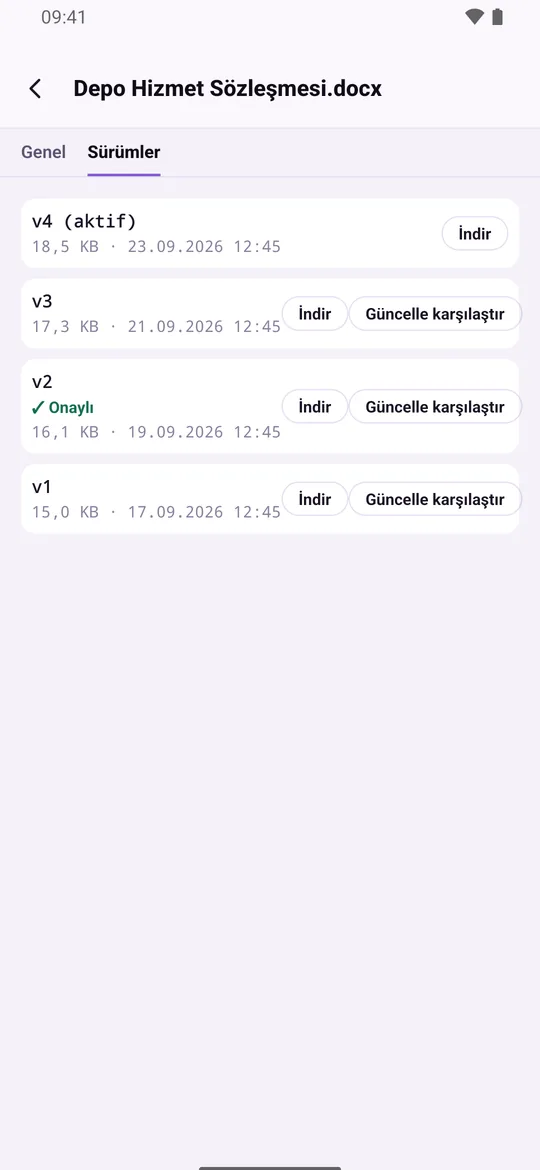
All versions of a document are listed in the SmartFiles mobile app with size and date; the desired version can be downloaded individually from the phone.
How many versions and for how long are stored?
How many versions to keep and how long deleted items stay in the trash are determined in organisation settings.
Version ceiling
The organisation administrator chooses how many versions to retain for each document. The default value is 10.
Says first, deletes later
When the cap is lowered, it shows beforehand how many files will be affected, how many versions will be deleted, and how much space will be freed.
Trash bin
Deleted files and folders remain for a specified number of days. The default value is 30 days.
Folders also return
A folder deleted by mistake is restored along with everything inside it.
No irreversible operation is performed without prior notice of its result. This is a conscious design decision.

How to restore a deleted file?
Deleted files and folders go to the trash first. They wait there for a specified number of days; restoring them requires a single click.
Permanent deletion is a separate step requiring explicit confirmation as it cannot be undone; upon completion, the amount of space freed is reported.
What happens if the storage limit is exceeded?
If the plan storage limit is exceeded, uploads are rejected before they start. No incomplete transfers, corrupted archives, or late-discovered overages occur.
Even if dragging and dropping a folder starts uploading dozens of files simultaneously, the total is calculated correctly. It is impossible for individual files to appear within capacity limits while the overall limit is exceeded.
What are version and trash settings?
Versioning and trash are managed by two settings: the number of versions to keep per document and the number of days deleted items wait in the trash. Both are set by the organization administrator.
| Setting | Default | How it works |
|---|---|---|
| Version ceiling | 10 versions | The oldest versions exceeding the cap are automatically deleted; this takes effect before the cap is reduced. |
| Trash bin duration | 30 days | Expired items are permanently deleted; until that day, they return with a single click |
| Permanent deletion | Manual, approved | Asks for confirmation stating it cannot be undone; the location where it opens is notified at the end of the process |
The upper limit of the version ceiling in the plan is 10 versions per file.
The 'Expiring' section on the Tasks screen shows documents whose retention period has expired or is about to expire, as well as sharing links created by you that are set to expire, all in a single list filterable by area.
Are documents received by email also versioned?
Yes. An email attachment uploaded to SmartFiles is subject to the same rules as other files: uploading with the same name in the same folder creates a new version; deleting it sends it to the trash. Details: SmartFiles and SmartMail together.
How the content of documents is summarised AI document analysis, how areas are set up department-based file areas described on the page.
No more asking 'which is the latest'
In the demo account, several versions of a document are uploaded and then rolled back. How it works becomes clear within five minutes.
Compare versions, approve, set retention period
On the Versions tab, the Compare Update button next to an older version displays both versions side by side line by line: added lines appear green, deleted lines red and strikethrough, and unchanged long sections are collapsed. Users with AI permissions can summarise changes in bullet points with a single click: which amounts, dates, or conditions have changed.
A document’s final version can be sent sequentially for approval by two to six people. Once approvals are complete, that version is marked with an Approved badge in the version list, indicating whether a subsequently uploaded version requires re-approval.
When a retention period is assigned to a folder (1-30 years, starting from the beginning of the year following the upload year or from the upload date), documents whose time has expired are listed for the responsible person. Documents are not deleted automatically; the decision lies with the user.
Lock the document while litigation and audit are ongoing
When a lawsuit, tax audit, or official information request begins, relevant documents must not be deleted during this process. The organisation administrator applies a legal retention lock to a document or folder and writes the reason (e.g., case number). The lock applies to all subfolders and documents within the folder.
Locked documents cannot be sent to the recycle bin, permanently deleted, or moved to another folder. Automatic cleaning of the recycle bin and trimming of old versions due to version limits also skip locked documents; the document remains in place even if its retention period has expired. Reading, previewing, and uploading a new version of the document are permitted. Locking and unlocking are recorded in the activity log; all locks in the organisation are listed on the Reports page in settings.
How to use version history step by step?
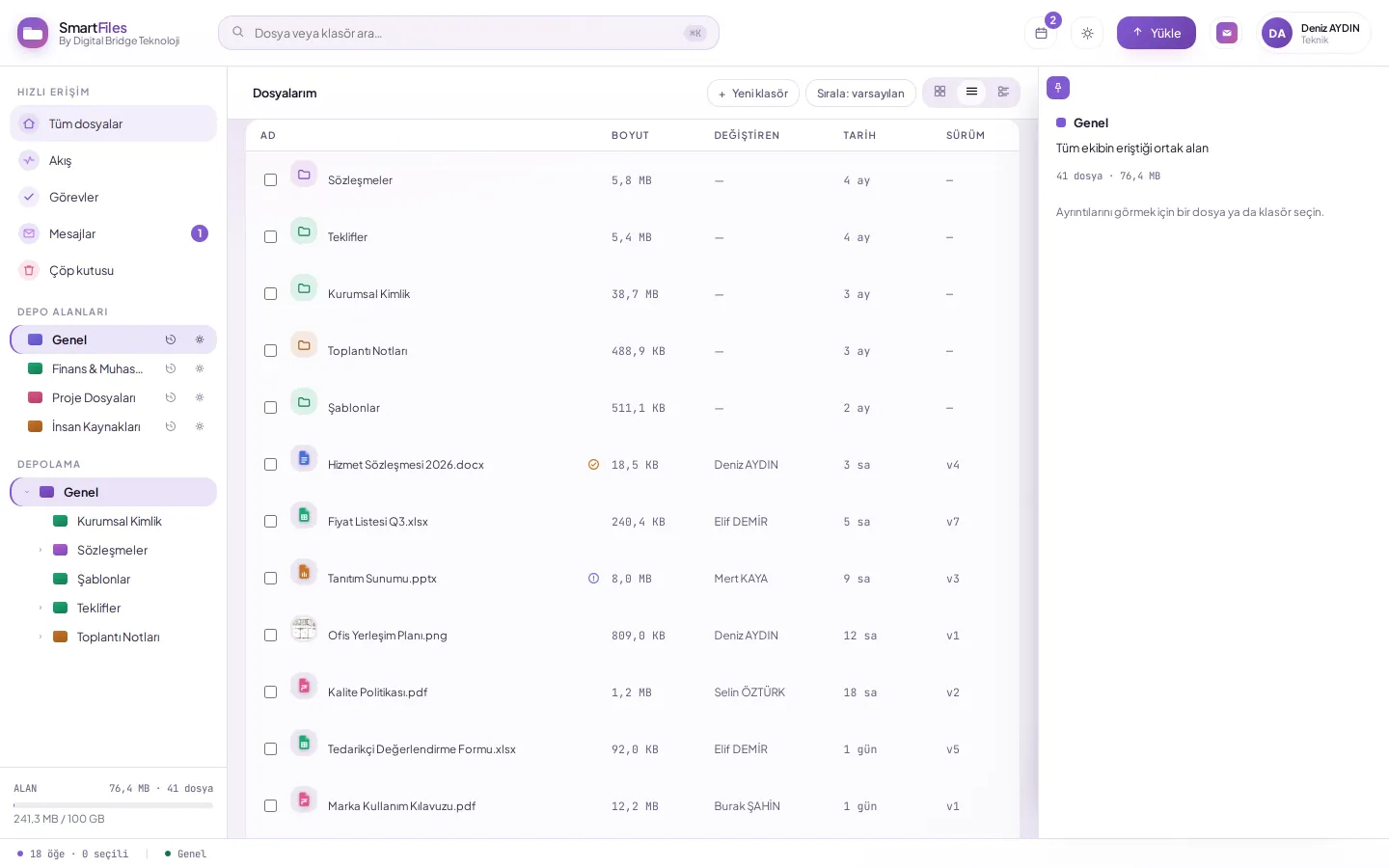
Click on the file and open the Versions tab in the detail panel; each version is listed with the uploader and date.
To compare an older version with the current one, click Compare next to it; added lines appear green, deleted lines red.
If you have AI permission, differences appear as bullet points using Summarise changes with AI.
Click Roll back to this version next to it to revert to an older version.
Old content is added as a new version; none of the intermediate versions are deleted.
Frequently asked questions
How many versions are retained?
The number of versions to be retained per document is determined by the organisation administrator (maximum 10, default 10). Before lowering the cap, it shows how many versions will be deleted and how much space will be freed.
Does reverting to an old version delete the new version?
No. Re-uploaded content is added as a new version; none of the intermediate versions are deleted, and you can revert if needed.
Which files support version comparison?
Comparison text works on readable documents: PDF, Word, Excel, and text files. Unchanged long sections are shortened, and differences are shown in a window.
How long do deleted files remain in the Trash?
Deleted files and folders remain in the recycle bin for the number of days specified by the organisation (default 30 days) and can be restored with a single click. Documents subject to legal retention locks cannot be sent to the trash.