
Collaboration on files
Collaboration on a file in SmartFiles means keeping the work, conversation, and decisions related to a document alongside that document. Tasks, approvals, or review requests are assigned to the file, notes are left, related documents are linked, files are marked with coloured tags, and internal team correspondence is attached to the file. Changes reflect instantly on open screens.
Why does the conversation about a file get fragmented?
Conversations about a file scatter because the document is in one place, while related work happens elsewhere. A contract sits on a shared drive; a 'please check this clause' request goes to a messaging group, approval via an email chain, and the final decision remains in someone's memory.
Months later, when asked 'who approved this contract', the answer is searched across three separate tools. SmartFiles gathers this clutter next to the document: work, notes, links and correspondence stay with the file and are subject to permissions along with the file.
How is a task assigned to a file?
A task is assigned to a file by selecting a colleague from the panel next to the file; an end date can be added if desired. Three types of work can be defined: a task to be done, an approval to be given, or a review to be conducted. The result of each is recorded separately.
| Job type | Used for | Completion method |
|---|---|---|
| Task | "Check invoice", "add missing page" etc. | Completed or cancelled |
| Approve | Approval of a contract, quote, or report | Approved, rejected, or cancelled |
| Review | Reading and reviewing a document | Reviewed or cancelled |
Every completed task is stamped with who completed it and when. Tasks are tracked in two lists: assigned to me and opened by me. Each person can see their own workload, and the assigner can see the status of tasks they assigned, all in one place.
Assigning a task does not grant new access. If the assigned person already lacks read permission in that storage area, the assignment is not made; permissions only change from the permissions screen. This prevents unnoticed permission expansion such as 'I assigned the task, so the file is now open.'
Who can view file notes?
File notes are readable by anyone who can see the file; writing notes requires separate permission. Information such as "Price table updated in this version" becomes the first thing the next person opening the document will see.
The note feed across the organization collects the latest notes from all areas visible to the person on a single screen. The feed is intentionally narrowed: the person will not see the name or note of a file in an area they cannot access in the feed.
Only the author can edit or delete the note; the organization administrator's rights in this regard are reserved. The note appears on the screens of team members who have the file open at the time it was written.
How are related documents linked?
Two related documents are linked via file association: a contract with its annexes, a quote with the order, a report with the source table. The link is visible from both ends; whichever document is opened, the other is reached with a single click.
Relationships are also subject to permissions. A link to a file that a person cannot see is never shown to them; no trace such as "there is a document here you cannot see" is left. Documents in different areas are thus securely linked.
How are files organised with tags?
Files are marked with icon-based, colour-coded labels specific to the storage area: 'signed', 'archived', 'sent to customer', etc. Labels appear below the files in the folder with their icons, allowing you to see at a glance which document is at which stage.
Each storage area uses its own tag set; Accounting's tags do not clutter the Project area. Tagging is open to those with permission to add notes.
How does internal team correspondence attach to a file?
In SmartFiles' internal messaging section, users write messages to each other and a conversation can be linked to a file or a task. The number of unread messages is always visible.
Joining the conversation does not open the attached file: a participant who cannot see the file will never see the file indicator. Conversations are stored in the organisation’s own database and occur only among members of that organisation.
When will changes made by a team member become visible?
Instantly; teamwork happens on a live screen. When a colleague uploads, moves, leaves a note, or a permission changes, open screens update automatically; refreshing the page is not required. The same events reach the SmartFiles mobile app and notifications.
When a file needs to be sent via email, there is no need to leave the panel: selected files are sent through SmartMail. Details: archiving email attachments.
How areas are set up department-based file areas, how documents are previewed file preview described on the page.
Sequential approval and external sharing
For documents requiring more than single-person approval, start sequential multi-approval: e.g., first unit manager, then legal, then general manager. Each approver receives an approval task when their turn comes in the Tasks list; the chain step is visible in the document's Tasks tab.
To send a file to a customer or supplier outside the organisation, after the administrator enables external sharing in organisation settings, an external sharing link is created. The link is time-limited, optionally password-protected, and download-limited; every download is logged in the activity history, and the link can be cancelled at any time. The link address is shown only at the moment of creation.
For frequently prepared quotes and contracts, the team uses a shared Word template: fields in the template such as {{Customer Name}} and {{Amount}} are filled in one window, and the document is saved straight to the customer's folder.
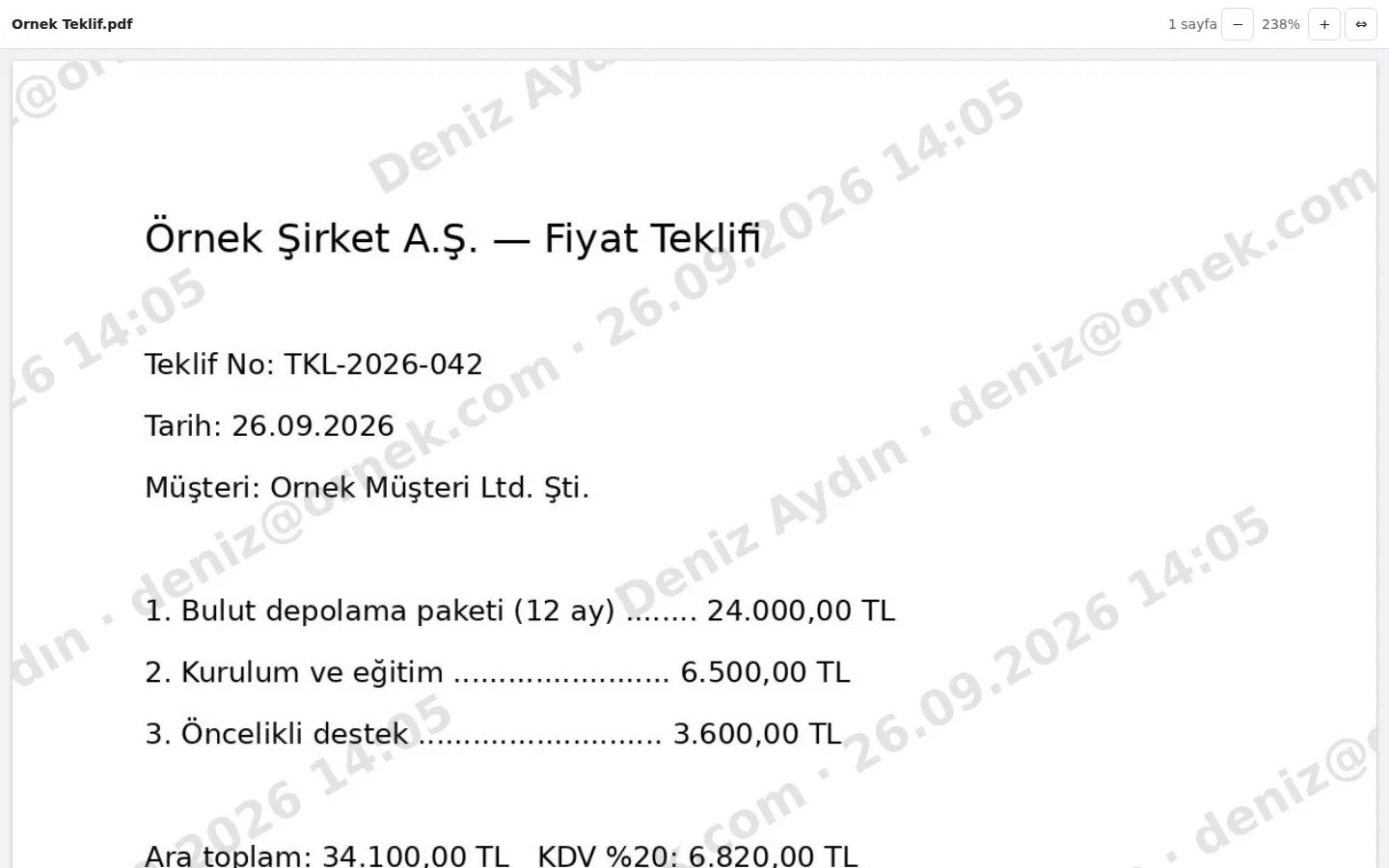
PDFs and images that should not be distributed, such as quotes, drawings, or contracts, are sent with a view-only link (the Word or Excel document is first converted to PDF): the recipient reads the document in the browser, download and print are disabled; they must enter their name and email before opening, and these details are watermarked on every page along with the date, and every opening is logged. Links are also created this way from the mobile app.
You receive a notification on the mobile app when the shared file is downloaded or viewed.
If a signature chain approval is initiated, each approver signs by writing their name; the signature record includes the entered name, time and the document's SHA-256 hash. This record is an electronic approval record, not a secure electronic signature.

Collect documents from customers and candidates with a single link
Instead of collecting documents such as ID copies, diplomas, invoices, or signed contracts one by one via email attachments, create an upload link for the folder where the documents will be sent. The recipient uploads their files from their phone or computer without needing to open a SmartFiles account; the list of required documents is visible on the upload page.
The uploader cannot see inside the folder or others’ uploads. Incoming files appear directly in the folder and do not overwrite a document with the same name; each file is saved with the sender’s name and email. The link’s duration, password and file limit are optional; the link can be cancelled at any time.
In organisations using SmartFiles, an email attachment is saved to SmartFiles with a single click; the person selects the target area (and optionally the folder) from among areas where they have write permission, and if the administrator has specified a particular area, it comes pre-selected.
A unique email address can be created for each folder; attachments sent to that address are saved as files in the folder. Executable and script files are not accepted, and the address is closed if requested.
Dates not to be missed are next to the document
The end of a contract, the expiry of a quote, or any monthly report required is added to the Calendar section of the relevant document or folder. The person who should receive the reminder is selected; when the time comes, a notification is sent and a task with the due date is added to the responsible person's Tasks list.
The Upcoming dates at the top of the tasks screen shows the person's next 90 days in a single list: document and folder dates, added meetings, and response reminders set in SmartMail. The calendar is shared across DBLinx products; a date added in one product is visible in others. The same calendar opens with a month view in the mobile app; dates are also added and completed from the phone.
No dates are added to the calendar automatically: dates found by AI and incoming meeting invitations only enter the calendar when the user adds them. Who added what, when, completed it, or removed it, and sent reminders, are visible in the document’s activity history.
How to create an external sharing link step by step?
The organisation administrator must have enabled external sharing in settings; if not, the link button is not visible.
Select the file; click External sharing link in the detail panel.
Select the Validity period; optionally enter Password and Download limit. To disable downloading in PDF, image, or text files, check View only.
Click Create Link, copy the address using Copy, and send it; the address is shown only at this moment.
To cancel the link, click Cancel in the Active links list.
Frequently asked questions
Why is external sharing disabled?
External sharing is an organisation setting and is closed by default, so that the organisation decides how documents leave the organisation. After the organisation administrator enables it in settings, users with read permission can create links.
How long is a share link valid?
The file sharing link is valid between 1 and 30 days; password and download limit are optional. The link can be cancelled at any time before expiry, and each download is recorded in the activity history.
Where is View-only used?
In PDF, image, and text files. The recipient reads the document in the browser; there is no download button, and the document opens watermarked with the recipient's name and date on every page. If a Word or Excel document is to be sent this way, it must first be converted to PDF.
What happens if an employee who opened the link leaves the organisation?
The link may not work. Share and upload links depend on the person opening them having access within the organization; if the person is removed from the organization or the area is archived, the link will not open.
How do email attachments come to SmartFiles?
In SmartMail, via 'Save to SmartFiles' on the attachment card; in the opened window, select an area where the person has write permission and optionally a folder. Closed folders for the person do not appear in the list.