 SmartFiles · Document Management
Documents are with the right person, in the correct version
Department areas, eight permissions, and automatic summaries.
- Eight permissions per area
- Automatic summary during upload
- No overwriting, versioning exists
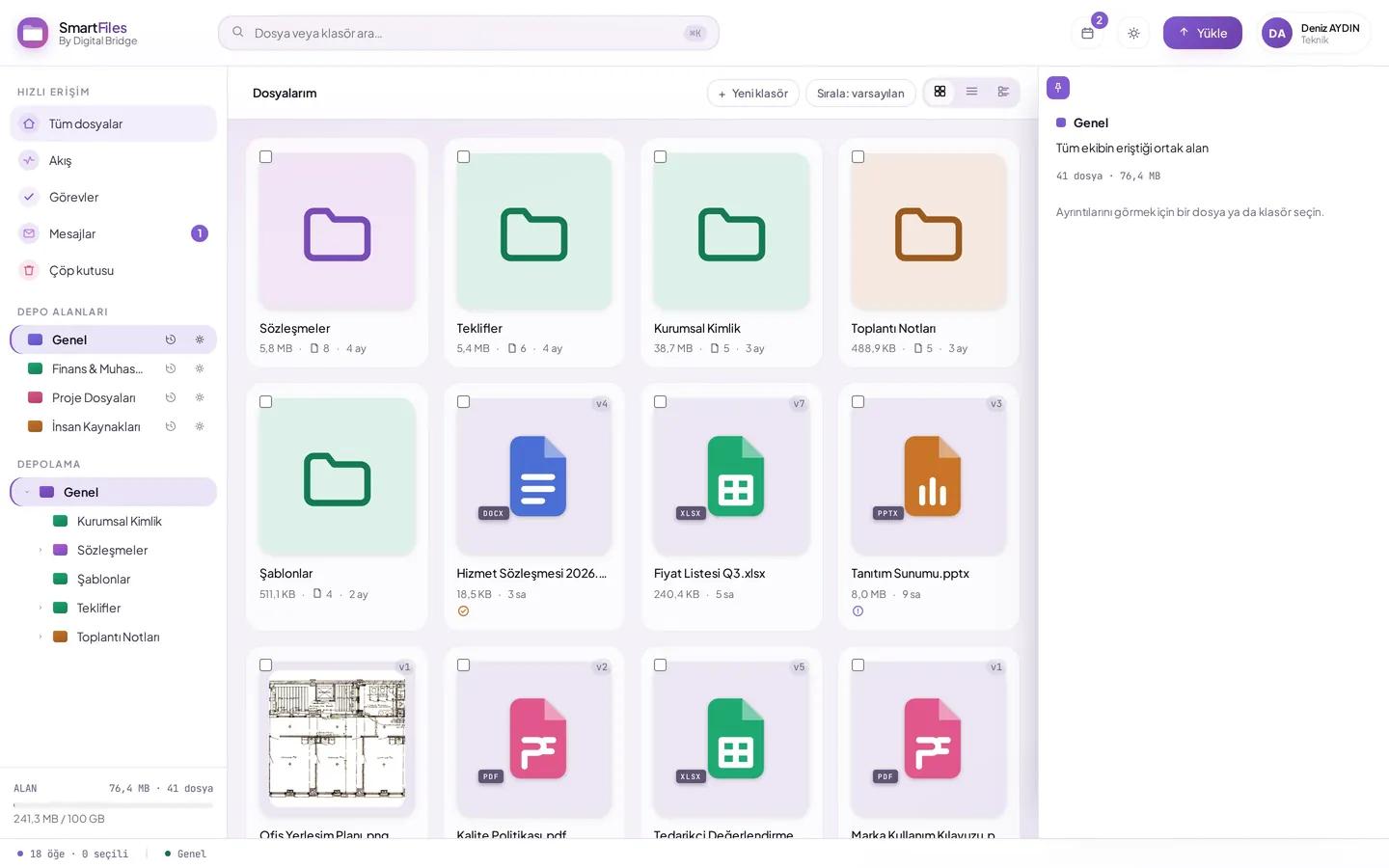
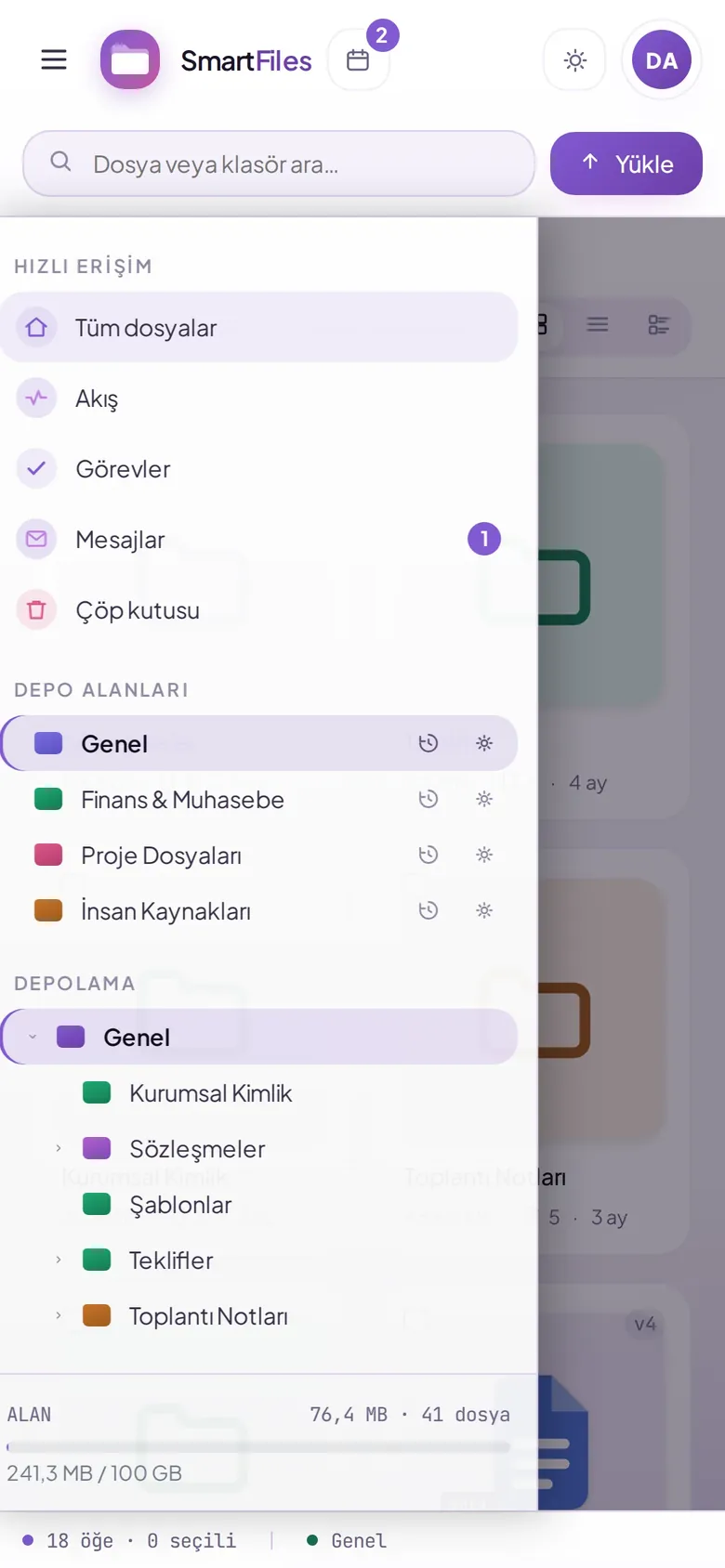
View the product with its own screens
- Real demo screen
- Sample data, no customer data
- Try the demo yourself
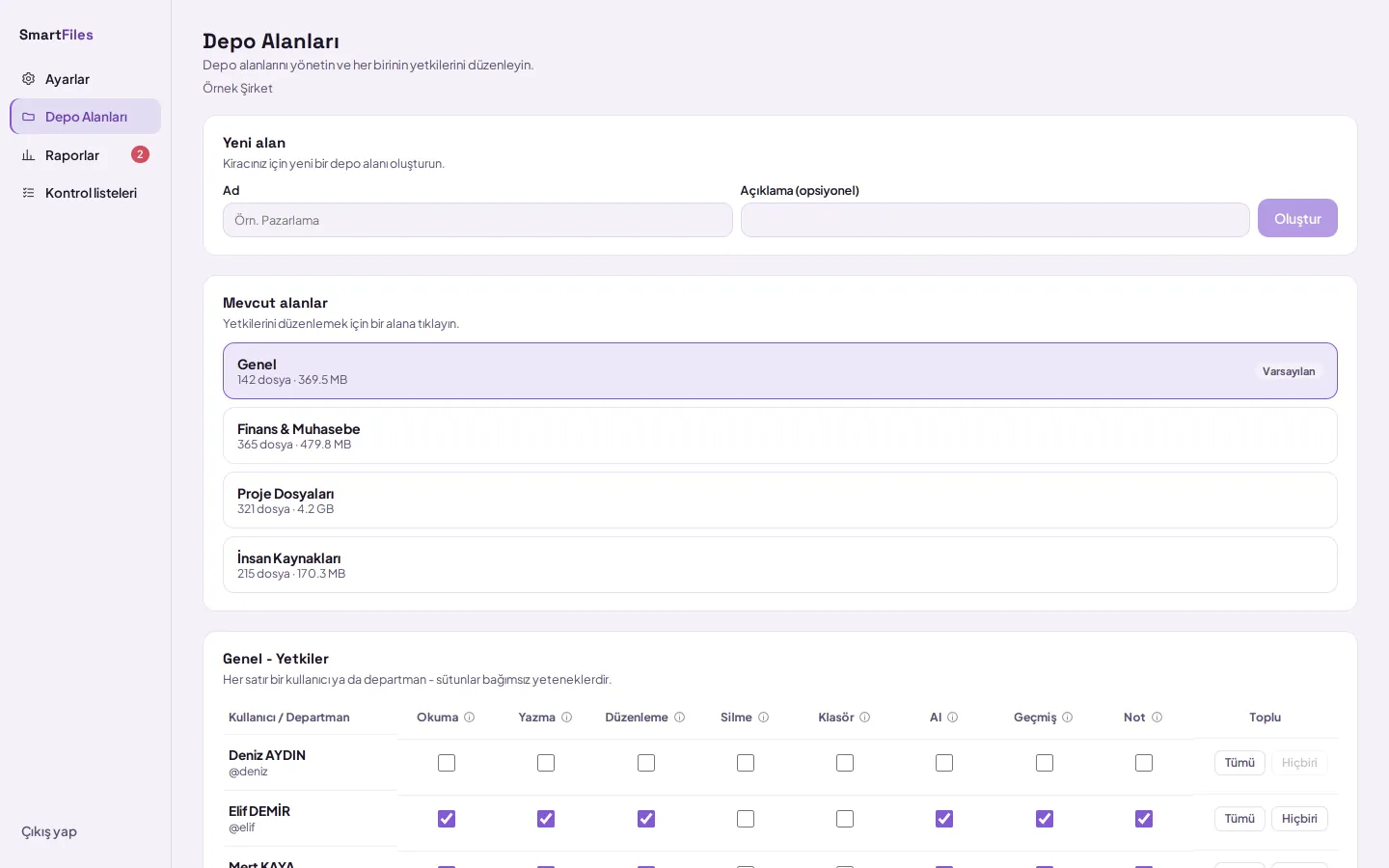
- Upload may be open, deletion closed
- Permissions granted to the department apply to its members
- Permission takes effect immediately
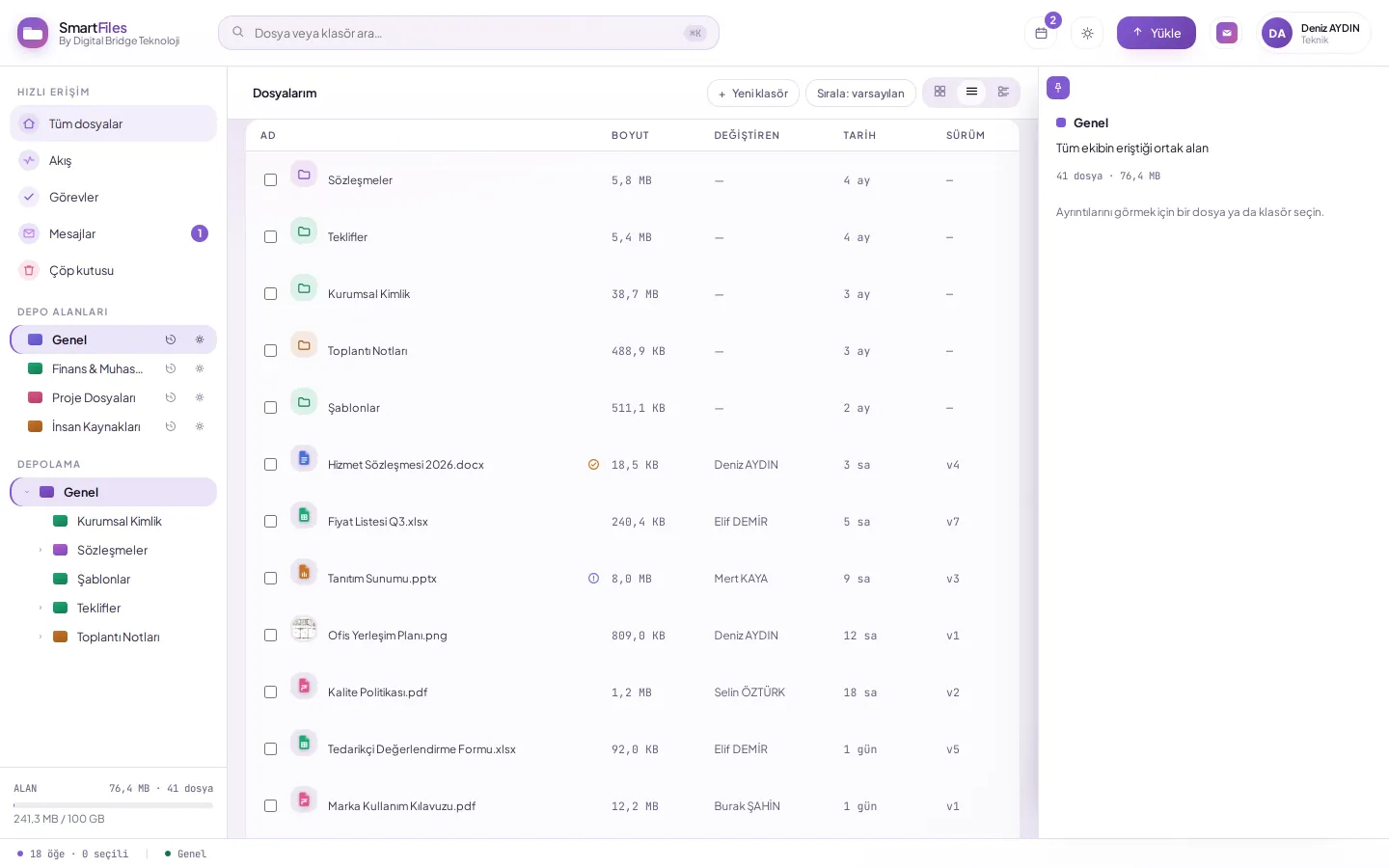
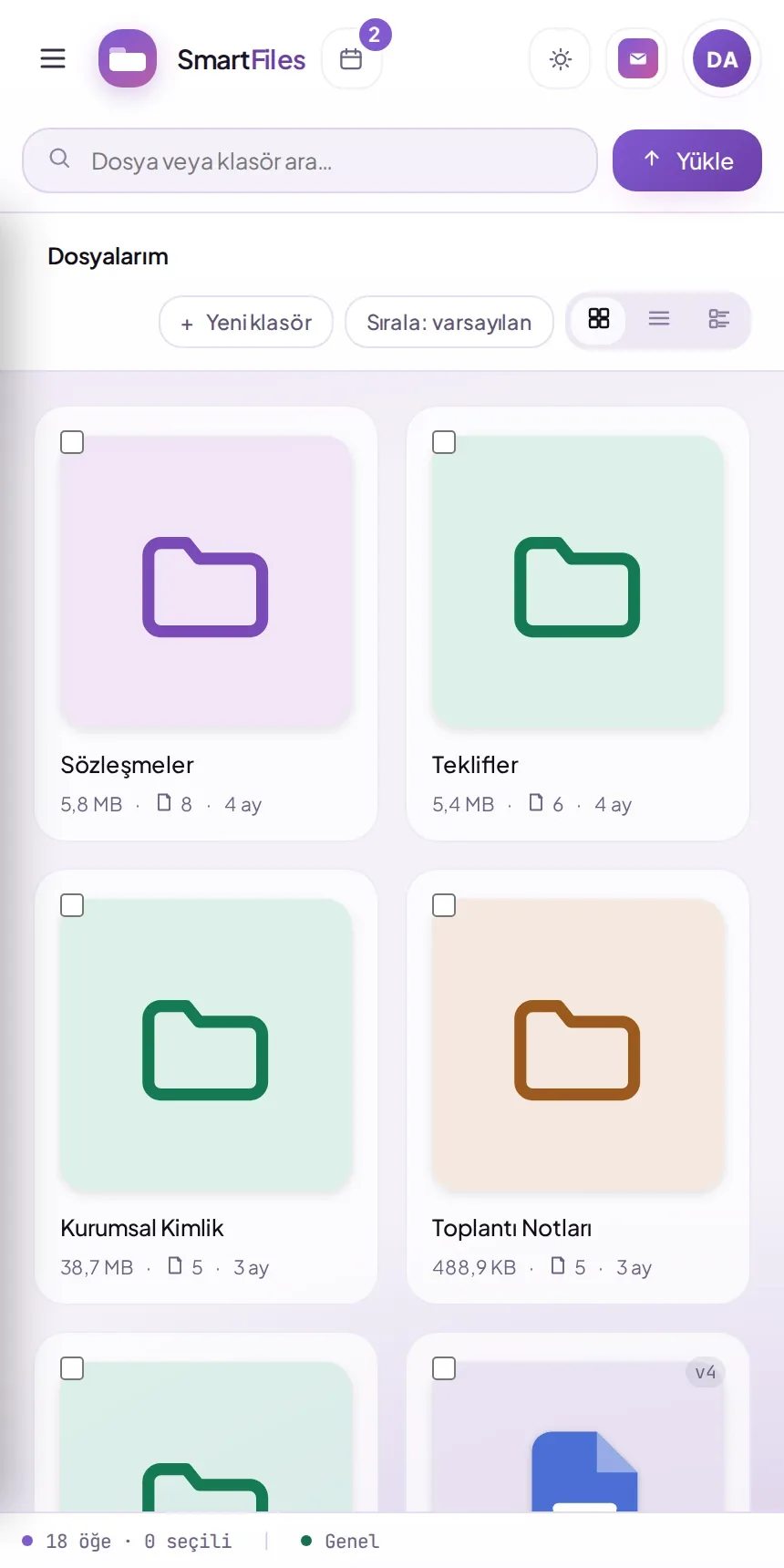
- Folder size and file count are displayed
- Version column on every row
- All operations via right-click menu
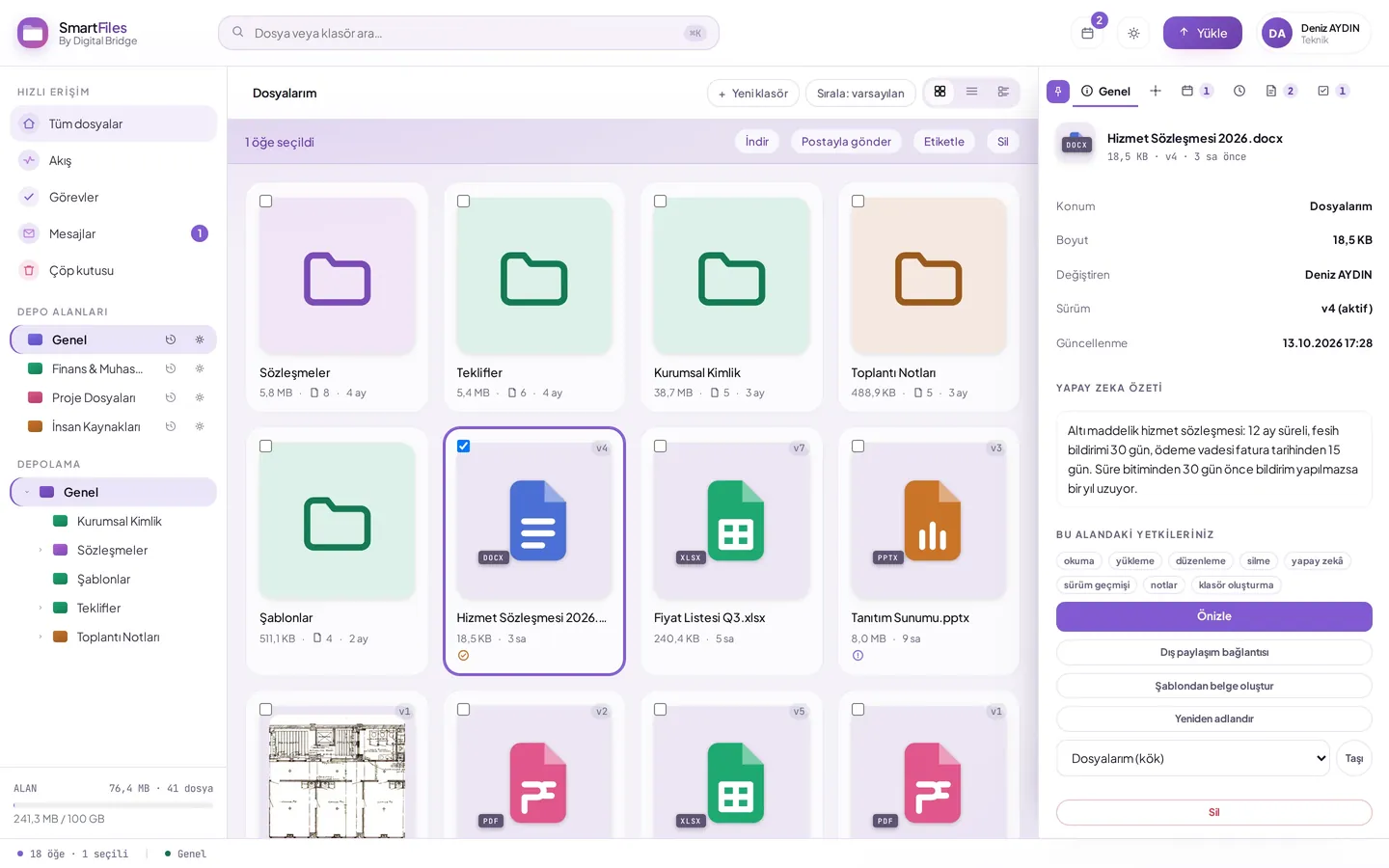
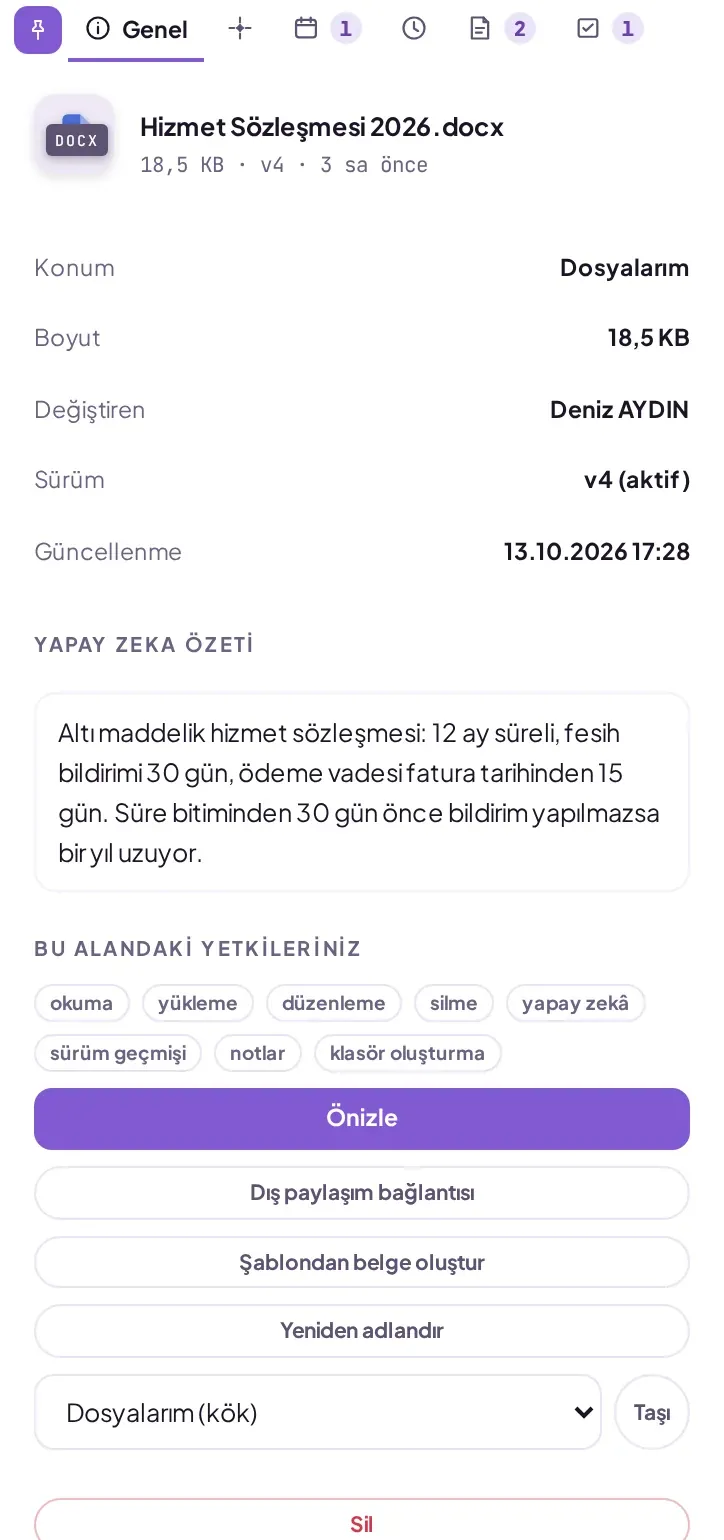
- Four-part AI report
- Notes, tasks, and linked documents
- Your permissions in this area
Each department in its own area
Eight permissions are granted separately to individuals or departments for reading and deleting.
- Access changes when the department changes
- Restricted folders are visible only to selected users
- Unauthorized areas do not appear in the list at all.
| General area | Read | Upload | Edit | Delete | Artificial intelligence | Version history | Notes | Folder |
|---|---|---|---|---|---|---|---|---|
| Finance & Accountingdepartment | ||||||||
| Project Filesdepartment | ||||||||
| Selin Karaperson | ||||||||
| Deniz Aydınperson |
Understand without opening forty pages
Every document becomes a report; questions can be asked about the document.
- Responses only from documents you can see
- Scanned PDFs are also read
- Files remain open even if the cap is reached
No files are overwritten
A document with the same name becomes a new version; the old one waits in the trash.
- Versions are compared line by line
- Legal hold lock: cannot be deleted
- Returns with contents inside folders
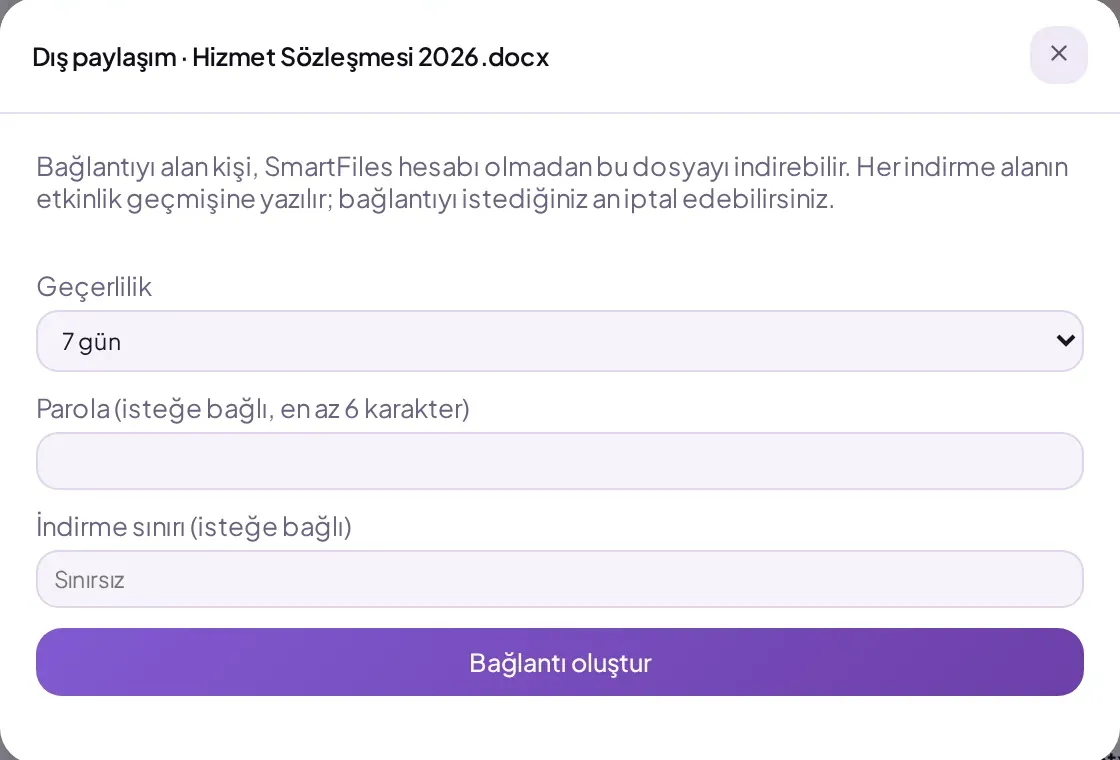
Document exchange without creating an account
When the administrator opens it, send via a timed link and collect documents.
- Link 1–30 days, password optional
- Cannot see inside the uploading folder
- Sender information in incoming files
Details that speed up daily work
Search within content
Words within the document are also searched.
Preview without downloading
PDF, table, image, and video open in the browser.
Notes and tasks
A note is added to the document, a task is assigned.
Missing document list
Missing items are visible without opening the file.
Document from template
The Word template is filled out and saved to the folder.
Document dates
Maturity and end dates are reminded on time.
The same areas out in the field
Search, summary, version history, and preview on mobile.
- Scan documents via phone
- Multiple files with upload queue
- Multiple company accounts

Standard file sharing with SmartFiles
Rows show capabilities verified only in SmartFiles.
| Property | SmartFiles | Standard services |
|---|---|---|
| Department-based storage areas | Ready | Usually manually |
| Separate permissions per area | Eight permissions | Mostly limited |
| Access by department | Automatic | Person by person |
| Document report during upload | Exists | Mostly absent |
| Chat with documents and folders | Permission-dependent | Additional fee |
| Single identity via email | SmartMail | Separate product |
Frequently Asked Questions
How do I separate documents by department?
An area is created for each department; eight permissions are assigned individually to persons or departments.
Does the deleted file return?
Yes, it is restored from the trash bin.
Does AI read someone else's file?
No. Answers are generated only from files you have view permission for.
How do I send files outside the organisation?
When the administrator enables external sharing, with a link valid for 1–30 days.
Start using SmartFiles in your organisation
Single plan, no user limit; additional areas are added as needs grow.