
Advanced area-based authorisation
SmartFiles area-based authorisation is an access model that determines what each person can do in every storage area using eight independent permissions: read, write, edit, delete, create folder, AI, history, and notes. Permission is granted to individuals or departments, managed from a single-screen matrix, and changes are instantly reflected on open screens.

Why can't the authorized person see the file?
Access on shared drives generally comes down to two options: either everything is visible or nothing. Any intermediate need — “upload but not delete”, “view but not edit” — is typically addressed by duplicating folders.
The result everyone knows: three copies of the same document, a folder tree where it is unknown who has access to what, and a question directed to IT every time.
Access is all-or-nothing
- Read-only or full access; nothing in between
- "Do not delete" opens a separate folder
- Multiple copies of the same document circulate
- Who accesses what is only inferred
Eight separate permissions, single screen
- Each of the eight permissions is checked separately
- Only one box is closed; the folder is not duplicated
- There is one copy of the document, in one correct place
- Who accessed what is listed on screen
What headings make up file access permission?
These eight permissions are granted by the requested organisation administrator, and unwanted ones are kept closed. One does not require another; 'write' permission can be granted without 'delete' permission.
Read
Displays files and folders in the area. If this permission is off, the area does not appear in the sidebar at all.
Write
Uploads a new file and adds a new version to an existing document.
Edit
Changes the name of files and folders and moves them to another location.
Delete
Moves to trash and permanently deletes.
Create folder
Opens a new folder. This is separate from editing permission: someone who can open folders may not be able to rename existing ones.
Artificial intelligence
Analyse documents and ask questions about their contents.
History
They see operations performed in that area in the DBLinx summary.
Note
Writes notes on files and monitors note flow across the company.
Example: An accounting intern is allowed to upload invoices but must not delete any. Write access is enabled, delete access remains closed. One click, no new folder needed.

How are employees listed in the permission matrix?
When the organisation administrator selects the storage area, everyone in the organisation appears as a row on the screen. There is also no 'add user' step; the person assigned to the product via DBLinx immediately appears as a row here.
You can toggle all permissions for a person in one go using the All and None buttons on the right.
There is no need to generate separate reports to see who was given what — the screen itself is the report.
How to grant file permission by department?
When the organisation administrator grants a permission directly to the 'Accounting' department, everyone in that department receives it. A new employee assigned to Accounting gains access immediately; no further action is required.
The same applies in reverse: an employee changing departments automatically loses old access and gains new access.
- Employee joins
Assigned to their department in DBLinx. No further action is needed in SmartFiles; permissions for that department become valid automatically.
- Employee changes department
Access for the old department decreases, while access for the new department increases. No actions are performed in two separate places.
- Employee leaves the company
Any remaining personal permissions are automatically cleared upon removal from the organisation.
What errors are prevented when granting permissions?
The most frustrating aspect of authorisation is discovering something was wrong days later. These features are designed to prevent that.
Person unable to log in is warned
When granting permission to someone who hasn't set a password, the screen informs you. The question 'I granted permission but they can't log in' never arises.
Permissions of removed users are cleared
When a person is removed from the organization, their remaining permissions are automatically deleted; manual cleanup is not required.
Takes effect immediately upon change
Even if the organisation administrator has the screen open when granting permission, the new area appears immediately in the sidebar. There is no need to log out and back in.
AI is also a permission
In a sensitive archive, AI may be accessible only to specific individuals and closed to everyone else.
What does each of the eight permissions enable?
Each of the eight permissions opens a single task and one does not require the other. The table below summarises what each permission grants the person and typical usage.
| Permission | What the person can do when granted | Typical usage |
|---|---|---|
| Read | Views, previews, and downloads files and folders in the area | Everyone who needs access to the document |
| Write | Uploads a new version to a new file and an existing document | Document-producing team |
| Edit | Renames and moves files and folders | Person responsible for the area's layout |
| Delete | Moves to trash and permanently deletes | Area owner |
| Create folder | Creates a new folder; independent of editing | Project managing team |
| Artificial intelligence | View document report, ask questions about documents and folders | Only certain persons in the sensitive archive |
| History | Area activities are visible in the DBLinx overview | Management and control |
| Note | Add notes to files, apply tags, and track note flow | Team working on the document |
Can permissions be expanded through other means?
It cannot expand. In SmartFiles, file access permissions are changed only via the matrix; collaboration tools do not open new doors for anyone. Assigning a task via a file does not grant access: if the person lacks read permission in that area, no assignment is made.
The same policy applies to links, notes, and correspondence. Relationships leading to files a person cannot see are never shown to them; note flow is fed only from areas they can see; joining a conversation does not open the file to which the conversation is linked. AI chat also generates responses only from files the person can see. For files sent via SmartMail, the person's read permission in that area is also checked ("SmartFiles and SmartMail together).
Details of these tools collaboration on the file, the structure of areas department-based file areas described on the page.
How do employees know their own permissions?
In the web panel, file details show only the actions the person is authorised to perform in that area. In the SmartFiles mobile app, file details additionally list the person’s own permissions in that area, so they know what they can do without having to try.
Granting and changing permissions is handled by the administrator in the matrix screen; individuals cannot change their own rights. An administrator does not need a report to see who has what: the matrix itself is the report.
Try authorisation with your own data
A demo account is created for the organization; your own department structure is set up, permissions are distributed, and results are viewed together.
Folder-specific access
Area permissions cover all files of a department. However, some folders should not be open to everyone in the area, but only to a few people: a case file, a recruitment process, board documents. A person with edit rights restricts such a folder and selects who can see it as a person or department.
Restricted folders and their subfolders are invisible to persons not listed: in the sidebar, file list, search, tasks, notes stream, and activity history. Restriction does not grant permission; it narrows area permissions; organisation administrators always see them. No one can accidentally delete a folder containing a restricted folder they cannot see.
The field activity history is downloaded as a CSV file by someone with the History permission: columns include date, person, action, target, detail, and IP address, ready to open directly in Excel.
Unusual activity alerts
Even if permissions are granted correctly, unusual behaviour of an account should be noticed: an employee bulk-downloading documents before leaving, accidental or intentional bulk deletion, a sharing link opened outside the organization at midnight. SmartFiles audits these after every operation.
- Downloading 100 or more documents within 10 minutes (including bulk ZIP)
- 50 or more deletions within 10 minutes
- Creating external sharing links between 22:00 and 06:00
Warnings are shown to the organisation administrator on the Reports page in settings; the number in the menu indicates unread warnings. Warning actions do not halt processes, they merely notify; after review, the administrator marks them as seen.
View documents containing personal data
Knowing where personal data resides is the first step towards fulfilling obligations under KVKK. SmartFiles scans every readable document for Turkish ID numbers, IBANs, card numbers, phone numbers, and email addresses; it flags documents containing health records, criminal records, biometric data, or union statements as potentially special category data. Scanning does not use AI, and found values are not stored; only the count is retained.
The organization administrator sees documents containing personal data and their folders in a single list; the list also indicates which of these are open outside the organization via external sharing links. If a user is about to send such a document externally, they are warned.

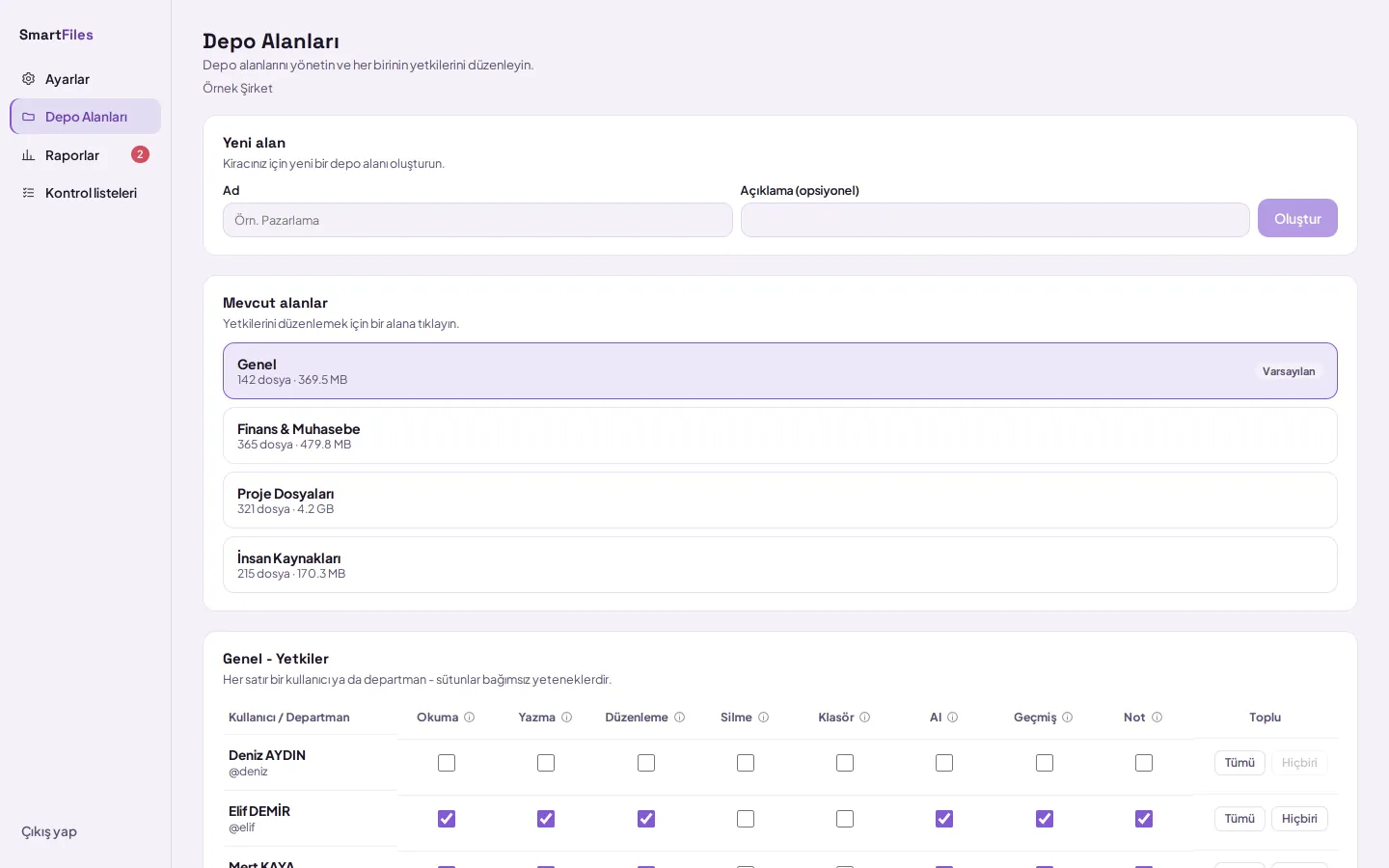
How is permission granted to a storage area step-by-step?
Open the Settings page of SmartFiles in the DBLinx tenant panel (tenant.smart360.com.tr).
From the left menu, click Storage Areas and select the area whose permissions you want to edit.
In the opened Permissions table, find the row for the person or department; all members with access to SmartFiles are listed here.
Check the box in the column for the permission you wish to grant; use the All button to apply all permissions in the row, or None to clear them all.
Changes are saved instantly; the person sees the new permissions on the next refresh.
Frequently asked questions
Should permission be granted to the person or the department?
Assigning to a department at the team level requires less maintenance: anyone who joins the department inherits the permission given to that department, and an employee changing departments automatically changes their access. If a specific exception for a single person is needed, permission is granted additionally on that person's row.
What happens to the access of an employee leaving the organization?
A person removed from the organization loses their DBLinx login and cannot access SmartFiles. Their external sharing and upload links also stop working.
Can a folder be hidden from the rest of the area?
Yes. With folder-specific access, a folder is visible only to selected persons and departments; for others, the folder and its contents do not exist at all, and do not appear in lists or searches. Organisation administrators always see them because they manage areas.
How long are IP addresses in activity logs retained?
For the period determined by the organisation: the organisation administrator selects between 90 days and 10 years in the Activity log retention period field in Settings; the default is 2 years. When the period expires, the IP address is deleted, remaining only as an audit trail record; unusual activity alerts are also deleted.
Does assigning a task open the file for the person?
No. Assigning a task does not grant access; the assigned person must have read permission in that area. Access changes only via the permission matrix; links, notes stream, and internal correspondence are subject to the same restriction.