
Department-based file areas
SmartFiles department-based file areas are a working structure that divides an organization's documents into separate storage areas such as Finance, Human Resources, Procurement, or a specific project. Each area has its own permission matrix, colour, labels, and usage statistics. Employees only see areas they have permission to access; files do not get lost in a single mixed pool.

What is a storage area, and how does it differ from a folder?
Storage area (team workspace) is the highest-level workspace with its own permissions; folders open within it. A folder is an organisational tool, whereas a storage area is an access boundary: questions such as who sees what, who uploads what, and who deletes what are answered at the area level.
This distinction solves the most well-known problem of shared drives. In a single large share, granting separate permissions to each folder eventually turns into an unresolvable tangle. In SmartFiles, permission is granted once at the area's door; the folder structure inside the area is left to the team's usage.
How are storage areas structured?
Storage areas are mostly created per department, and if necessary, per project. The following structure is a starting point for a typical organisation; the number and names of areas vary depending on the organisation.
| Storage area | Content | Typical permission |
|---|---|---|
| Finance | Invoices, receipts, reconciliations | Finance full; management read-only |
| Human Resources | Contracts, personnel records | HR department only |
| Purchase | Quotes, orders, supplier documents | Purchase complete; finance reads |
| Project areas | Project files, reports, drawings | Project team writes; management reads |
| Organisation-wide | Policies, templates, announcements | Everyone reads; management writes |
"Typical permission" in each row is a combination of eight independent permissions; details area-based authorisation is on the page.
How does department permission work?
Department permission is granted by adding a department to the storage area instead of a person. Departments are defined once in DBLinx and used directly in SmartFiles. When a person joins a department, they automatically see that department's areas; when they leave, their access changes automatically.
On the permissions screen, all active employees of the organisation are ready; there is no additional 'add user' step. The person assigned to the product via DBLinx immediately appears as a row in the permission matrix. When granting permission to someone who hasn't set a password, the screen indicates this separately.
Which areas does the employee see?
Employees only see areas where they have read permission; other areas are not listed in the sidebar at all. An accounting employee won't even encounter the existence of the HR area. Search, note streams, file links, and AI chat adhere to the same restriction.
When a permission is granted, the area appears on the currently open screen without refreshing; when removed, it disappears from the screen. An administrator sees the effect of a change without having to tell the person 'to log out and back in'.
Storage areas in the mobile app
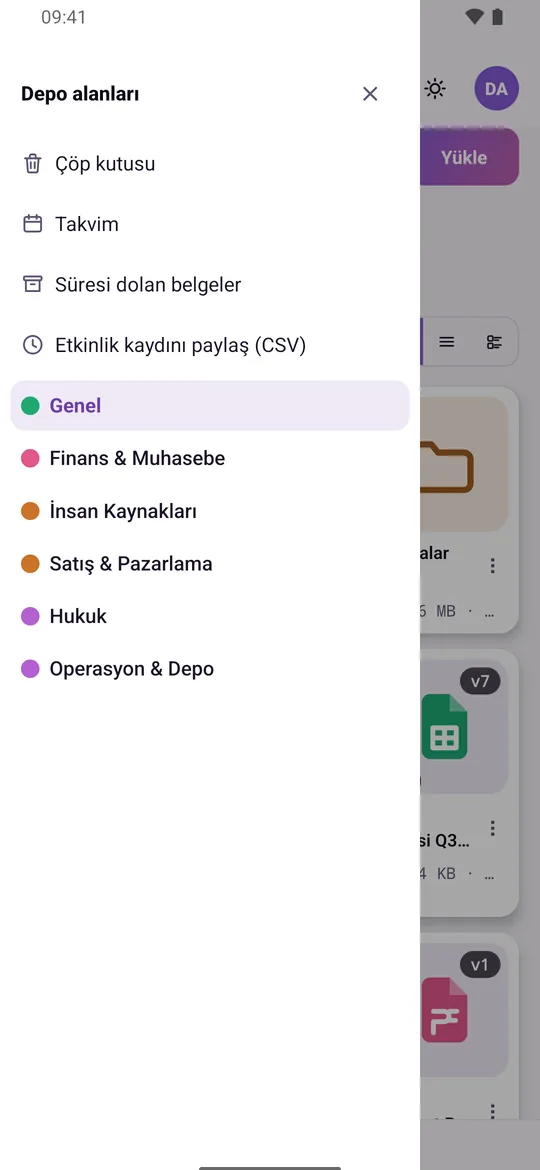
The SmartFiles mobile app drawer lists the storage areas visible to the user; the trash bin is located in the same place.
How to create a new storage area?
A new storage area is opened in three steps by an authorized administrator:
- The area name and optional description are entered, and a colour is selected for the area.
- Persons or departments are added to the area in the permission matrix, and the required ones out of eight permissions are enabled.
- The area appears in the sidebar for everyone with read permission; the folder structure is set up by the team.
The area’s colour makes it easy to distinguish in the sidebar and file list. Each area has its own set of tags: e.g., Finance’s “paid” tag does not appear in the Project area.
An unused area is archived; the organization’s default area always remains active. Since each area lists its file count and area usage, it is immediately visible which area has grown.
How does a typical day pass in storage areas?
In the morning, the purchasing team uploads a new supplier quote to the Purchasing area; AI reads the quote and writes its summary to the file list. The finance team views the same area with read-only permission, learns the quote amount without opening it, and leaves a note on the file saying "within budget".
The revised version of the offer in the afternoon is uploaded with the same name and becomes the new version; the old version remains in the version history. The purchasing manager sends an approval request for the file to the general manager. When approved, the decision is recorded along with who gave it and when.
In this flow, no document is copied in an email chain or on a personal disk. The document, its permissions, and the work on it remain in the same place.
How can you see how much space each area occupies?
Each storage area's file count and area occupied are listed in the area list. In folders, total size and file count are calculated including subfolders; it is not estimated where area can be freed, but read directly from the screen.
Usage across the organization is shown alongside the plan's storage cap. If the cap will be exceeded, you are notified before uploading starts; transfers are not interrupted due to a transfer limit. When needs increase, storage space is expanded by purchasing additional storage.
What can be done within a storage area?
Folders of unlimited depth are opened within the area; files and folders are uploaded via drag-and-drop; an entire folder is transferred preserving its hierarchy. Each area uses its own set of coloured and icon-tagged labels.
A file uploaded with the same name becomes a new version; a deleted file waits in the recycle bin. You can ask questions about an entire folder using AI: e.g., 'summarize the latest status in this project'. Tasks are assigned to files, notes are left, and related documents are linked together.
Details: file version history, collaboration on the file and AI document analysis.
Which area grew the most, which was downloaded the most?
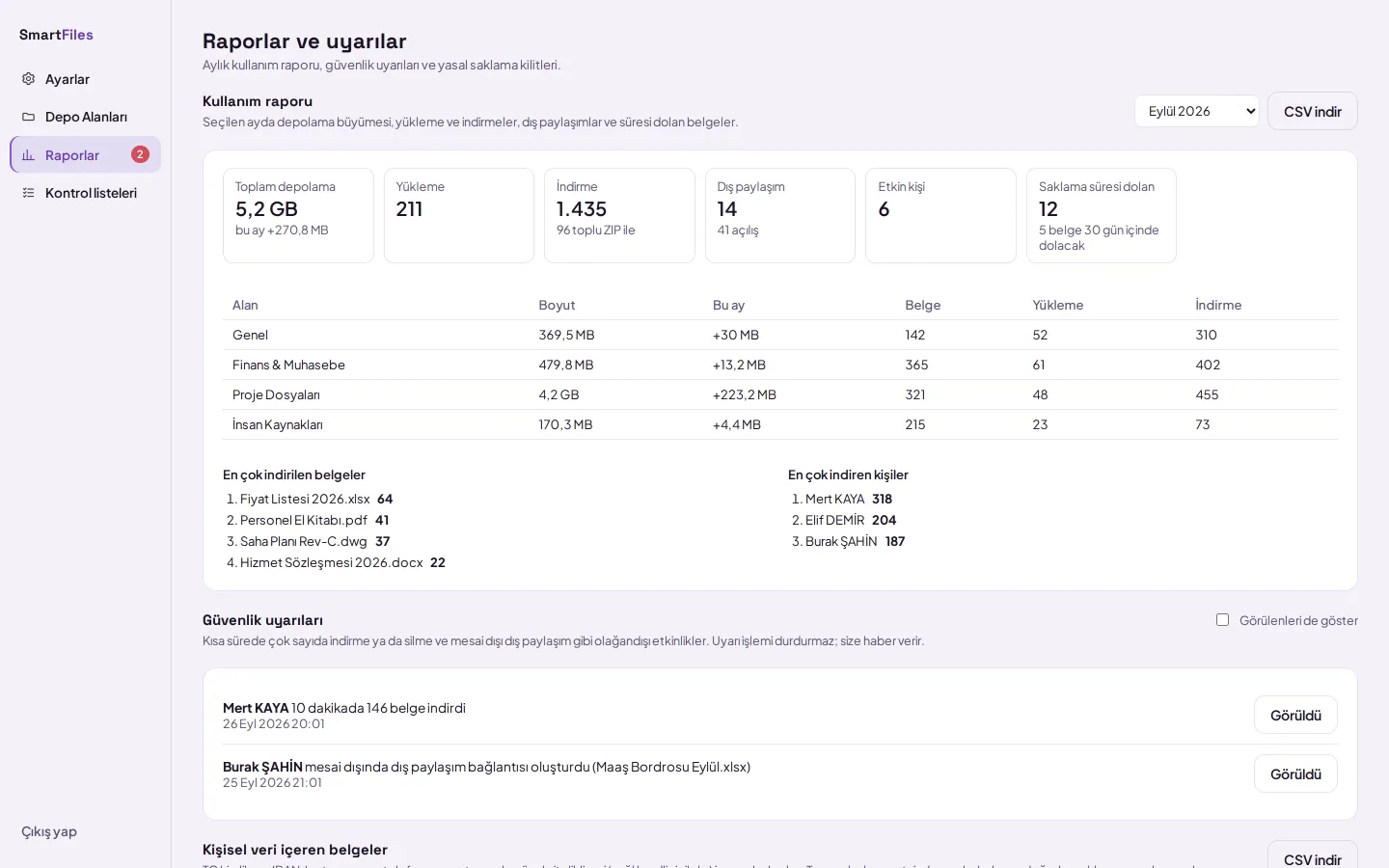
The organisation administrator selects a month on the Reports page in settings and sees the total size of each storage area, its growth for that month, upload and download counts in a single table. The report also shows the most downloaded documents, the people who downloaded them most, external sharing links, openings from outside the organisation, and the count of documents whose retention period has expired or will expire within 30 days.
For a rapidly growing area, quota or version limits are reviewed; the report is downloaded as CSV and taken to management meetings.
Complete document for each folder
Human resources ask the same question in personnel files, project teams in project files, and accounting offices in client files: which document is missing? When a checklist is applied to a folder, each sub-folder—that is, each employee, project, or client—is listed with how many documents are complete and what is missing. The organisation defines its own document categories in Settings.
How to set up storage area for a department step-by-step?
Open the Settings page of SmartFiles in the DBLinx tenant panel (tenant.smart360.com.tr).
Click on Storage Areas from the left menu.
Write the area's name on the New area card, optionally add a description, and click Create.
The new field appears in the Current fields list; click the field and grant permission to the department or persons in the Permissions table.
Set up the folder structure within the area; drag and drop existing folders to upload them with their hierarchy intact.
Frequently asked questions
What is storage area?
The storage area is the highest-level workspace with its own permissions, such as Finance, Human Resources, or a project. Folders open within the area, and access is granted at the area's door.
How long does it take to create a new department?
A few minutes. The area is created from settings, department access is granted from the permission matrix, and folders are uploaded via drag-and-drop; there is no server or software to install.
How is the access of an employee changing departments updated?
If permission was granted to the department, automatically: employees see the areas of their new department, but not those of their old department. Permissions granted specifically to individuals should be reviewed separately.
How are missing items in staff and customer files identified?
A checklist is applied to the folder: each subfolder is treated as a separate record, and in the main folder, the complete and missing documents for each record are visible; missing items can be requested from the other party via upload links.