
SmartFiles and SmartMail together
The connection between SmartFiles and SmartMail allows sending archive files via email without leaving the panel or downloading them. The two products are part of the DBLinx family: logged in with the same identity, employees and departments are defined once, and permissions are maintained in both directions.

How to log in to DBLinx products with a single identity?
There is no need to open separate accounts for each application, remember separate passwords, or log out of one to log into another. When switching to another product from the menu in the top right, the password is not asked again.
Single sign-on
With SmartID, you log in to all family products with the same password.
Single employee list
An employee is defined once; they appear in all products.
One-click switch
Sessions are securely transferred when switching between products.
Single subscription
Usage of which product is managed from a single place.
How to send a file from the archive via email?
SmartFiles is integrated with SmartMail, the corporate email product. There is no need to download the file and re-attach it to an email.
- The file in the archive is sent via email
A document is sent via SmartMail without leaving SmartFiles. There is no need to download it first and then attach it.
- If there is an issue, the reason is reported
If the attachment is too large or the recipient lacks sending permissions, this is clearly indicated. The product does not guess or display 'an error occurred'.
- Email attachments are saved with a single click
In organisations using SmartFiles, an email attachment is saved to SmartFiles with a single click; the person selects the target area (and optionally the folder) from among areas where they have write permission, and if the administrator has specified a particular area, it comes pre-selected.
Where are employees and permissions managed?
Corporate accounts, employees, and subscriptions are managed by DBLinx. SmartFiles focuses solely on its own business: files, permissions, and content.
The practical outcome is this: a hired employee is not defined in two separate places. As soon as they are assigned to the product via DBLinx, they appear as a row in SmartFiles' permissions screen.
The same applies to someone leaving the company: their permissions in SmartFiles are automatically cleared the moment they are removed from the organisation.
Which product family does SmartFiles belong to?
SmartFiles is a product of the DBLinx family. Corporate accounts, employees, and subscriptions are managed via DBLinx; the same credentials grant access to other products in the family. All products in the family are smart360.com.tr is described at.
How to send a file from Archive to email?
Permission checks are performed for the person on both products when sending. The table below summarises how it works.
| Direction | How-to | Which permission is audited |
|---|---|---|
| From archive to email | In SmartFiles, files are selected and sent as email attachments via SmartMail; up to 10 files at a time | Read permission in SmartFiles, send permission from that mailbox in SmartMail |
No permanent copy of the file sent from the archive is kept between the two products; the file is transferred to SmartMail at the moment of sending via a short-lived link.
If a step cannot be completed, the reason is clearly stated: if the attachment is too large or the person lacks permission to send from that box, it says what the problem is instead of "an error occurred".
What does SmartMail corporate email offer?
SmartMail is an AI-powered enterprise email service that manages shared and personal mailboxes of organizations from a single web panel. It inspects every incoming email with SPF, DKIM, and DMARC, defines nine separate permissions for each mailbox, and can submit emails sent on behalf of the organization for approval before dispatch.
When used with SmartFiles, documents in the archive are sent by email without downloading. Details: shared mailbox management and SmartMail. The entire DBLinx family DBLinx ecosystem described on the page.
View both together
SmartFiles and SmartMail can be shown in the same demo session. How a file from the archive is sent via email is monitored live.
How to send a file from the archive step-by-step via email?
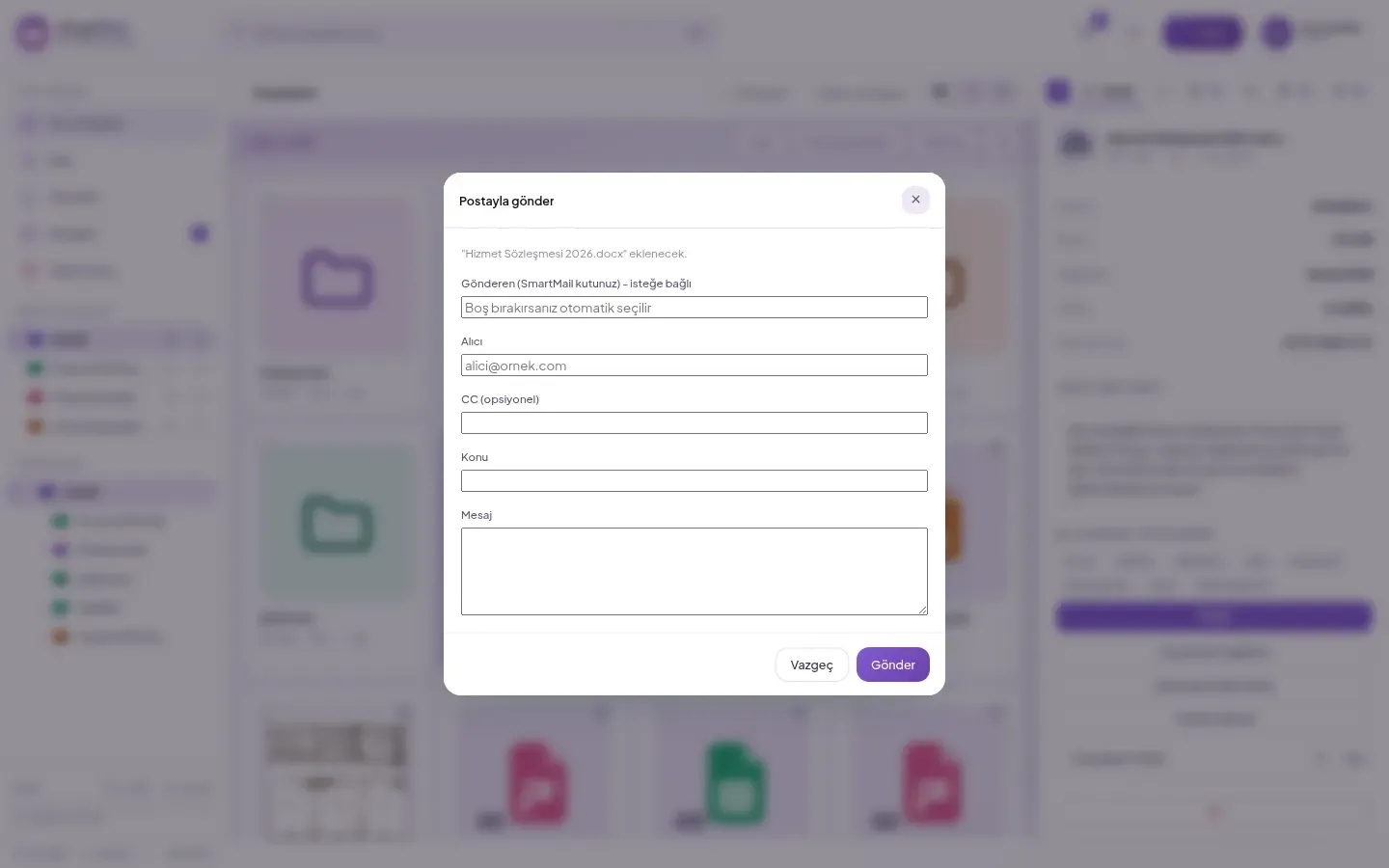
Select the files you want to send and click Send via Email.
Enter the email address in the Recipient field; fill in the CC (optional) field if necessary.
Choose which SmartMail mailbox it will go from, or leave blank.
Enter the Subject and Message and click Send.
The email appears in SmartMail's sent items folder; the send operation is also recorded in the area's activity history.
Frequently asked questions
Can SmartFiles be used without SmartMail?
Yes. SmartFiles is used as standalone enterprise file management; the feature to send files via email is enabled in organisations using SmartMail.
Which permissions are checked during sending?
In SmartFiles, read permission on the area where the file is located is required, along with send permission from the selected mailbox in SmartMail; if either is missing, sending is not performed and the reason is clearly stated.
How many files are sent at once?
A maximum of 10 files can be attached in a single submission. No permanent copy of the file is kept between products; the file is transferred to SmartMail via a short-lived link at the moment of sending.
Do you log in to each product with separate passwords?
No. SmartFiles and SmartMail open with the same DBLinx identity; employees and departments are defined once, and both products use the same permission structure.
How do email attachments come to SmartFiles?
In SmartMail, via 'Save to SmartFiles' on the attachment card; in the opened window, select an area where the person has write permission and optionally a folder. Closed folders for the person do not appear in the list.