Skip to content
Shared mailboxes

Shared mailbox management

Manage shared mailboxes such as info@ and muhasebe@ as a team; the mailbox password is not shared.

Administration · Assignment board
Assignment board: users and mailboxes side by side, with access relationships established between them by drag and drop
Single identity

Sign in to the shared mailbox without knowing the password

The employee signs in with their own DBLinx account; the system generates the mailbox password and stores it encrypted.

  • A user sees only the mailboxes opened to them
  • Password distribution and resetting are eliminated
  • Access is granted and removed from a single screen
Mailbox selector: corporate mailboxes assigned to the user and the view option that combines them all
Nine permissions

Who can do what, box by box

The same person writes a reply in one box and only reads in the other.

  • All permissions in a single matrix
  • Deletion and quarantine off in new assignment
  • Visible without a report
Administration · Permissions
Permission matrix: users in rows, nine permissions per mailbox in columns
Department

Mailbox is assigned to a person or a department

When a person is removed from the department, any access they gained through that route is automatically revoked.

  • Departments are defined once in DBLinx
  • An unassigned mailbox appears as a warning
  • Users without a mailbox are also highlighted
Administration · Departments
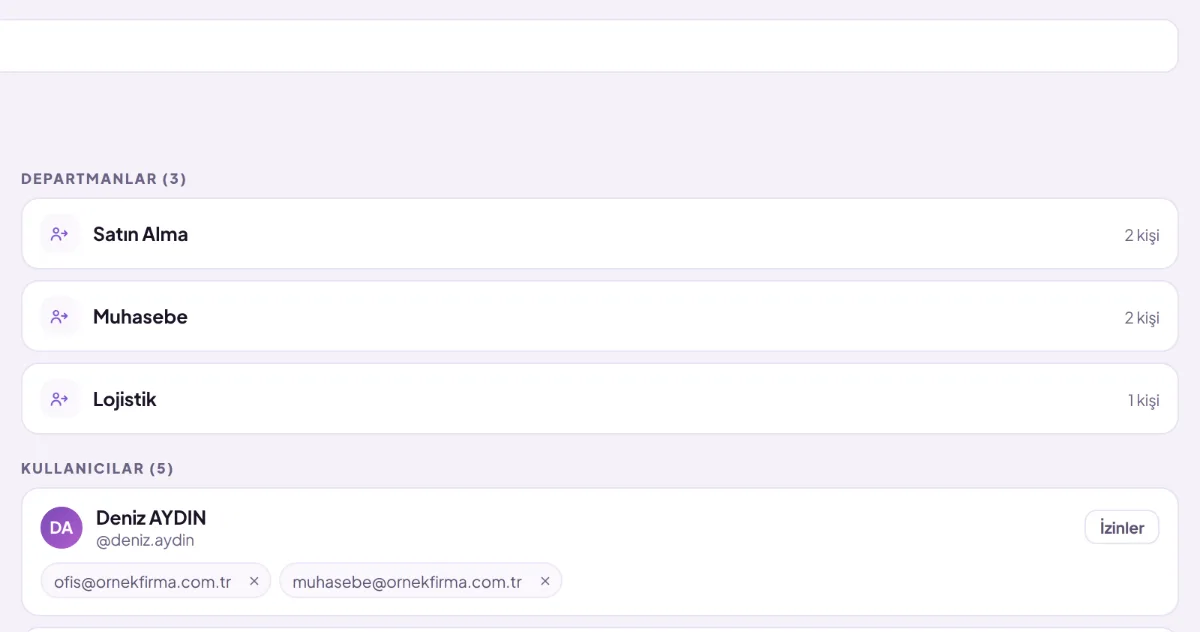
Department assignment: the mailbox is assigned to a department, and members access it through the department
Single list

All mailboxes in a single list

In the all mailboxes view, each row shows which mailbox the email arrived in.

  • The same correspondence is grouped into a conversation
  • The list is divided into headings by day
  • Search scans all folders at once
smartmail.com.tr/demo
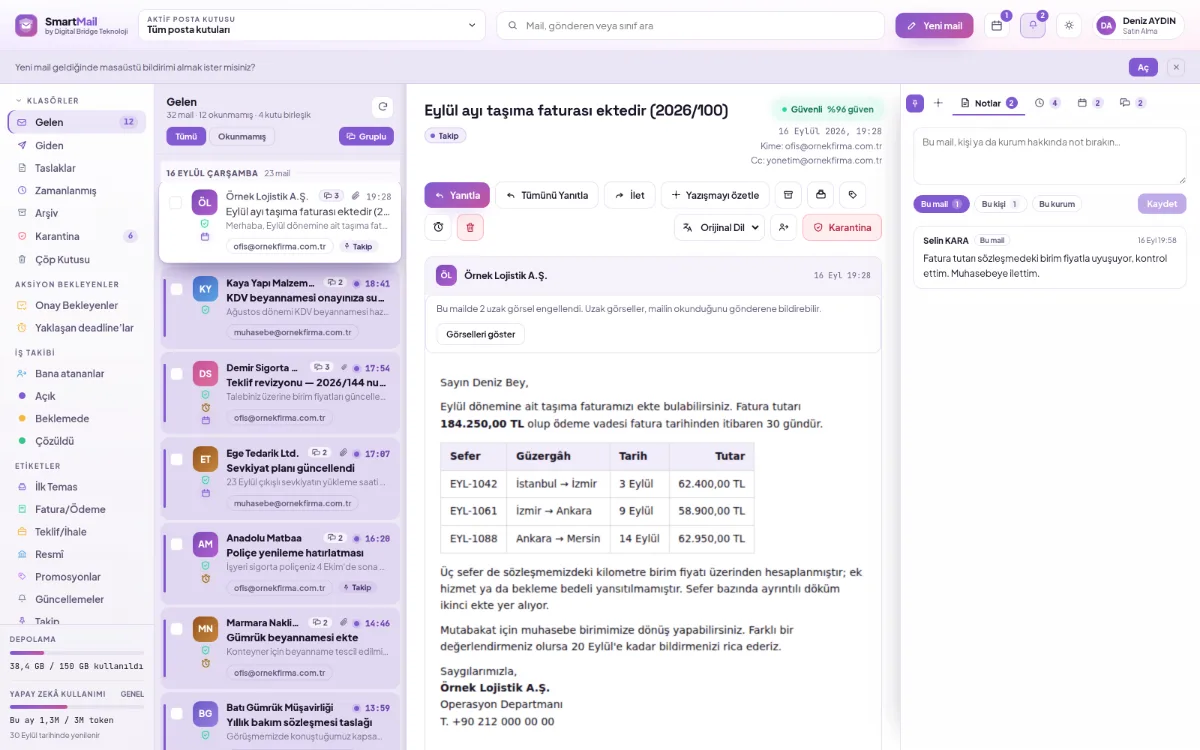
SmartMail dashboard: folders and content types on the left, shared mailbox email list in the centre, opened email on the right
Team

The question “Who looked at this email?” disappears

Who read, tagged, left a note: in the activity history next to the email.

  • Internal note not sent to the recipient
  • Drawing attention without forwarding the email
  • A note is linked to an email, person or organization
Team collaboration
smartmail.com.tr/demo
The Notes tab on the right of the dashboard: a team note that sits alongside the email and is not sent to the recipient

Mailbox lifecycle

New mailbox

The part before @ and the mailbox name are enough; the domain comes from the plan and the system generates the password.

Deactivation

Temporary and reversible; synchronization stops, data is preserved.

Central signature

The administrator sets the signature for each mailbox, so the organization's language is kept consistent.

Distribution lists

Frequently used recipient groups are defined once company-wide.

Storage

Usage is tracked per mailbox; what is taking up space is visible.

Domain

The domain with which the mailbox is opened is selected when the mailbox is opened.

How to do it

Step by step

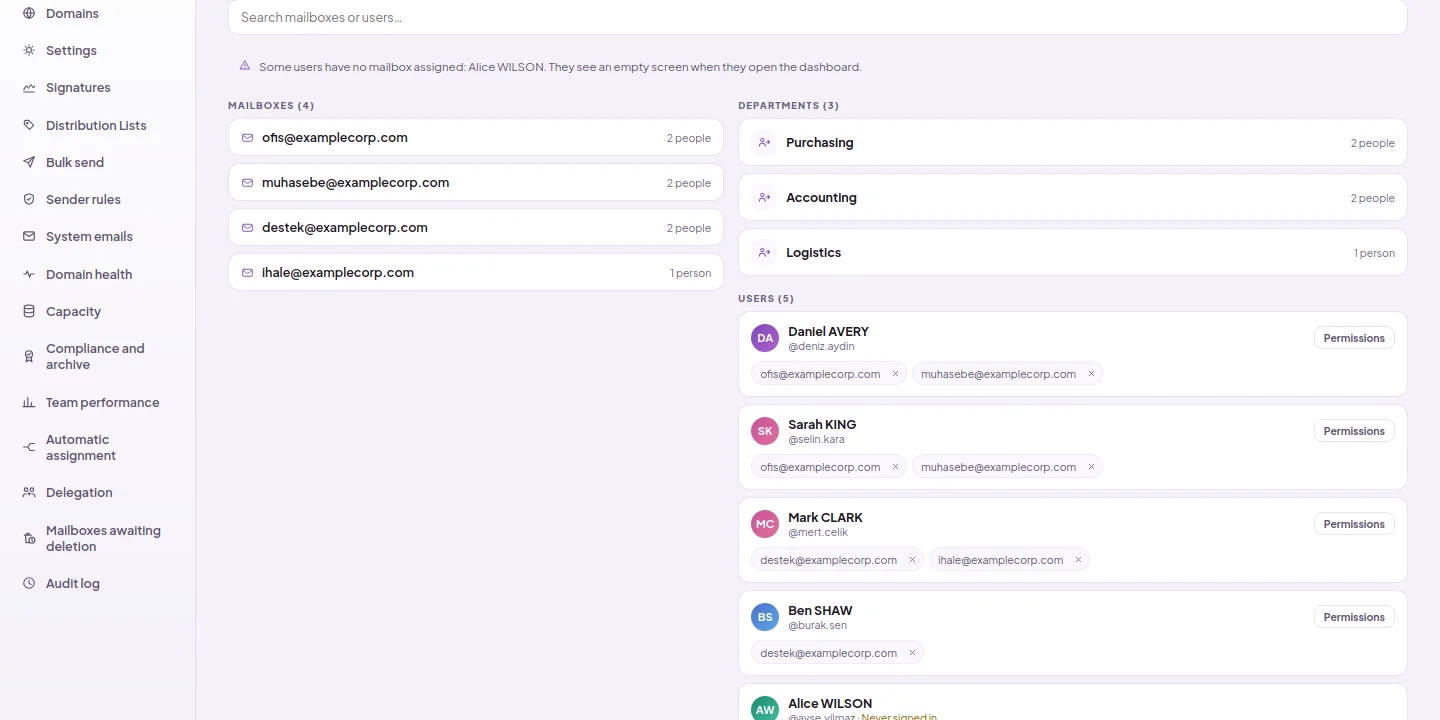
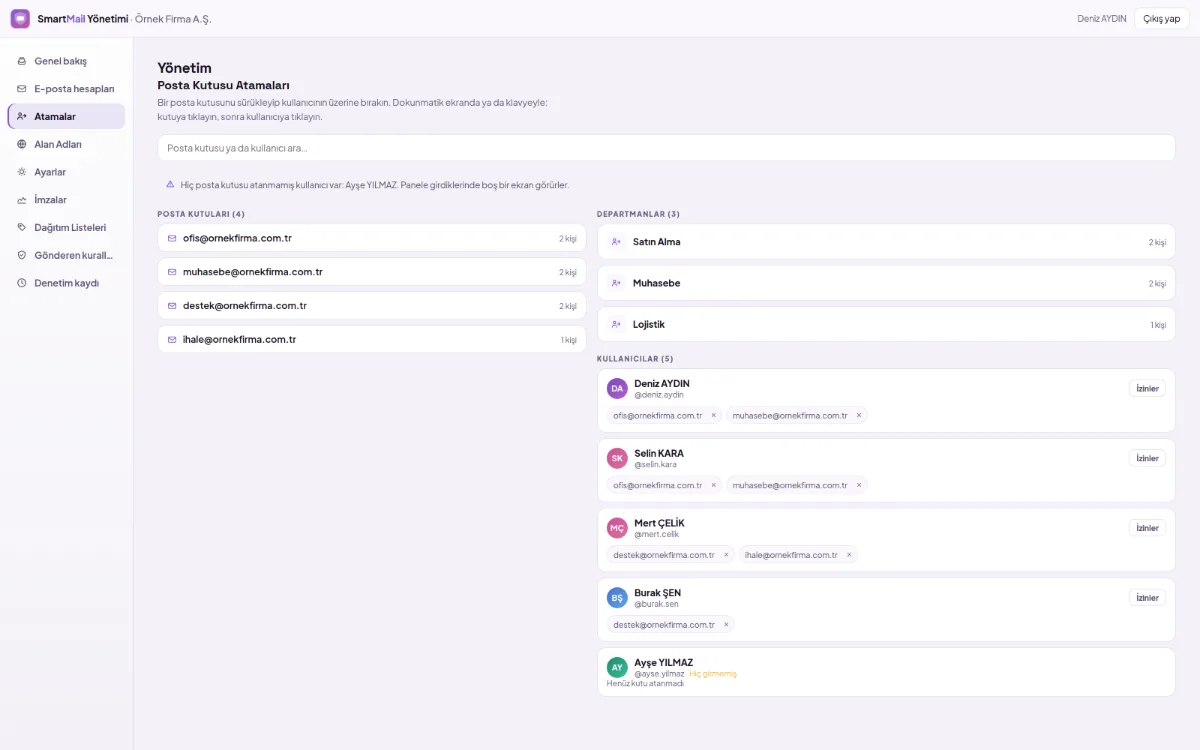
Mailbox assignments: mailboxes on the left, departments and users on the right; assigned mailboxes on user cards

Assigning the mailbox to people and departments

  1. Open Assignments from the menu on the left. Mailboxes are listed on the left, departments and users on the right; next to the mailboxes it shows how many people have access.
  2. Hold the mailbox you want to assign from the left column.
  3. Assign the mailbox to a department: everyone in the department at that time gains access. To give it to only one person, assign the mailbox to that person's card.
  4. To set what the person can do in this mailbox, click Permissions on their card.
The entire document
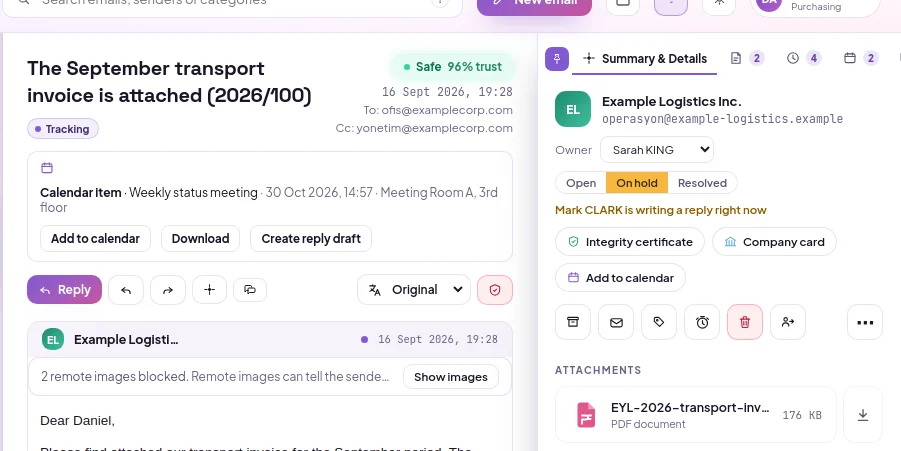
Task tracking on the reading pane: owner selection, Open / Pending / Resolved status and the teammate currently writing a reply

Assigning an owner and status to the mail (work tracking)

  1. Open the incoming email. Owner and status buttons appear below the subject.
  2. Select a person from the owner list or select Assign to Me. Only people who can see this box are in the list.
  3. Mark the status as Open, Pending, or Resolved; if you click the selected status again, the status is removed. If someone else is currently replying to the same email, it will appear on this line.
The entire document

FAQs

Do employees have to know the shared mailbox password?

Employees sign in to the shared mailbox with their own DBLinx credentials; they do not need to know the mailbox password. The system generates the password and stores it encrypted. Access is granted and removed from a single screen.

Can read-only permission be given to a person?

Yes. For each person, nine permissions are enabled or disabled separately in each mailbox: viewing, writing and sending, deleting, labelling, quarantine, AI re-interpretation, AI chat, adding notes, flagging. Delete and quarantine permissions come disabled on new assignment.

What happens when an employee leaves?

Access is removed from a single screen; if the mailbox is assigned to a department, it is enough for the person to leave the department and access is revoked automatically. Scheduled emails they set up do not go out on behalf of the organization because access is re-checked at send time; they remain in the list with the reason.

All questions

Let's plan SmartMail for your organization

Select the number of mailboxes and start now. Migration and analysis of your old emails are free during the initial setup.

  • Nine permissions per mailbox
  • Reasoned analysis in every email
  • Same rules on web and mobile