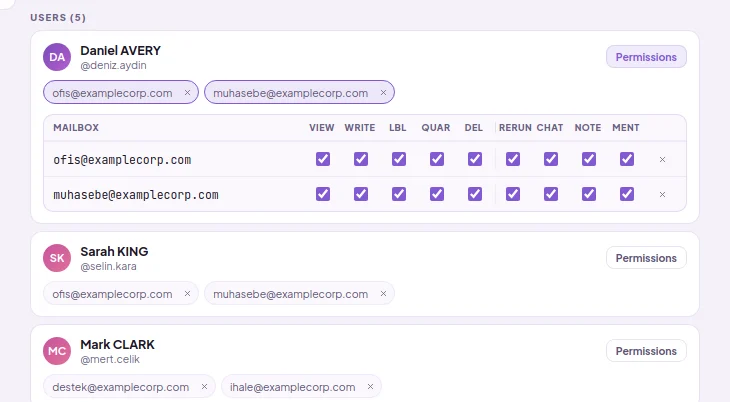
Open Assignments from the left-hand menu and click Permissions on the person's card. A table opens below the card: rows are the person's mailboxes, columns are permissions.
Click the checkbox at the intersection of the mailbox and permission you want to change. The change is saved immediately; you do not need to save separately.
To completely remove a person's access to a mailbox, click the × at the end of the row.
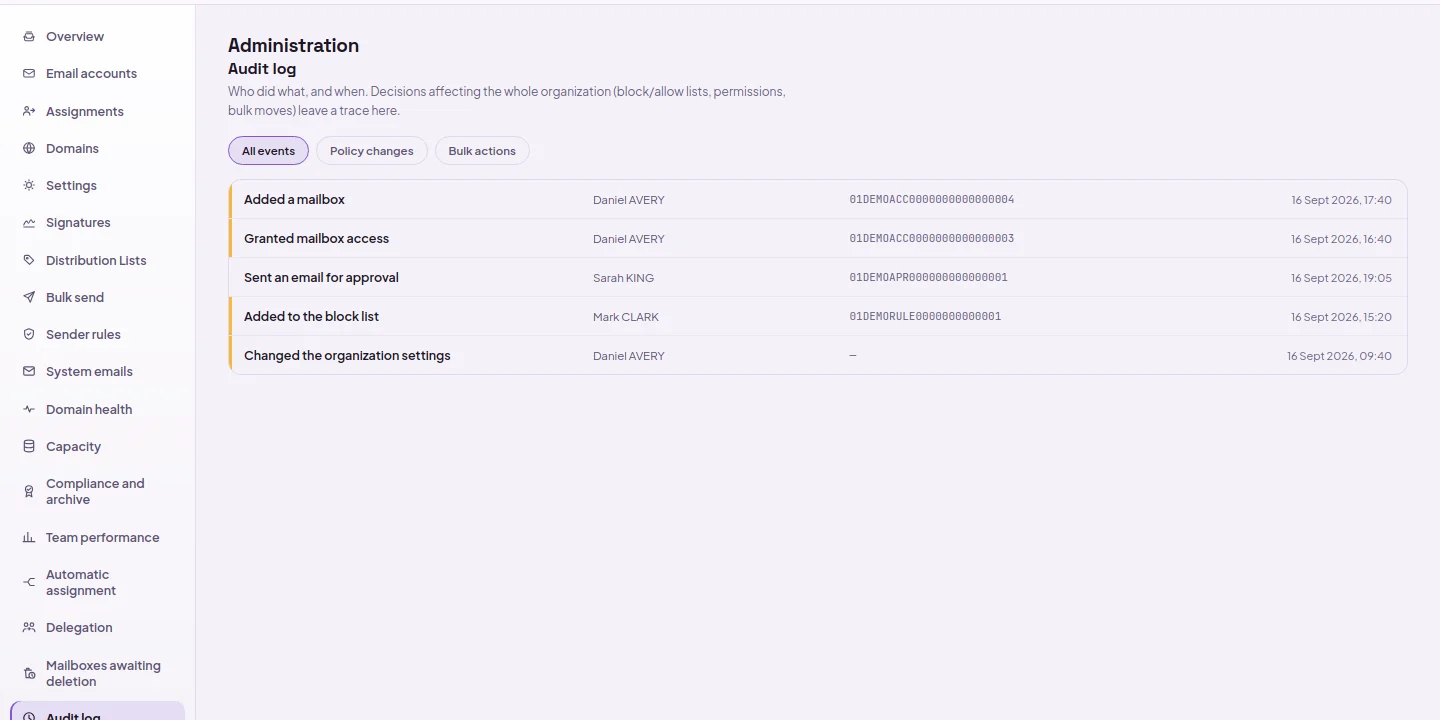
Open Audit log from the left-hand menu. The most recent actions are at the top.
To see only organization-wide rule and permission changes, click Policy changes; for operations affecting many emails at once, click Bulk operations. To return to all, select All events.
Read the name of the operation, the person who performed it, and the date in the row. For bulk operations, it also states how many emails were affected.
For older records, click Older records at the end of the list.
Yes. For each person, nine permissions are enabled or disabled separately in each mailbox: viewing, writing and sending, deleting, labelling, quarantine, AI re-interpretation, AI chat, adding notes, flagging. Delete and quarantine permissions come disabled on new assignment.
Can you see afterwards who did what?
Yes, from two places. The per-email activity log shows who read, labelled, added a note to and replied to it and when. The audit log on the admin side, on the other hand, records operations such as opening a mailbox, granting access, changing settings and sending for approval with the actor, time and IP address. Approval decisions are also written to the request's history with their date and time.