Skip to content
Email security

Email security: every email is measured, its rationale is recorded

Email below the trust threshold is quarantined; every action is logged.

Quarantine
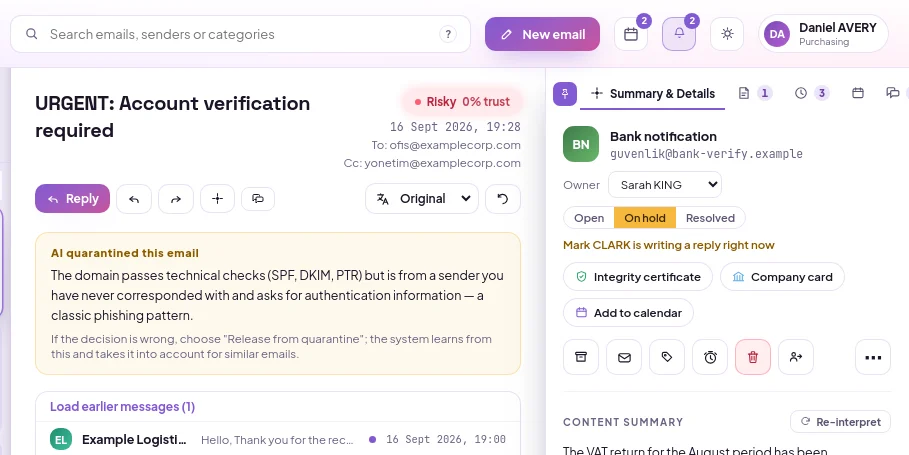
A quarantined email opened: the reason that brought the email to quarantine and the release option
Authentication

SmartMail calculates SPF, DKIM and DMARC itself

A result written by another server that the email passed through in transit cannot be trusted.

  • PTR record and forward validation
  • The domain's DNS records are queried directly
  • The result is always visible, independent of AI
Analysis of a safe email: high trust percentage, passed protocol checks and positive findings
Phishing

Impersonation is caught by following the address trail

Similar domain, display name, reply address, and link are measured separately.

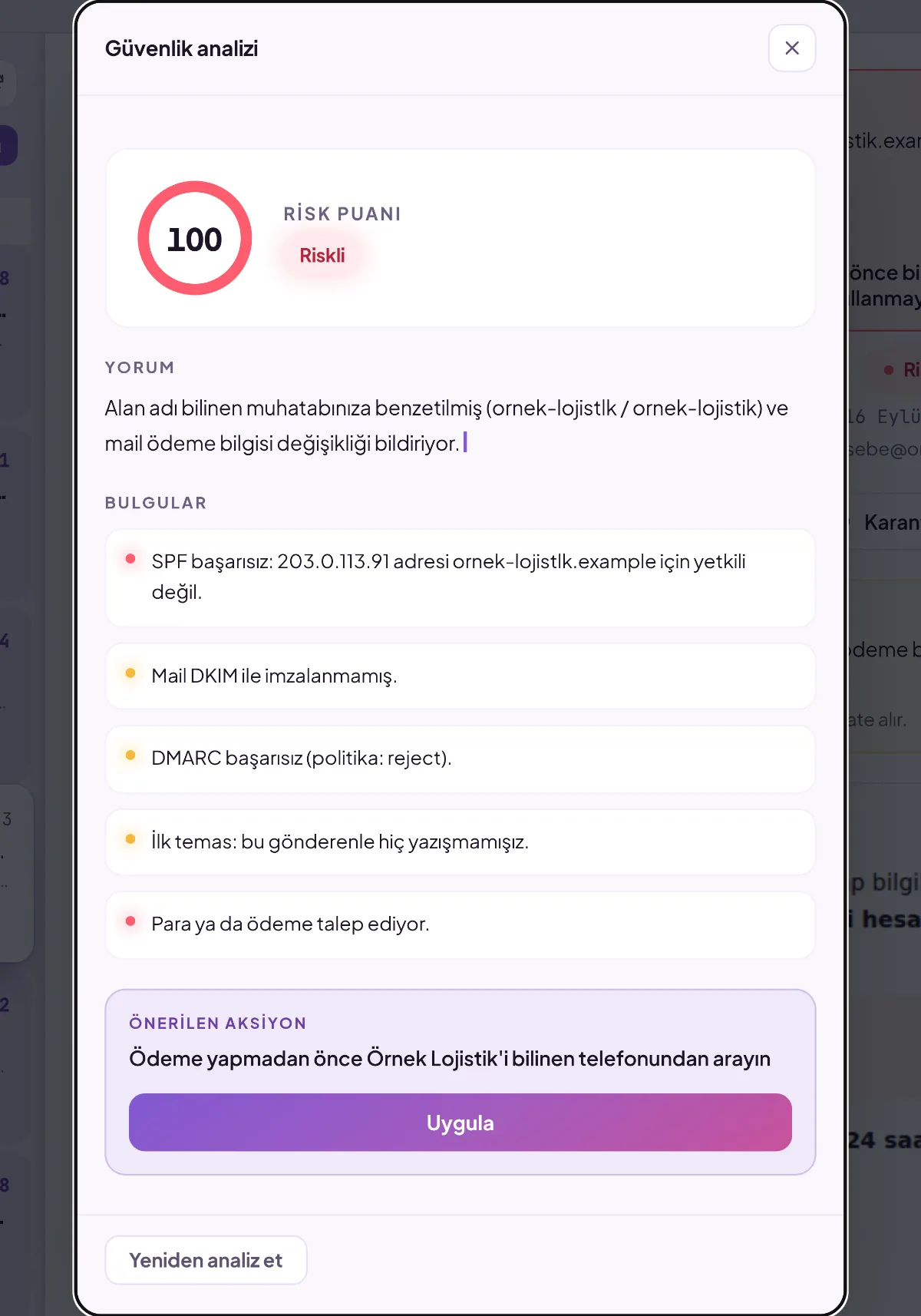
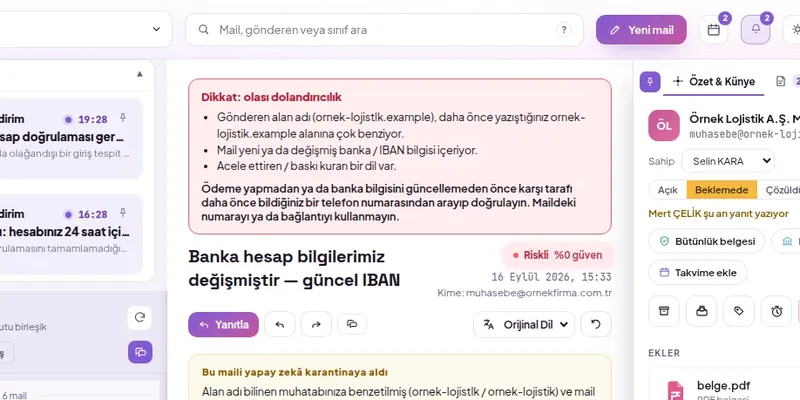
  • the difference between ornek-lojistlk and ornek-lojistik is highlighted
  • An email whose display name says the organization and whose address says someone else
  • A link whose text differs from its destination is considered misleading
Analysis of a risky email: 74 risk score, risky label, and findings regarding payment changes with similar domain names.
Quarantine

Emails below the threshold do not land in the mailbox

It is not deleted; it remains in a separate folder together with its reason.

  • A user with quarantine permission releases it
  • Permanent decision for sender or domain name
  • Corrections are included in the next evaluation
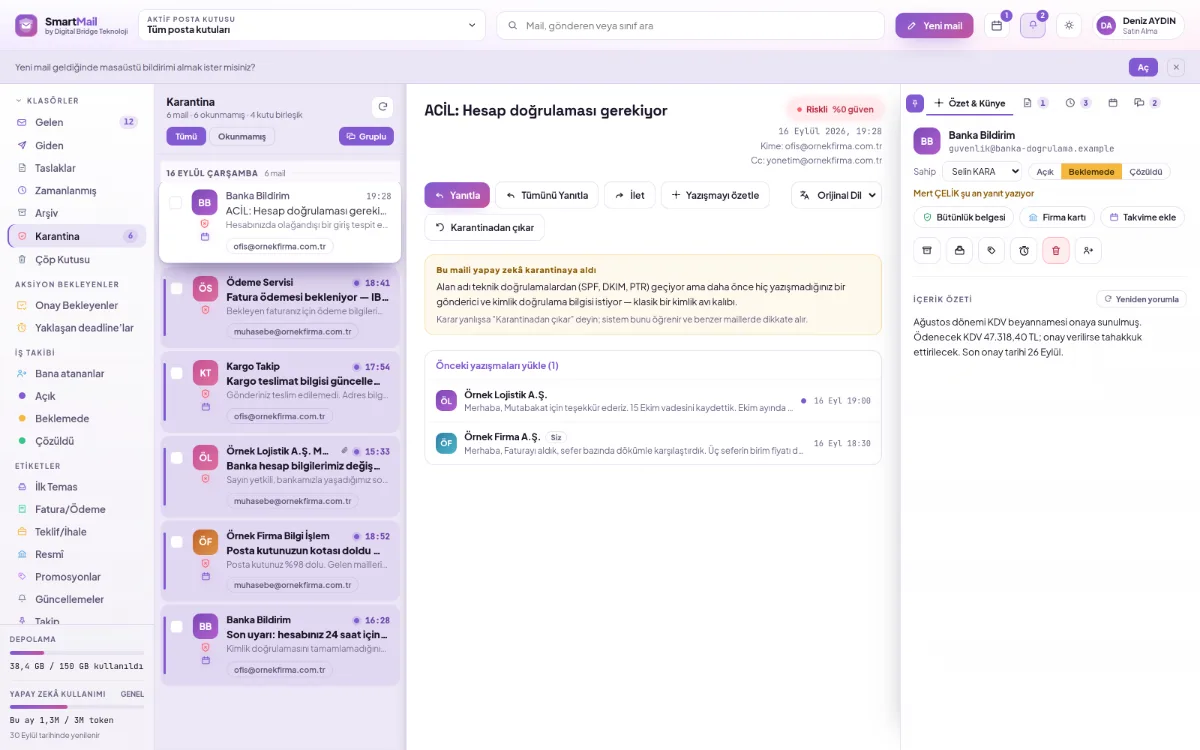
Quarantined emails list: sender, subject and reason for quarantine in each row
Threshold

See the result before changing the threshold

Emails affected by the new threshold are listed before saving.

  • The company administrator sets the threshold
  • If desired, it is also applied to existing emails in the mailbox
  • The administrator's explicit rules come before every prediction
Administration · Settings
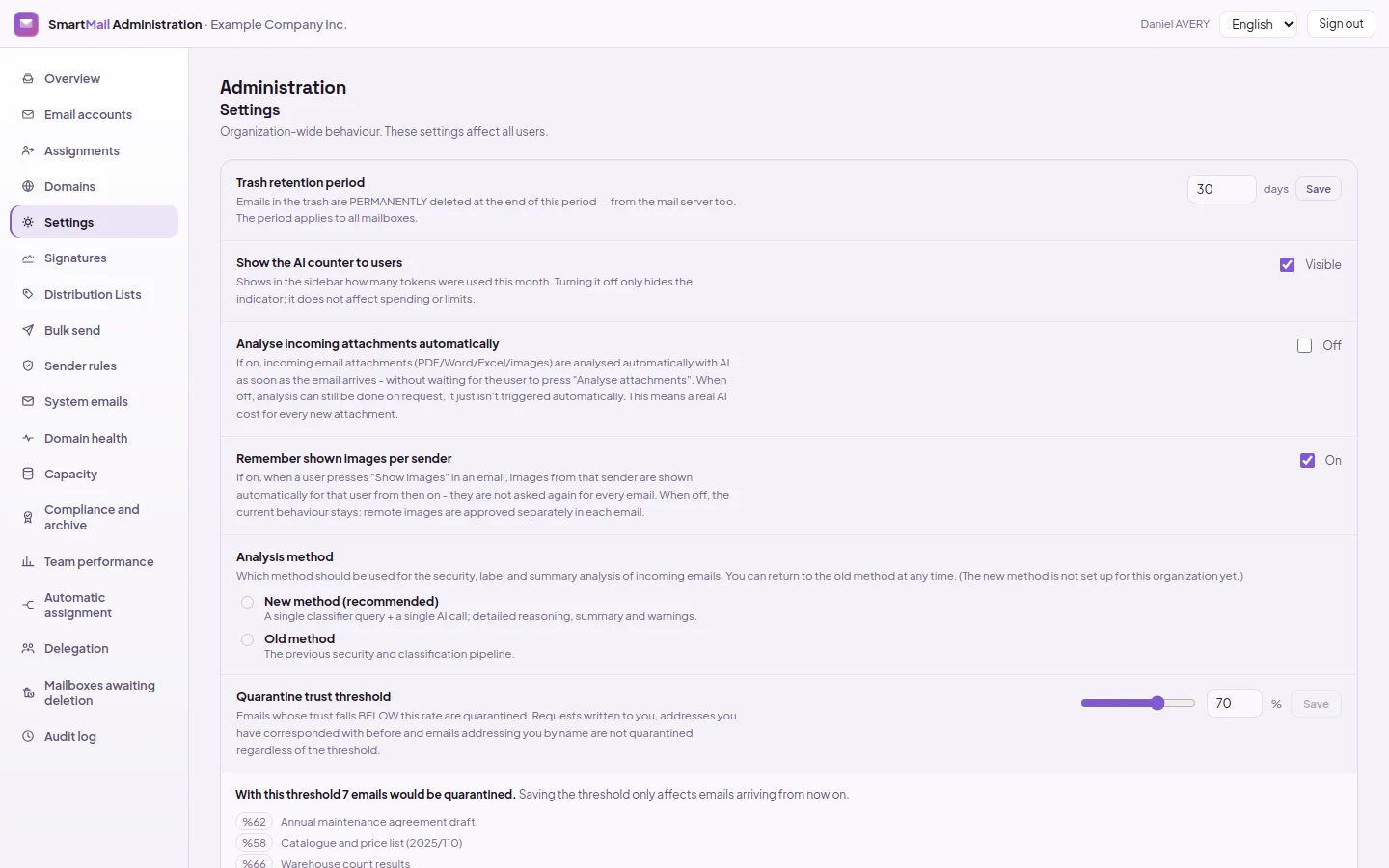
Quarantine threshold settings screen: the threshold value and a preview of the emails this value will affect
Privacy

When the email is opened, the sender does not learn this

Remote images are blocked by default; displaying them is the user's decision.

  • The body is displayed in an isolated frame
  • Cannot access the hidden script panel
  • Misleading link is also flagged
Banner in the mail reader stating that remote images are blocked, and a Show images button

Beyond incoming email

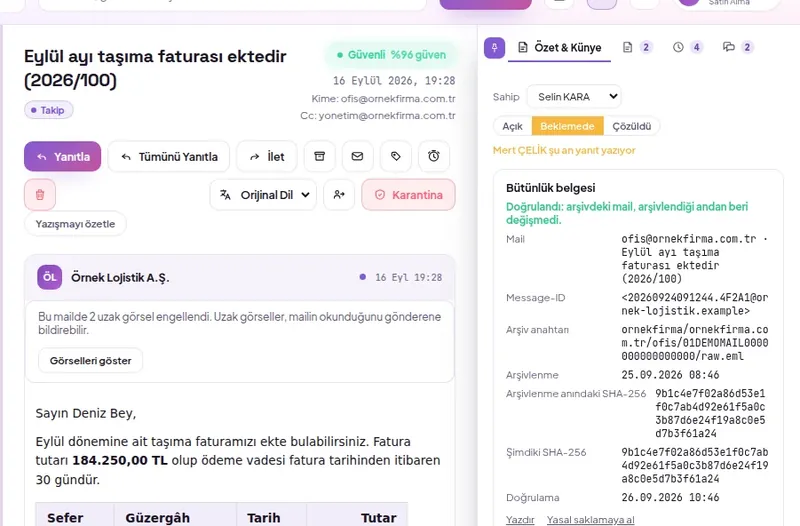
Integrity document

Integrity document

Every email is archived with its SHA-256 hash; at that moment, it is re-verified as unchanged.

Send securely

Send securely

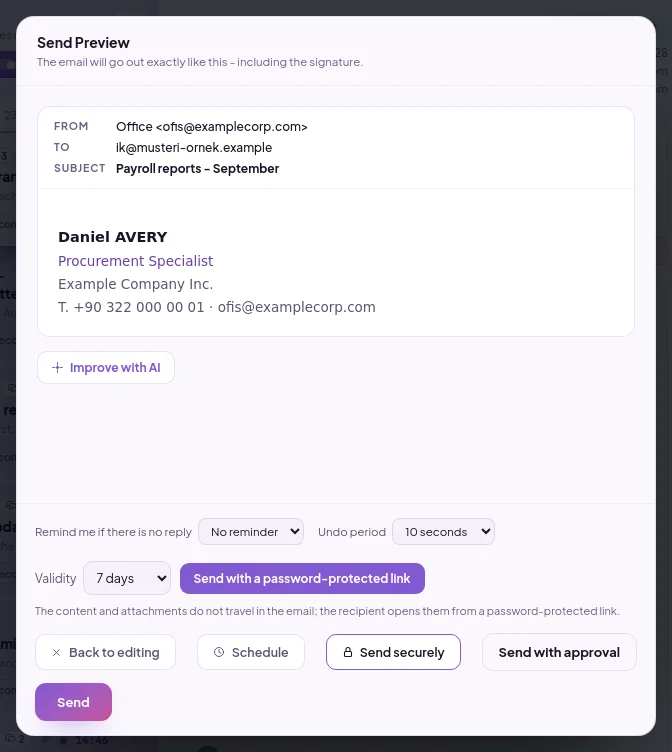
Content and attachments do not go to the recipient's mailbox; only a link valid for 1-30 days is sent.

Fraud warning

IBAN change

Fraudulent supplier indicators are assessed together and flagged with a warning reason.

Audit log

Every action with person, time and IP; automatic quarantine as “System”.

Company-level isolation

Each company's data resides in its own isolated space and is not visible to anyone else.

Same reason on mobile

The risky badge and warnings are visible on the phone with the same justification.

How to do it

Step by step

A quarantined email: risky security badge next to the sender name and Remove from quarantine button

Reviewing and releasing a quarantined email

  1. Open the Quarantine folder on the left and click the email you want to review. The quarantine reason appears above the email; for details, click the badge next to the sender name.
  2. If the email is trustworthy, click 'Release from Quarantine'.
The entire document
Quarantine confidence threshold: slider, percentage box, preview of emails to be quarantined at this threshold, and Apply to existing emails button

Setting the quarantine confidence threshold

  1. Open Settings from the left-hand menu and go to the Quarantine trust threshold row.
  2. Drag the slider or enter a percentage in the box next to it. The higher the threshold, the more emails are quarantined.
  3. Read the preview appearing at the bottom. The line "With this threshold... emails are quarantined" and example email subjects show the impact of the threshold on emails in the inbox.
  4. Save the threshold with Save in the row. The saved threshold affects emails received from then on.
  5. If you also want to apply the threshold to emails already in the inbox, click Apply to existing emails and select Yes, apply in the confirmation that opens.
The entire document

FAQs

How does SmartMail detect phishing emails?

The sender is verified with SPF, DKIM, DMARC, and PTR records; similar domain names, impersonation with international characters, display name and brand impersonation, reply address, and link inconsistencies are measured separately. The entire text is evaluated by AI and the result is written with justification.

Is a quarantined email deleted?

The quarantined email is preserved: it stays in a separate folder together with the reason for quarantine and can be released by a user with quarantine permission. These corrections are saved and taken into account in subsequent evaluations.

Can the quarantine threshold be changed?

Yes. The company administrator sets the threshold. Which emails the new threshold will affect is listed before saving, and if desired it is also applied to existing emails in the mailbox.

All questions

Let's plan SmartMail for your organization

Select the number of mailboxes and start now. Migration and analysis of your old emails are free during the initial setup.

  • Nine permissions per mailbox
  • Reasoned analysis in every email
  • Same rules on web and mobile