Skip to content
Send control

Email approval flow: decision before sending

Mail sent on behalf of the organization first goes through the approval of selected colleagues.

Pending approval
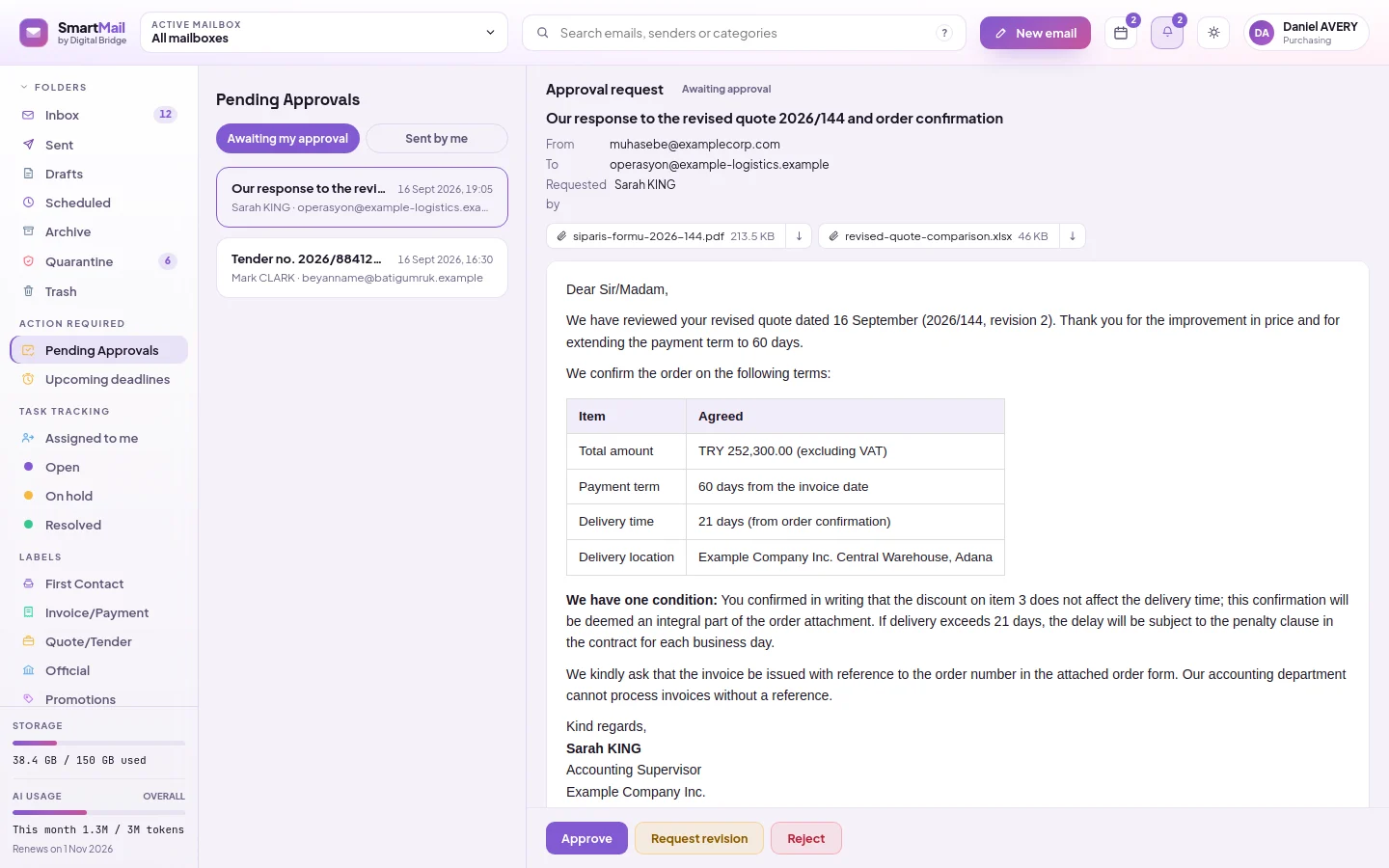
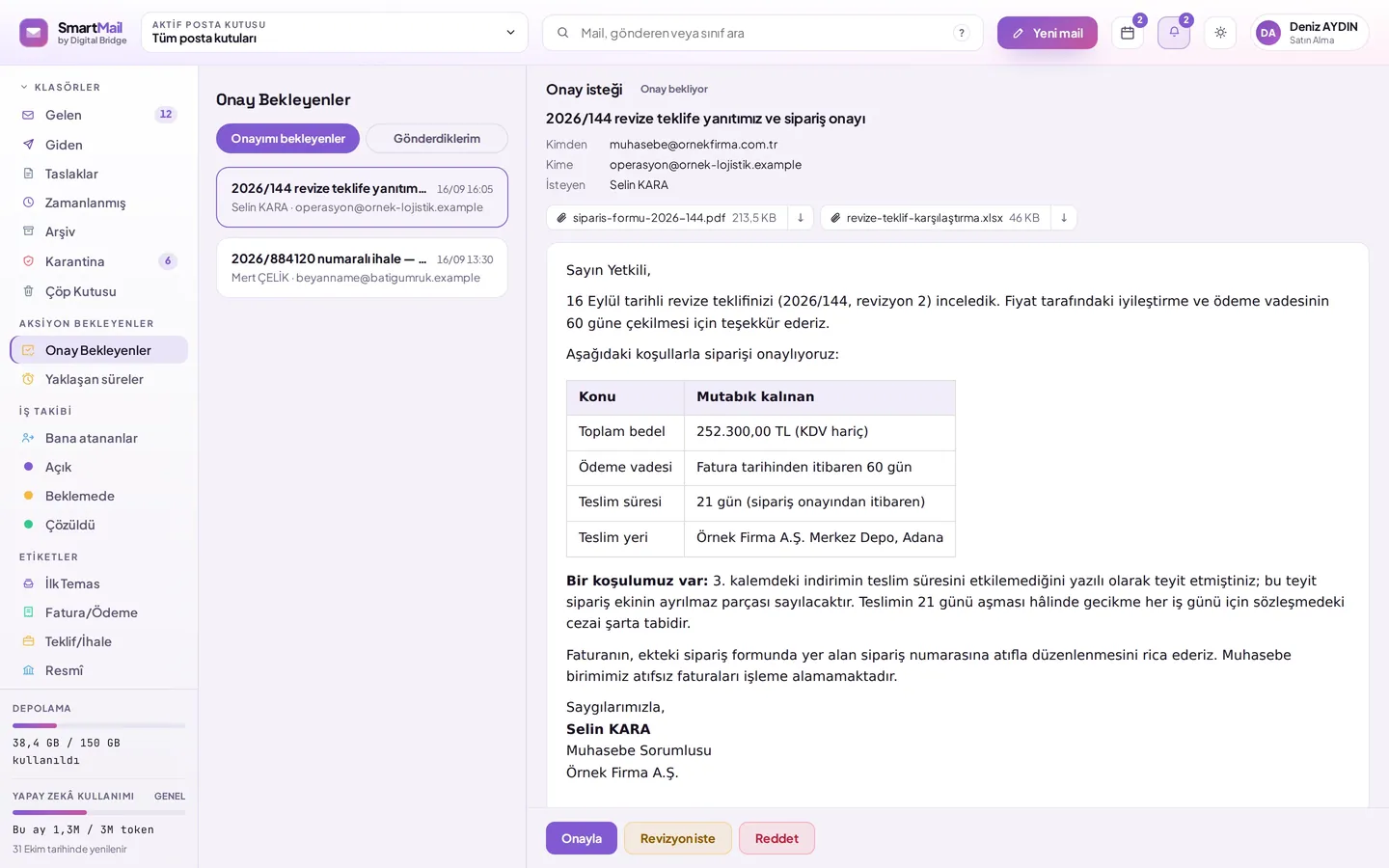
SmartMail approval request: from, to, attachments, body and decision buttons
Start

The person writing the email initiates approval

Instead of "Send," "Approved send" is selected; approvers are marked from the list.

  • One or more approvers
  • “any one” or “all” rule
  • Daily correspondence does not slow down
smartmail.com.tr/demo
Mail compose screen: approved send option and approver selection
List

Pending work does not get lost in the stack

Items awaiting my approval and items I have sent for approval are in separate tabs.

  • The person making the decision sees their work in one place
  • A request that cannot be completed is also notified.
  • If the approver has left, the request does not wait silently
Pending approval
Pending approval list: those awaiting my approval and those I sent for approval are in separate tabs
Revision

Saying “it didn’t happen” is not enough

It is mandatory to write what needs to change when requesting a revision.

  • The request is returned to the sender with its text
  • The corrected email is resubmitted for approval
  • Every step in the request history
Approval request
Revision request: mandatory text field stating what needs to change.
Record

Every decision with its date and time

Sending for approval, approval, revision and rejection are written to the request history.

  • Even months later, it is clear whose approval it was sent with
  • Not dependent on anyone's memory
Approval request history: who sent it for approval and when, and the decision steps with date and time
Scheduling

Access is rechecked for scheduled email

If access has been removed in the meantime, the email is not sent and the reason is recorded.

  • Cancel until send time
  • A departing employee's email does not go out in the organization's name
Scheduled
Scheduled emails list: emails awaiting their sending time and the cancel option

Other safeguards in sending

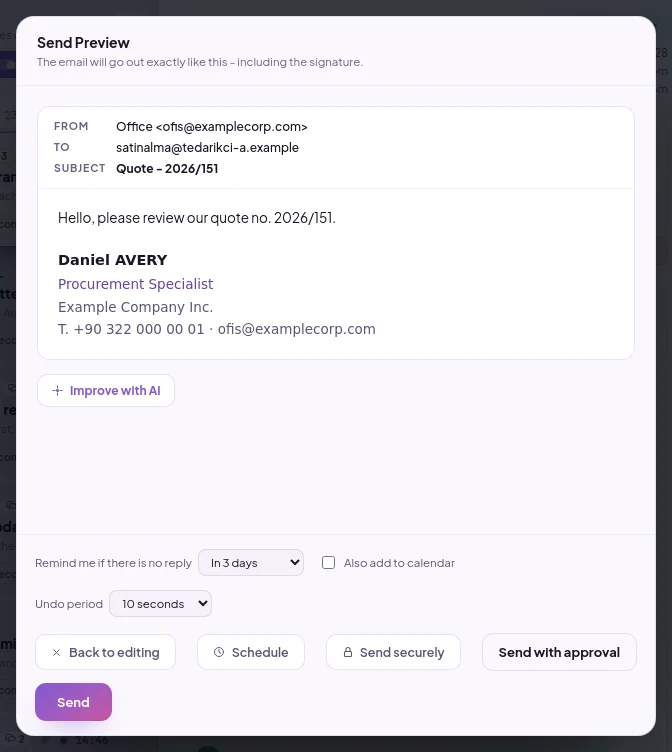
Mobile send preview

Send preview

The mail is shown one last time as the recipient will see it, including the corporate signature.

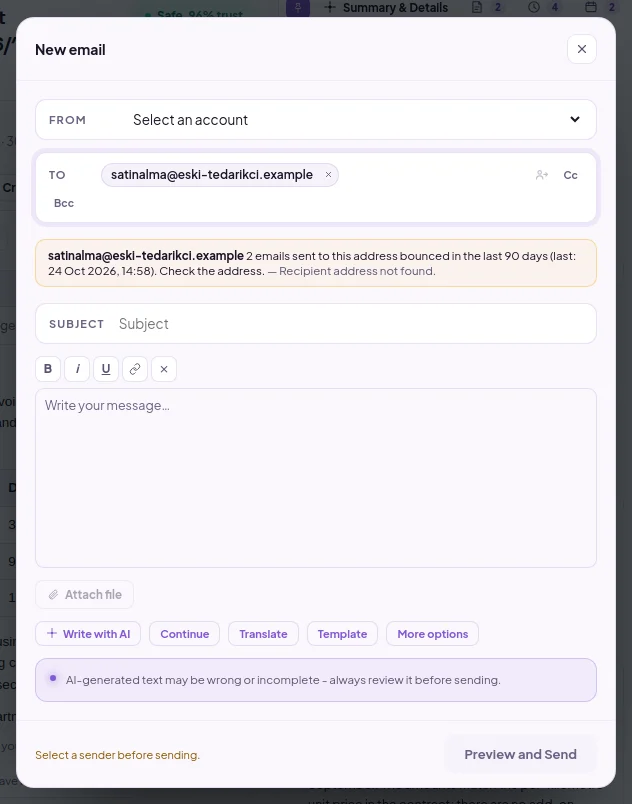
Return address warning

Return address

A recipient who has returned in the last 90 days appears with the reason on the compose screen.

Remind if no reply

Remind if no reply

1 day, 3 days or 1 week; if a response arrives, the reminder is removed.

Large file link

A file exceeding 25 MB, up to 250 MB, is converted into a secure download link.

Delivery report

If the receiving server did not accept it, a warning appears; it is resent with one click.

Automatic draft

While the mail is being written, it is automatically saved as a draft.

How to do it

Step by step

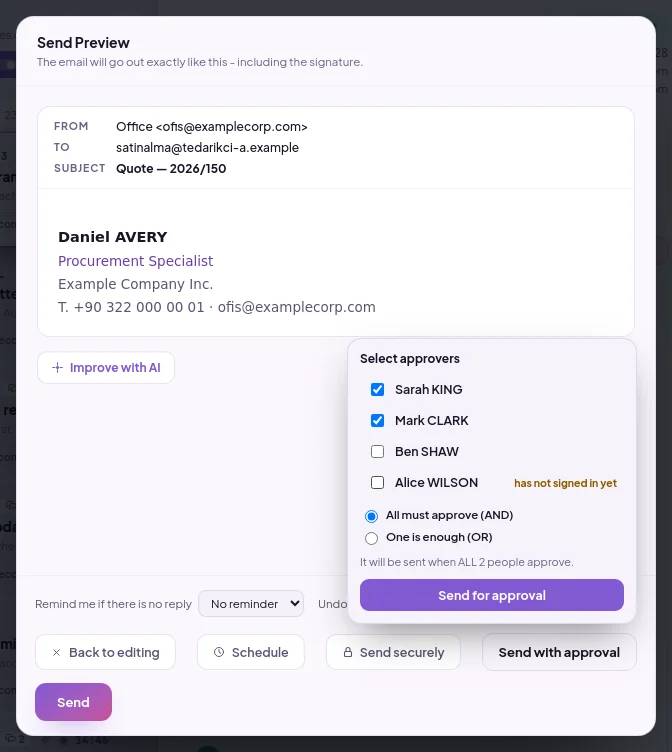
Send with approval: the list where approvers are selected and the All must approve / One is enough choice

Submitting the email for approval

  1. Write the email and click Preview and Send, then click Send with approval.
  2. Select one or more people from the Select approvers list.
  3. If you selected multiple people, choose All must approve (AND) or One is enough (OR). The line below summarises when the email will be sent.
  4. Click Send for approval.
The entire document
Pending approval: mails awaiting your approval on the left; on the right, the content and attachments of the selected mail and the Approve, Request revision and Reject buttons

Approve the email submitted for your approval or request a revision

  1. Open Pending Approvals from the left; the Awaiting my approval tab is selected by default.
  2. Click the desired item in the list. On the right, the email text, recipients and attachments are shown; you can open attachments with Preview or Download.
  3. If the mail is appropriate, click Approve.
  4. If a change is needed, click Request revision, write your request in the What should change? field and select Send revision request. To not send the email at all, click Reject; if you wish, write a short reason.
The entire document

FAQs

Is the approval flow mandatory?

The approval flow is optional; the user starts it themselves with "Send for approval" for whichever mail they deem necessary. The mail is submitted to one or more approvers and the "any one" or "all" rule is selected.

What happens when an employee leaves?

Access is removed from a single screen; if the mailbox is assigned to a department, it is enough for the person to leave the department and access is revoked automatically. Scheduled emails they set up do not go out on behalf of the organization because access is re-checked at send time; they remain in the list with the reason.

All questions

Let's plan SmartMail for your organization

Select the number of mailboxes and start now. Migration and analysis of your old emails are free during the initial setup.

  • Nine permissions per mailbox
  • Reasoned analysis in every email
  • Same rules on web and mobile