
Domain and DNS setup
The DBLinx team sets up and verifies SPF, DKIM, DMARC and MTA-STS records; DMARC reports are collected automatically, and you monitor them from the dashboard.
How to set up a domain for corporate email?
The DBLinx team manages the connection of your domain to SmartMail:
- You provide us with the domain name you want to use.
- Your existing mail records are read and compared with the requirements.
- The required records are prepared; they are added together with whoever manages your DNS.
- When the records are verified, the domain becomes active and appears in your dashboard.
Setup begins with a comparison: your current mail records are read, and it is determined one by one which record is correct and which is missing or carries a different value. If your DNS is managed by a service provider or an IT team, the records are sent to them as a complete list; typing errors made when copying manually are prevented from the outset.
- Submit your domain5 domains can be connected to the plan.
- Records are readExisting records are compared with the requirements.
- Records are addedThe DBLinx team adds [records] with your DNS administrator.
- Active and visibleVerified domain is listed in your dashboard.
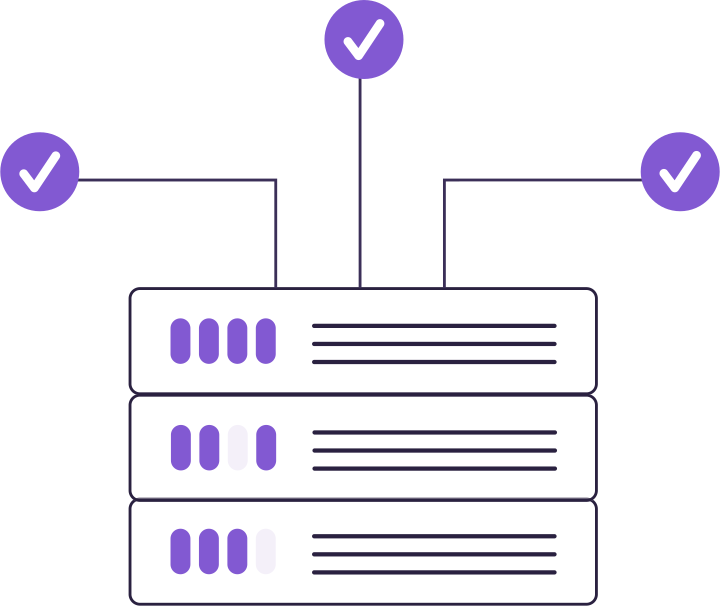
Which DNS records are required for corporate email?
Four records are mandatory for corporate email to be delivered and not land in the spam folder: MX, SPF, DKIM and DMARC. In addition, MTA-STS, which forces encryption in transit, TLS-RPT, which reports encryption problems, and records that enable mail clients to configure themselves automatically are recommended. The DBLinx team prepares each of them with an explanation.
| Record | Type | What is it for? | Requirement |
|---|---|---|---|
| MX | MX | Specifies which server incoming emails will be delivered to. | Required |
| SPF | TXT | Declares which servers may send email on your behalf; makes it harder for others to send on your behalf. | Required |
| DKIM | TXT | This is the verification key of the digital signature added to sent emails; it proves that the email has not been altered in transit. | Required |
| DMARC | TXT | It determines what the recipient server will do with emails that fail SPF and DKIM and where reports will be sent. | Required |
| MTA-STS | TXT + CNAME | Requires that incoming emails are transported between servers only over an encrypted connection. | Recommended |
| TLS-RPT | TXT | Specifies the address to report issues with encrypted delivery. | Recommended |
| Automatic configuration | CNAME + SRV | The IMAP/SMTP add-on service allows desktop and mobile email programs to automatically find server settings in mailboxes. | Recommended |
| Dashboard address | CNAME | If desired, the dashboard is accessed from your own subdomain; the security certificate is obtained on your behalf. | Optional |
The scope of setup is deliberately narrow. Your domain carries not only your email but also your website and other services; accidentally changing a website record while setting up mail would be an unacceptable side effect. That is why only mail-related records are read and added, and your other records are left untouched.
What is MTA-STS and how is it enabled in SmartMail?
MTA-STS is a policy that tells servers sending email to you "deliver to this address only over an encrypted and verified connection". It protects against interception attacks based on encryption being silently disabled in transit.
For the policy to work, it must be published at your mta-sts subdomain with a valid certificate. SmartMail handles this step for you: as soon as you add the mta-sts record to your DNS, the policy address is set up automatically together with its certificate. You do not need to manage servers, certificates or files on your side.
The TLS-RPT record, however, is complementary: sending servers that experience a problem with encrypted delivery report it, and problems become visible before your users notice them.
Where do DMARC reports go?
DMARC reports arrive at SmartMail's collector address, are automatically opened, converted into a readable format, and archived monthly. You do not need to open a separate report mailbox within the organization or fill your mailboxes with these reports.
DMARC aggregate reports summarize the emails seen by major internet mail providers on your behalf: which IP addresses attempted to send mail on your behalf, how many passed SPF and DKIM, and how many were rejected. These reports are the most direct evidence of whether your address is being spoofed by others.
Even if reports arrive in compressed formats, they are extracted; if the same report arrives twice, it is stored once. The record is deleted from the collector mailbox only after it has been safely written to the archive.
Can someone else add my domain to the system?
A domain is not permanently linked to anyone until its DNS records are verified. Every address added to the system is tracked; if the records are not completed within 48 hours, it is automatically removed from this account and remains available for the actual owner.
This rule closes a silent risk. Someone who enters an address they do not own into the system cannot receive mail because they cannot redirect DNS. But without the rule, they could block that address until its real owner applies. In SmartMail, ownership is based not on a declaration but on evidence in DNS. Once records are verified, monitoring ends.
Can multiple domains be managed in a single account?
Yes. The plan includes 5 domains added to the same SmartMail account (independent of the number of mailboxes; for more, contact support); for example, two separate company names or a brand and a corporate domain. One of these is marked as primary and new mailboxes are opened with it by default; when there are multiple addresses, which one to use is also selected when opening the mailbox.
Domains are added from the DBLinx dashboard. Pricing and add-on packs Plans appears on the page.
How incoming emails are checked after setup is complete email security, how mailboxes and permissions are managed mailbox permissions and audit log is explained on the page.
Step-by-step documents
Other sides of SmartMail
Shared mailboxes
Manage shared mailboxes as a team
Security
SPF, DKIM, DMARC and quarantine
Send control
Approval for mail sent on behalf of the organization
AI
Summary, attachment analysis, classification
Team collaboration
Internal note, mention, conversation thread
Administration
Mailboxes, nine permissions, audit log
Let's plan SmartMail for your organization
Select the number of mailboxes and start now. Migration and analysis of your old emails are free during the initial setup.
- Nine permissions per mailbox
- Reasoned analysis in every email
- Same rules on web and mobile