 Live support
Your team hands over with one click
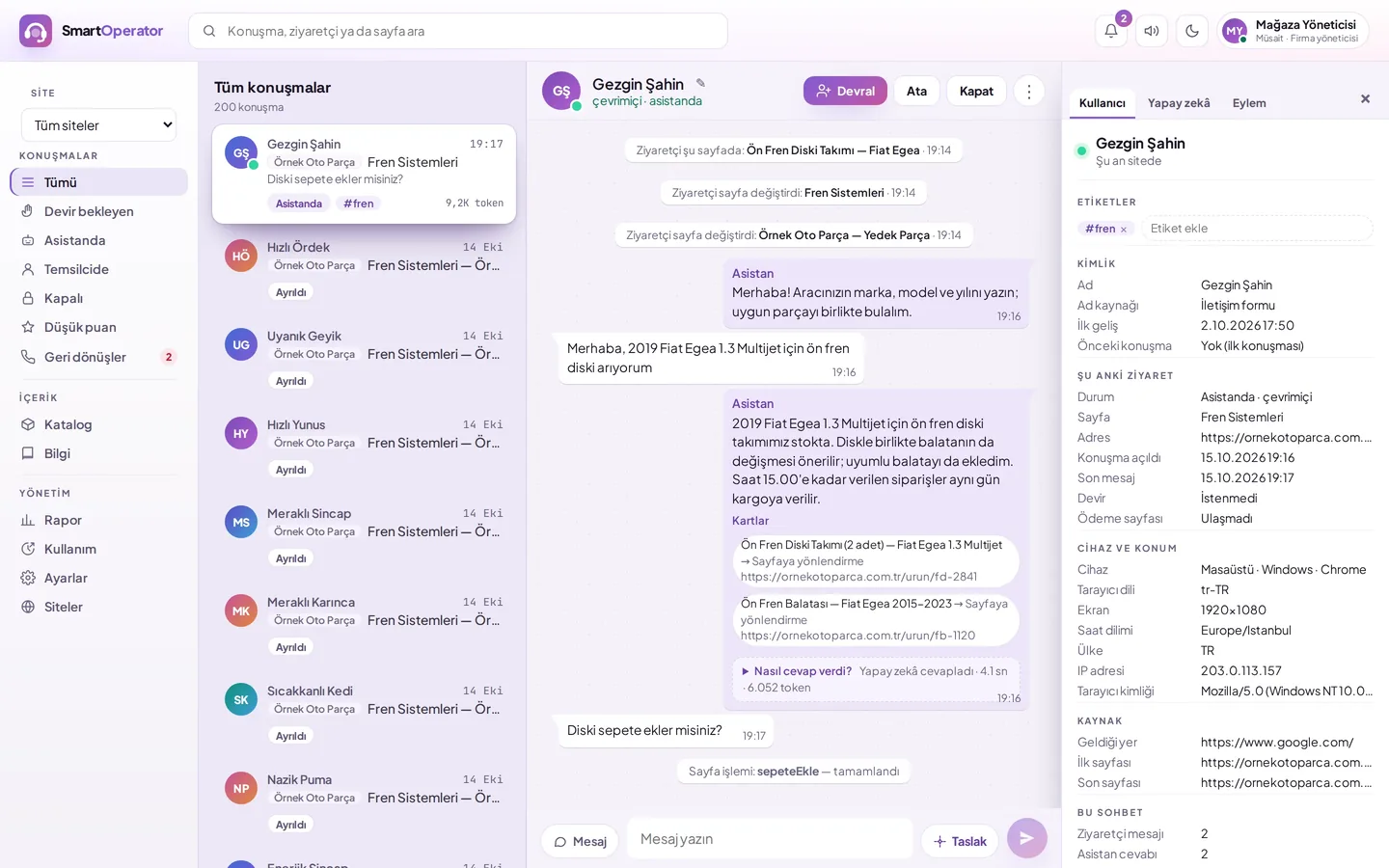
All conversations on one screen; when handed over, AI goes silent, and when released, it resumes where it left off.
- Live conversation list
- Reply drafts and canned responses
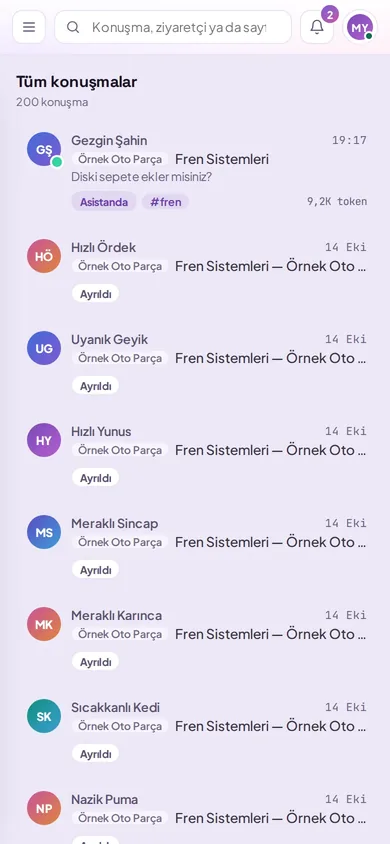
- Dashboard works on mobile too
Taking over a conversation
When a handover request arrives, take over the conversation with one click; write your part, and when done, return it to the assistant.
View notification
When a handover request arrives, the dashboard sends sound and desktop notifications; a badge appears in the list.
Take over
Click Take Over on the conversation title; a note indicating the representative has joined is shown to the visitor.
Write
Write using a reply draft or canned response; the visitor sees "Customer representative is typing…".
Return
When you’re done, return to Assistant; AI continues the conversation.
Take over, write, release
Conversations are filtered separately for assistant, representative, pending handover, and closed; unread messages show a badge.
- Visitor card: last 10 conversations
- Internal notes are not sent to the visitor or the model
- Filter by tag: #tag
Frequent phrases with one click
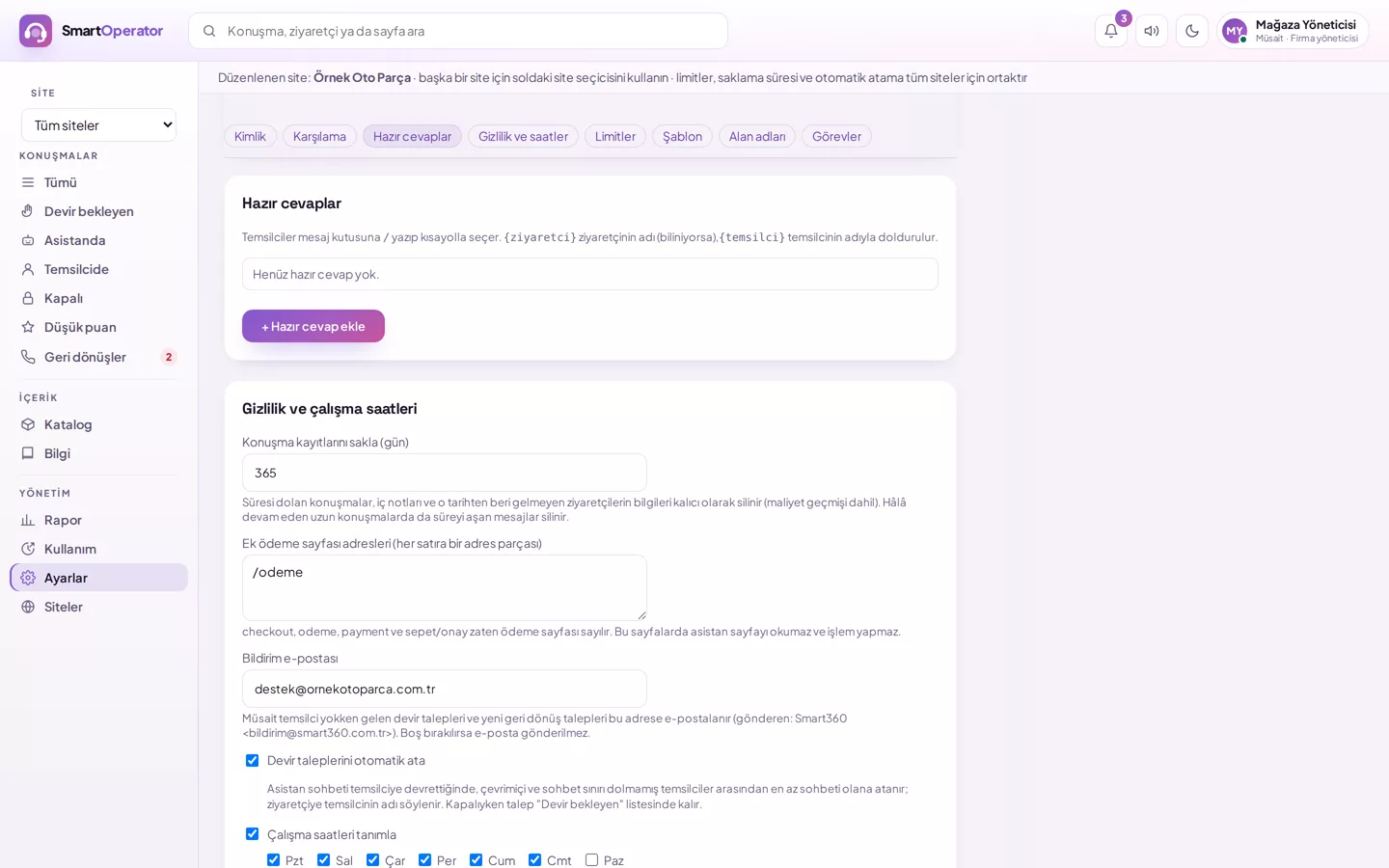
Select a quick reply in the message box using /; if the visitor’s name is known, it is automatically added to the response.
- Select via shortcut
- Response draft from AI
- Drafts are not sent to the visitor
According to your team’s structure
Assignment, capacity, automatic assignment and availability/busy status adapt to your support team's workflow.
Assignment
Chats are assigned to a team member; the assignee receives a notification.
Capacity
Maximum simultaneous chats per agent.
Automatic assignment
If enabled, transfers go to the available agent with the fewest active chats.
Available / Busy
Busy agents are excluded from automatic assignment.
Low score
Conversations scoring 3 or below are routed for transfer requests.
Visitor block
Nuisance visitors can be blocked via the dashboard.
Agent translation
Agents write in Turkish, while visitors read in their own language; visitor messages also appear translated into Turkish on the dashboard. Translation consumes AI tokens from your quota.
Invitation bubble
Show a short invitation in the visitor's own language to those browsing your page for a while; as no AI is used, there is no additional cost.
Unanswered queries
Questions the assistant cannot answer are grouped by similarity; you can move them to the knowledge base with one click and provide answers.
Handover summary
When an agent takes over a chat, they see a brief summary of what was requested and which products were shown; closed chats are reported by topic.
Phone calls
If your visitor wants to talk by phone, SmartOperator directs them to your number so they can call with a single tap; on a computer, it shows the number and the contact form.
When no one is online
The assistant displays a contact form; the request appears on the Callbacks screen. If a notification email address is configured, an email is also sent.
- New, Called, Completed
- Click-to-call and click-to-email
- One-click return to chat
Dashboard works on mobile too
Lists and conversations are split into separate screens; responses to transfer requests can be provided from the field.
- Log in with DBLinx ID
- Availability / Busy status
- Notifications
Questions about live support
What does AI do when I take over a conversation?
When you take over, AI goes silent and adds a note that the agent has joined the chat. While you type, the visitor sees 'Customer representative is typing…'. When you return the chat to the assistant, AI resumes the conversation.
Does the answer draft go to the visitor?
No. AI prepares drafts by consulting the conversation, knowledge base, and catalogue; drafts appear in your writing box. It is guided not to write information without sources and marks items for review; you edit and send them.
What happens when no one is online?
If no agents are available, the assistant shows a contact form to the visitor. The request appears on the Callbacks screen in the dashboard; if a notification email address is configured, you also receive an email.
How are chats distributed to agents?
You can manually assign a chat to a team member. If automatic assignment is enabled, transferred chats go to the available agent with the fewest active chats among those online and under their limit; busy agents are excluded.
Do internal notes become visible to the visitor?
No. Internal notes are only visible on the dashboard; they are never sent to the visitor or AI. Only the author or an administrator can delete a note.
Documents and guides
- BlogHow does transferring a site chat to a live agent work?
- DocumentTaking over and returning a conversation to the assistant
- DocumentUsing answer drafts
- DocumentUsing canned responses
- DocumentAssigning a chat to another agent
- DocumentProcessing callback requests
- GuideHow to handle out-of-scope customer questions?
Let's configure according to your team's workflow
Specify how many agents will work, your working hours, and your transfer rules.