 Site actions
It doesn't just answer, it acts
The agent executes actions on your site: adds to cart, opens appointment form, navigates to the page.
- Visitor consent at critical step
- With the visitor's own session
- Payment page as final stop
Three actions ready on every site
Go to page, show section and search on page actions come ready on every site; you do not need to define them.
Go to page
Takes the visitor to the relevant page on the same site; first asks "Shall I redirect you?".
Show section
Scrolls the page to the relevant section and briefly highlights it with a frame.
Search on page
Finds and marks the searched term on the current page.
How is an action defined?
An action is defined in your page script with its name, description, and parameters; important steps require visitor consent.
Select action
Add to cart, appointment form, or coupon: specify what you want the agent to do.
Define on your page
Define the action in your page script with its name, description, and parameters.
Set approval rule
Steps like placing an order or submitting a form require approval; an "Approve" button appears in the chat.
Test in hidden mode
Test the action on your live site without your customers seeing it.
Important steps require approval
Parameters are validated according to definition; important actions do not execute without visitor approval.
- Only defined actions execute
- No admin password provided
- Action runs in the visitor's browser
The agent's final stop is the payment page
Prepares the cart and redirects to the payment page; it reads nothing there and executes no actions.
- Payment addresses in settings
- Can also be marked with code
- Form fields are not read on any page
Your team uses the same actions
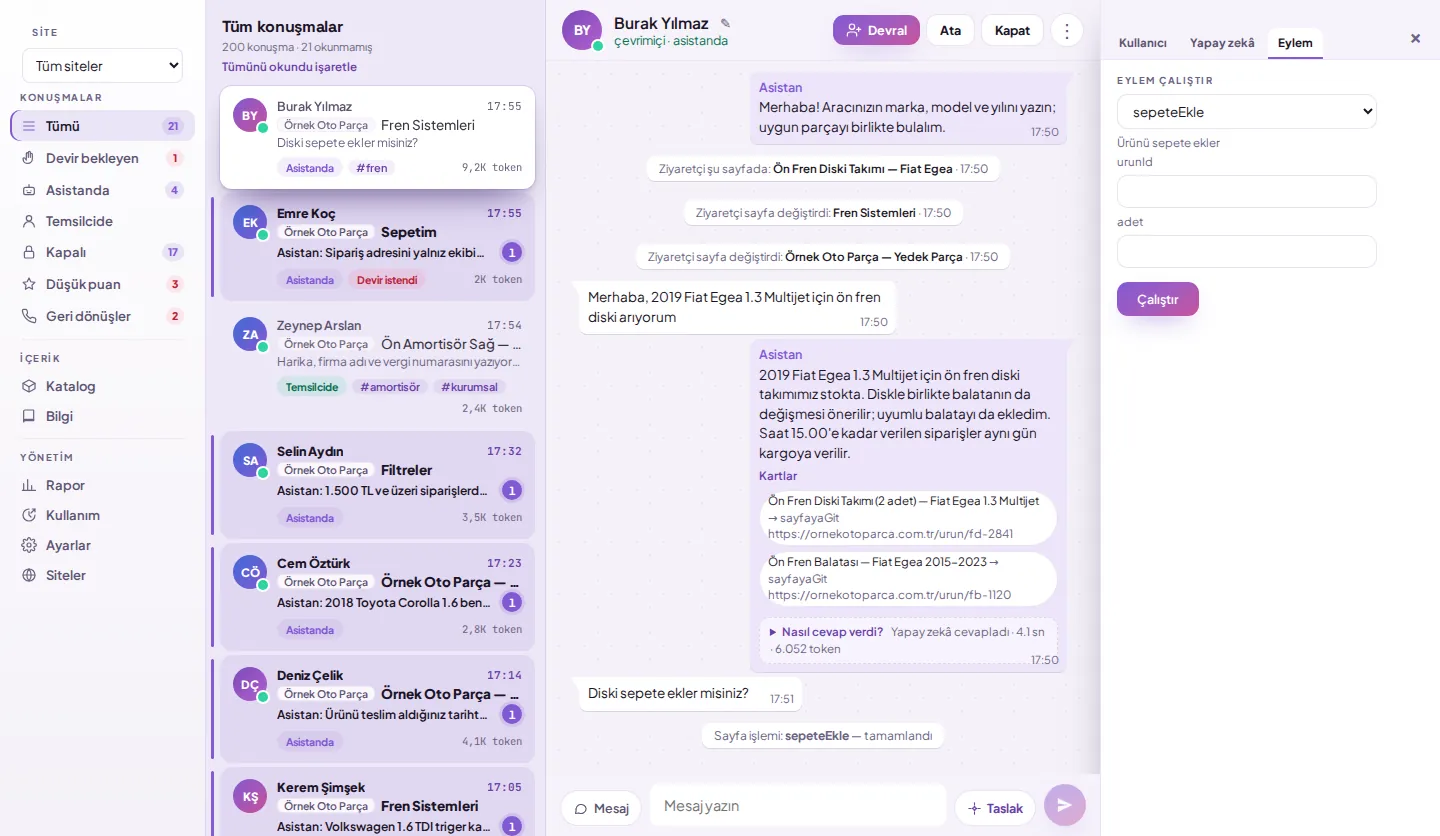
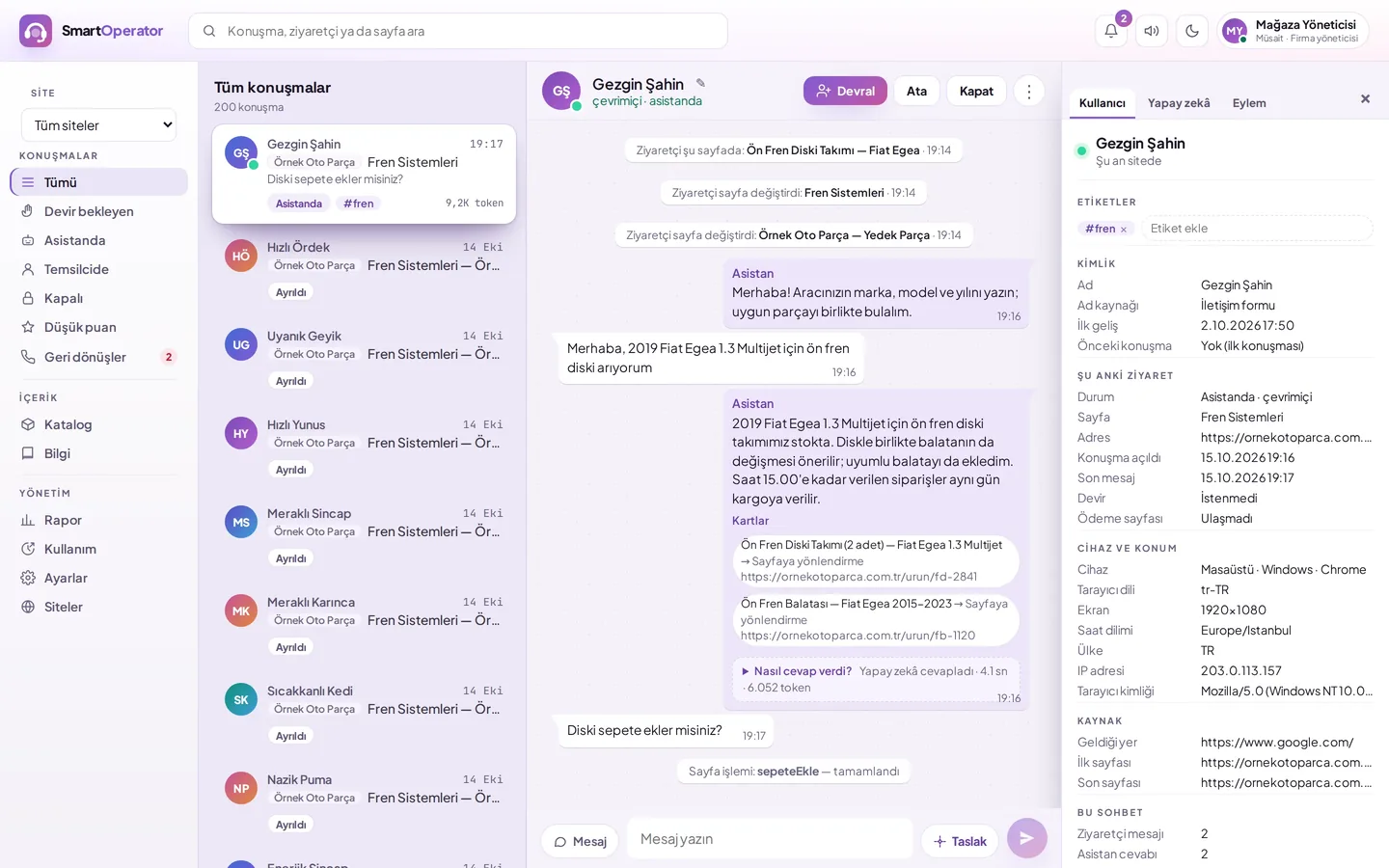
The agent taking over the conversation performs operations on the visitor's page using the actions in the right panel.
- Add product to cart
- Navigate visitor to page
- Every action is logged in the conversation
Sector templates bring ready-made tasks
The clinic template comes with appointment tasks, and the spare parts template with vehicle and part search tasks.
- Templates are applied in one click
- Tasks are listed on the dashboard
- The company's own endpoints can be added
Questions about site actions
What tasks can the agent perform on my site?
Every site comes with built-in capabilities to navigate to pages, show sections, and search within pages. Actions such as adding to cart, booking via a form, or applying a coupon are performed using actions defined by your site; the agent only executes these defined actions.
Can the agent place an order on my behalf?
Important steps like placing an order are configured to require approval. When the agent proposes such an action, an 'Approve' button appears in the chat; the action will not proceed without the visitor's approval. No actions run on the payment page.
Is an administrator password required for actions?
No. Actions run in the visitor’s browser under the visitor’s own session. Your site’s admin password or server access is not shared with SmartOperator.
Does it redirect visitors to other pages without permission?
No. Before redirecting, the agent asks the visitor if they would like to be directed to the relevant page. Redirects occur only within the same site, and the conversation continues on the new page.
Can my agents also perform actions?
Yes. An agent who takes over the conversation can perform the same actions on the visitor’s page from the actions section on the right side of the dashboard; for example, adding a product to the cart or navigating the visitor to a specific page.
Documents and guides
- BlogSite actions: adding to cart from chat and navigation
- DocDefining a site action
- DocumentMarking the payment page with code
- DocPerforming actions on the visitor’s page
- DocApplying a sector template
- GuideConverting question-asking visitors into sales
- GuideOnline appointment assistant at the clinic
Let's define your actions together
We plan which actions to define during the setup meeting, depending on your infrastructure.