Administration
Email archive and recovery: how to recover deleted mail?
A deleted email does not disappear immediately; it remains in the trash for the period determined by the organization and can be restored during that time. For emails that are no longer needed but must be kept, archiving rather than deleting is the right approach: archiving removes the email from the inbox but does not delete it.

“I accidentally deleted that email” is a sentence heard in every office. Most of the time the email is not lost; it is just in the wrong place. Knowing the difference between deleting, archiving and permanently deleting makes it easier to restore it and also prevents emails that really need to be kept from being accidentally removed.
What is the difference between archiving and deleting?
| Action | Where does the mail go? | Can it be recalled? |
|---|---|---|
| Archive | Archive folder; found in search | Always: Unarchive |
| Delete | Trash | Within the retention period: Restore |
| Retention period expires | Permanently deleted | No |
How to restore a deleted email?
- Open the Trash folder on the left.
- Click the email you want to recall.
- Click Restore at the top; the email returns to the inbox.
Good practice for organizations
- Archive emails that are done instead of deleting them; search will always find them.
- Set the trash retention period according to your organization's recovery needs.
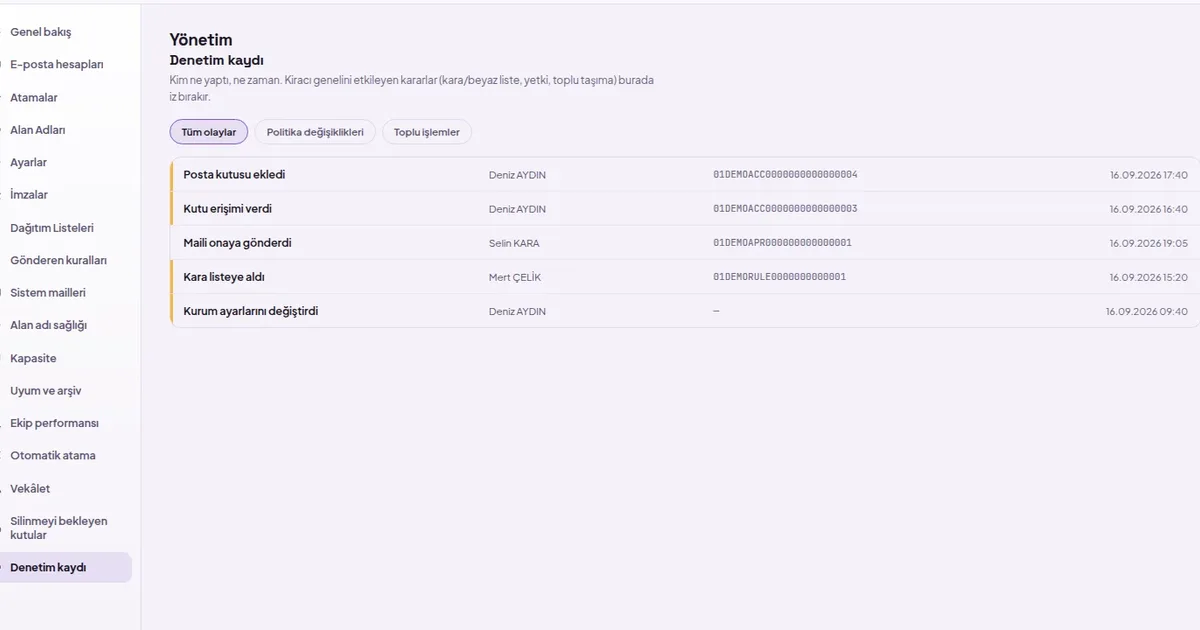
- Track bulk deletion and permanent deletion operations in the audit log.
How SmartMail solves this
- Archive folder: Archive removes the email from the inbox without deleting it; Unarchive brings it back.
- Trash and restore: a deleted email stays in Trash for the retention period; Restore returns it to the inbox.
- Retention is managed centrally: the administrator sets how long items stay in the bin.
- Bulk action and audit trail: archive all of a sender's emails at once and leave a bulk-action trace in the audit log.