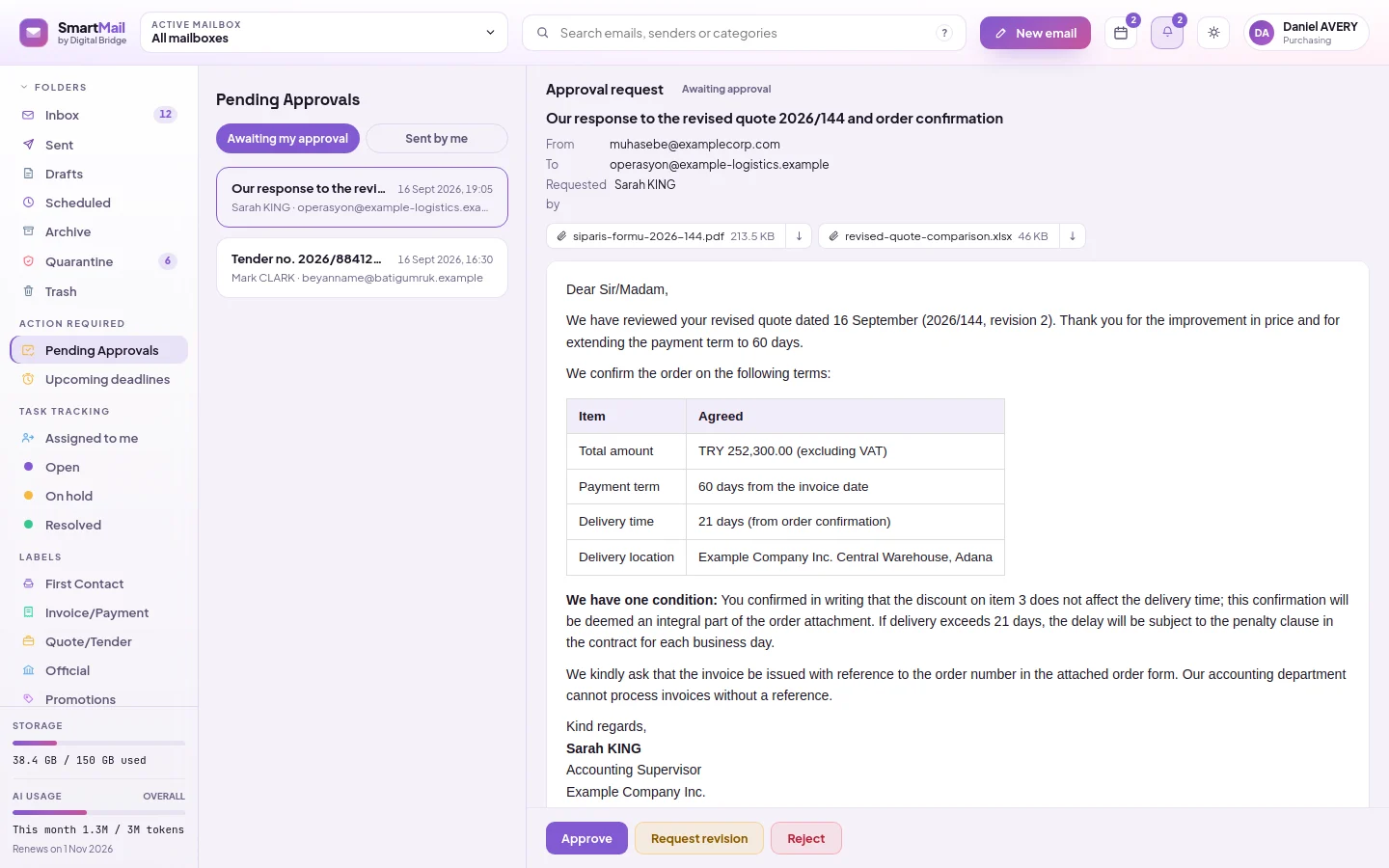
Approve the email submitted for your approval or request a revision
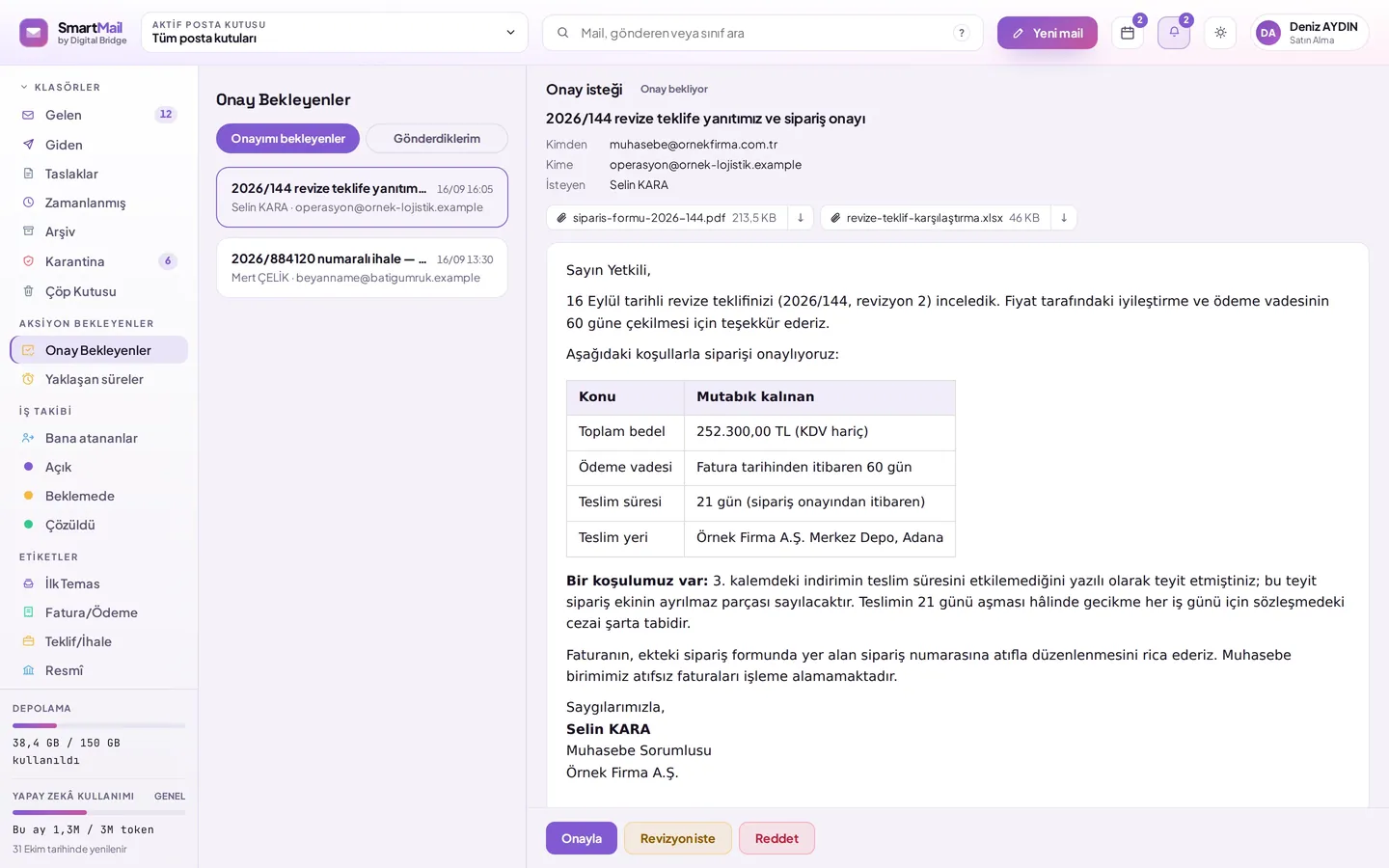
Open Pending Approvals from the left; the Awaiting my approval tab is selected by default.
Click the desired item in the list. On the right, the email text, recipients and attachments are shown; you can open attachments with Preview or Download.
If the mail is appropriate, click Approve.
If a change is needed, click Request revision, write your request in the What should change? field and select Send revision request. To not send the email at all, click Reject; if you wish, write a short reason.
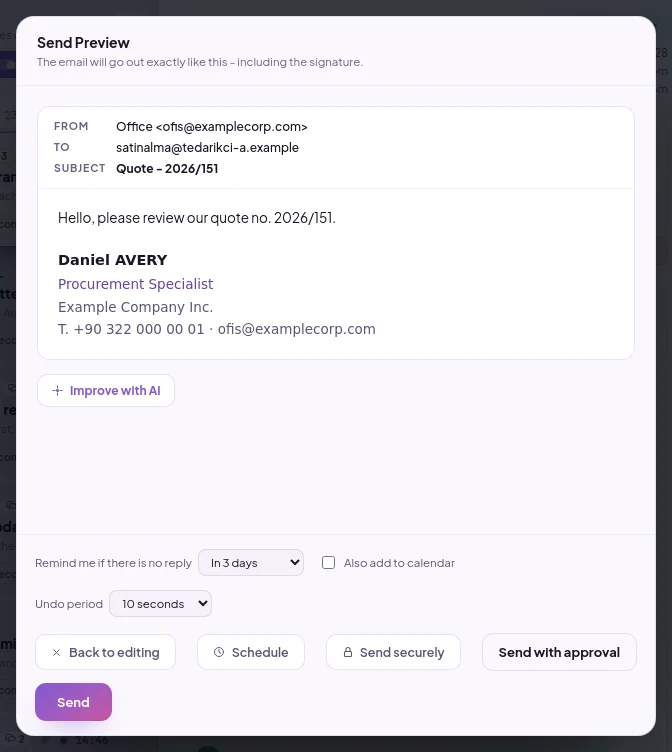
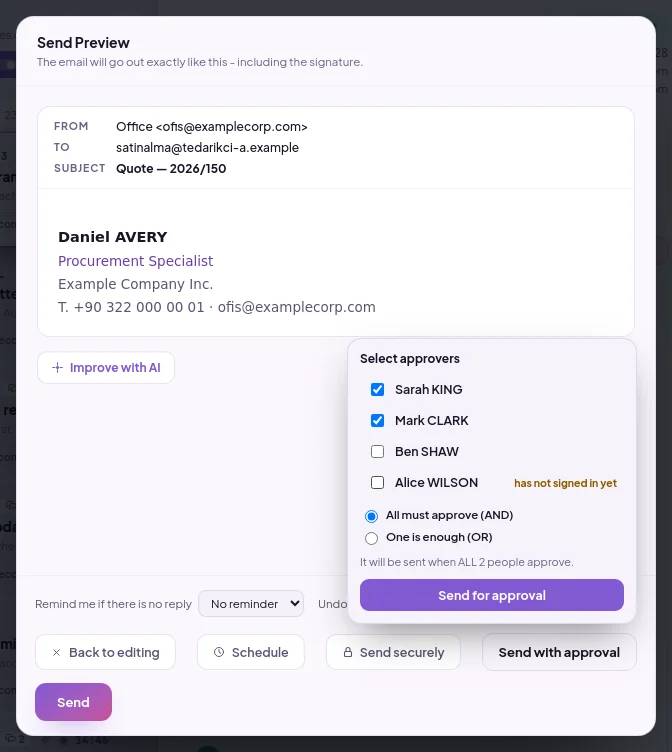
The approval flow is optional; the user starts it themselves with "Send for approval" for whichever mail they deem necessary. The mail is submitted to one or more approvers and the "any one" or "all" rule is selected.
What happens when an employee leaves?
Access is removed from a single screen; if the mailbox is assigned to a department, it is enough for the person to leave the department and access is revoked automatically. Scheduled emails they set up do not go out on behalf of the organization because access is re-checked at send time; they remain in the list with the reason.