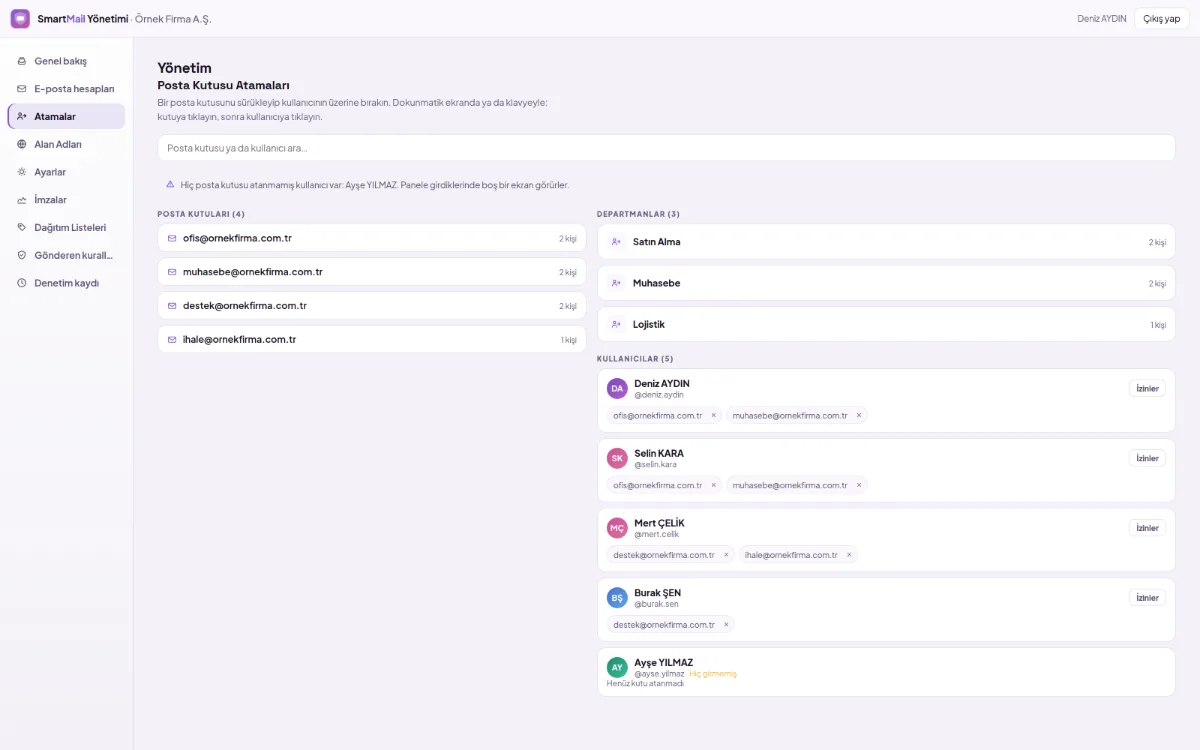
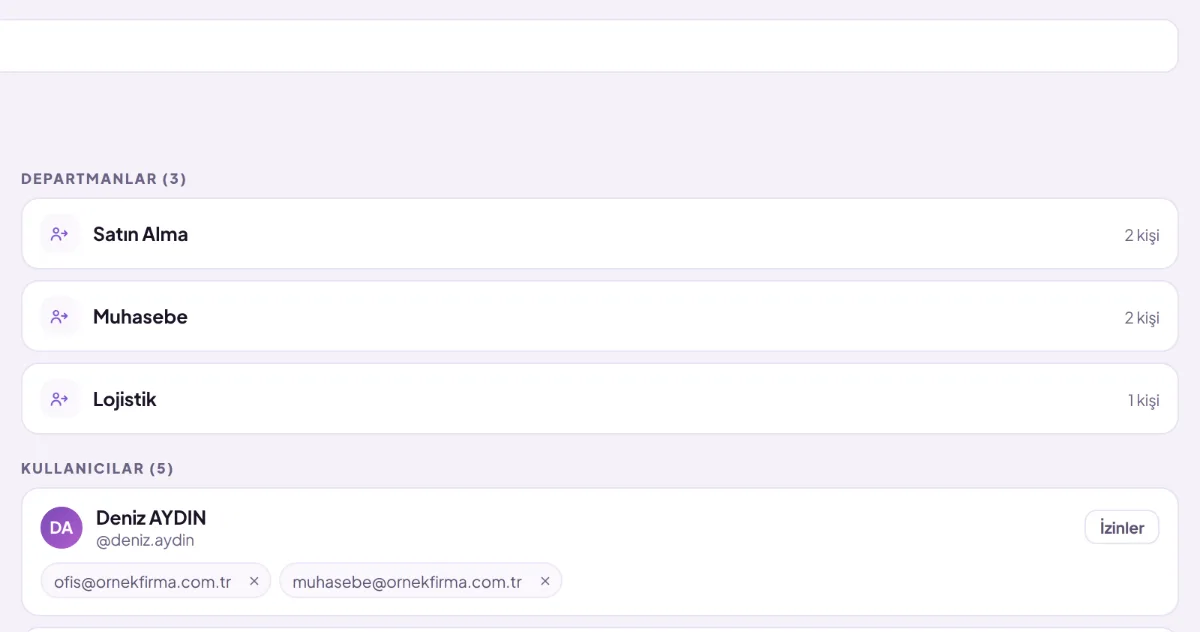
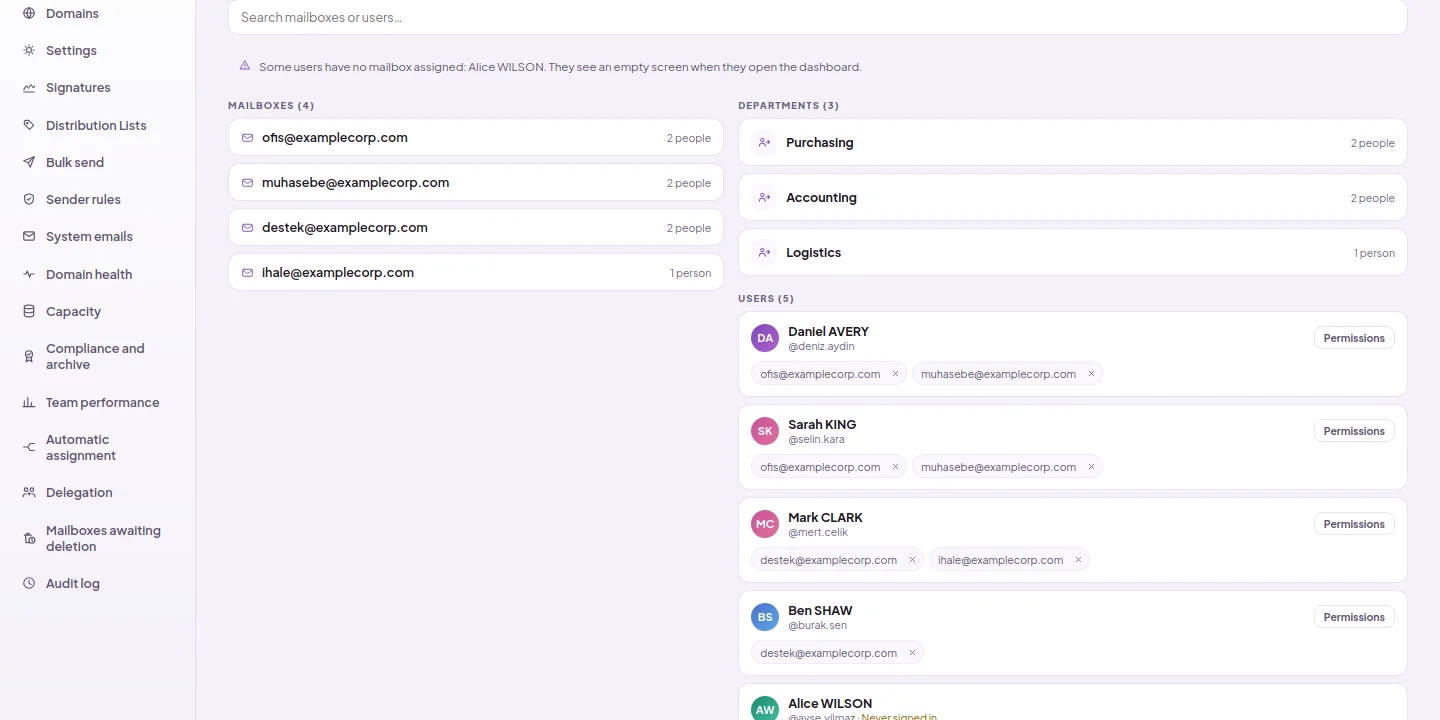
Open Assignments from the menu on the left. Mailboxes are listed on the left, departments and users on the right; next to the mailboxes it shows how many people have access.
Hold the mailbox you want to assign from the left column.
Assign the mailbox to a department: everyone in the department at that time gains access. To give it to only one person, assign the mailbox to that person's card.
To set what the person can do in this mailbox, click Permissions on their card.
Assigning an owner and status to the mail (work tracking)
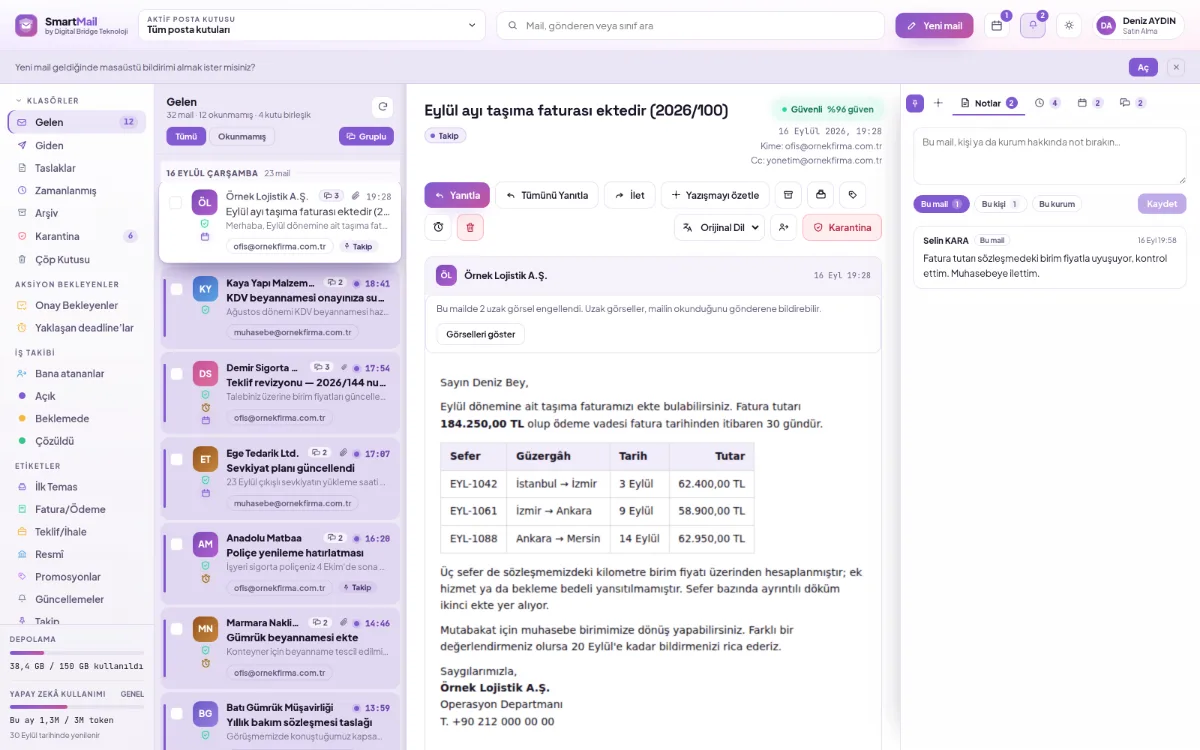
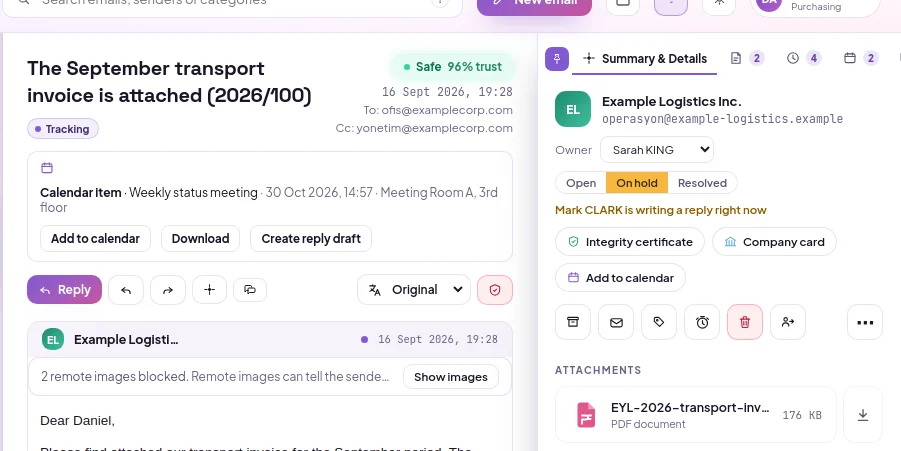
Open the incoming email. Owner and status buttons appear below the subject.
Select a person from the owner list or select Assign to Me. Only people who can see this box are in the list.
Mark the status as Open, Pending, or Resolved; if you click the selected status again, the status is removed. If someone else is currently replying to the same email, it will appear on this line.
Do employees have to know the shared mailbox password?
Employees sign in to the shared mailbox with their own DBLinx credentials; they do not need to know the mailbox password. The system generates the password and stores it encrypted. Access is granted and removed from a single screen.
Can read-only permission be given to a person?
Yes. For each person, nine permissions are enabled or disabled separately in each mailbox: viewing, writing and sending, deleting, labelling, quarantine, AI re-interpretation, AI chat, adding notes, flagging. Delete and quarantine permissions come disabled on new assignment.
What happens when an employee leaves?
Access is removed from a single screen; if the mailbox is assigned to a department, it is enough for the person to leave the department and access is revoked automatically. Scheduled emails they set up do not go out on behalf of the organization because access is re-checked at send time; they remain in the list with the reason.