
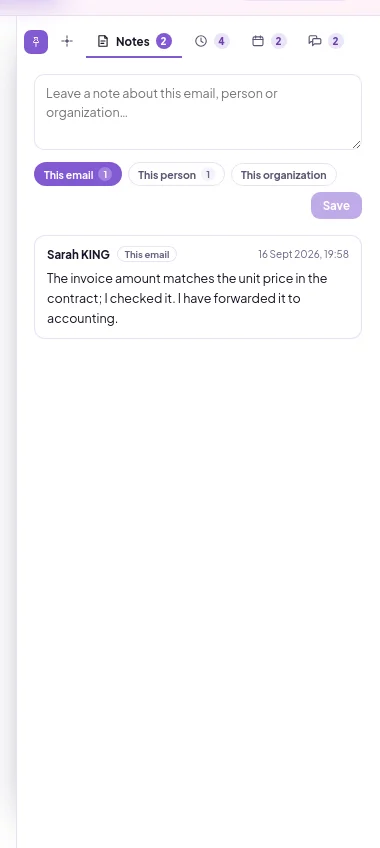
Leaving a team note on the mail
- Open the mail and click the Notes tab on the far right.
- Select the note's scope: This email, This person or This organization.
- Write your note and click Save.
Work together without forwarding the email or switching to a separate messaging tool.
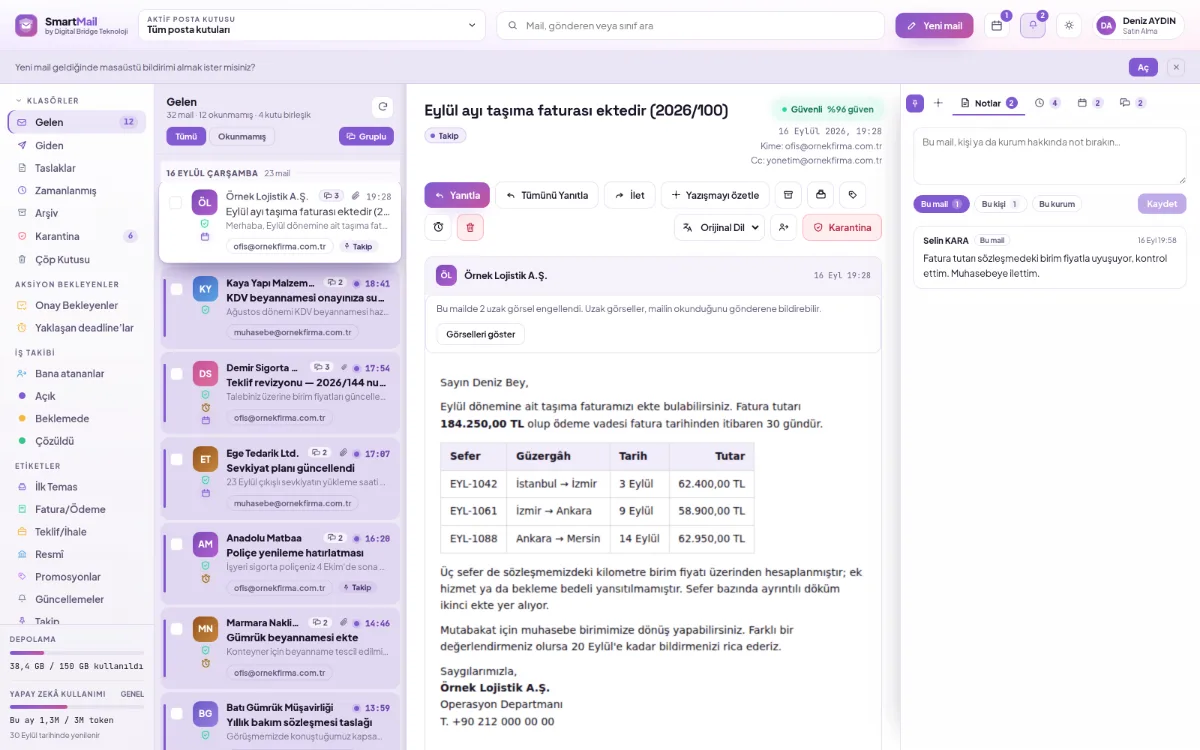
The note stays next to the email; teammates who see the mailbox can see it.
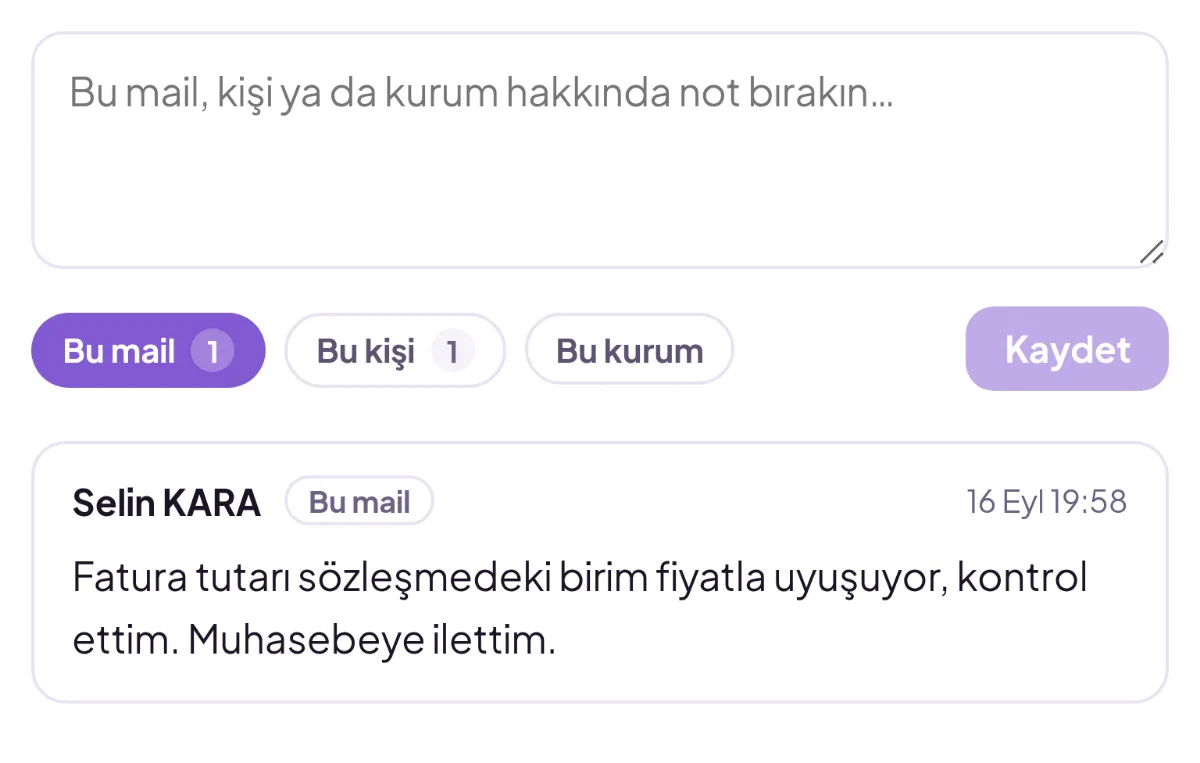
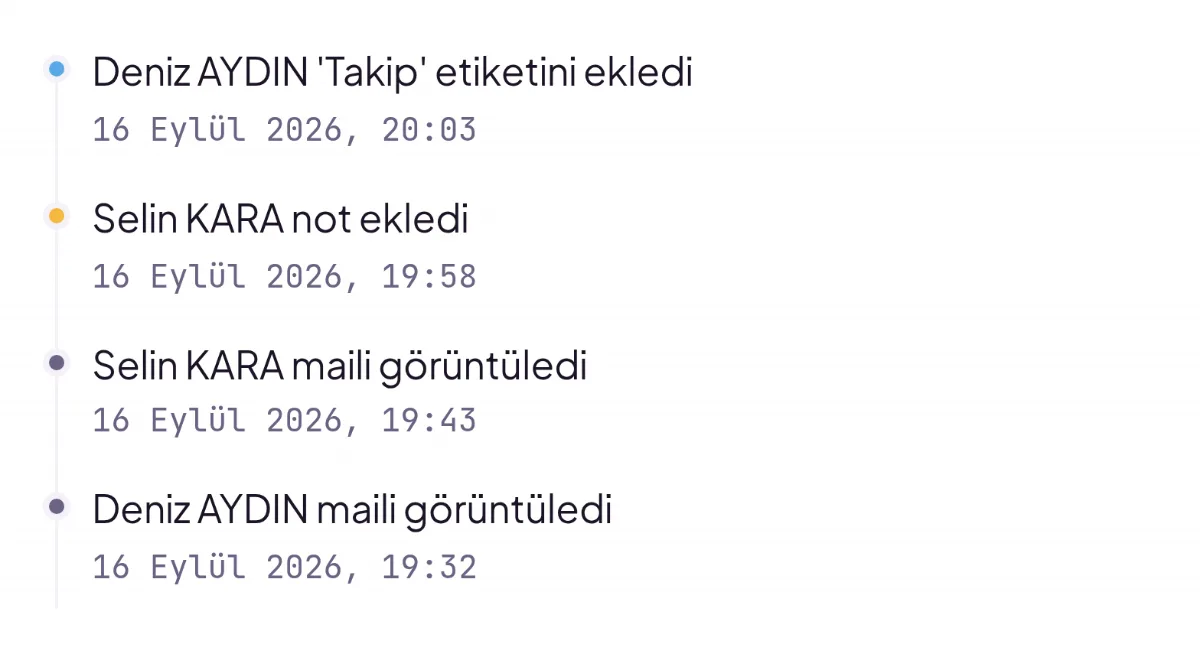
Viewing, labelling and notes are collected in a single activity log.
Emails for the same job are grouped on a single line; when opened, they are read in order.
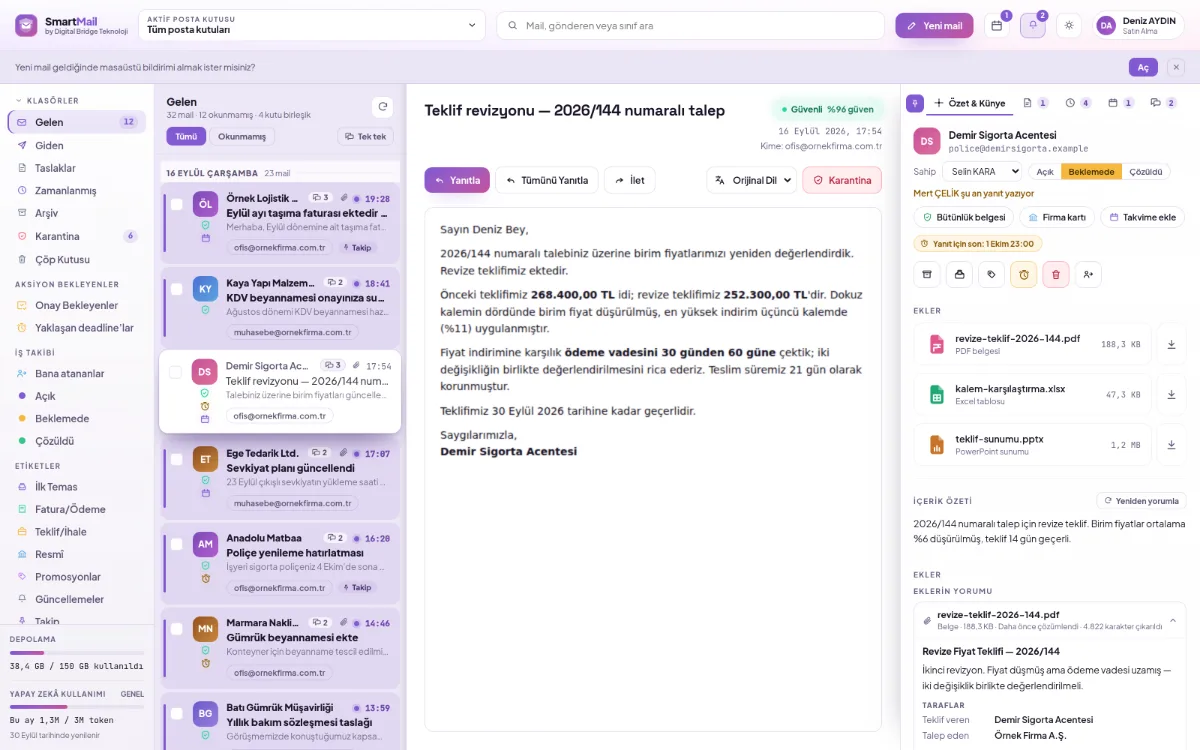
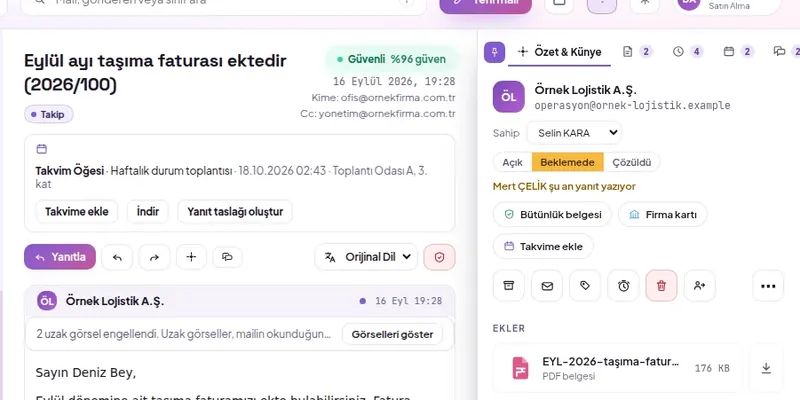
Assigned with a single selection on the owner reading screen.
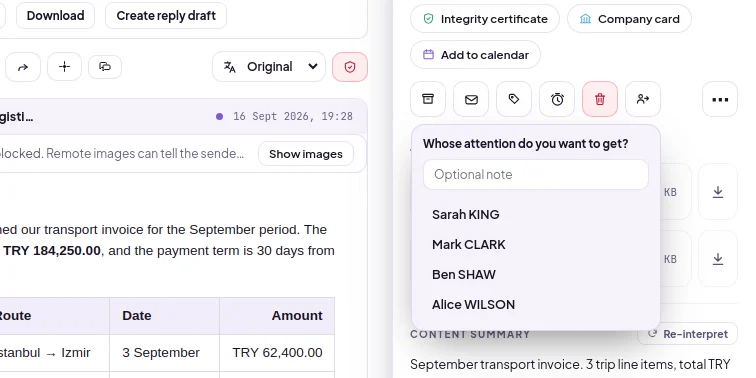
Without forwarding the email, a notification goes to your colleague with an optional note.
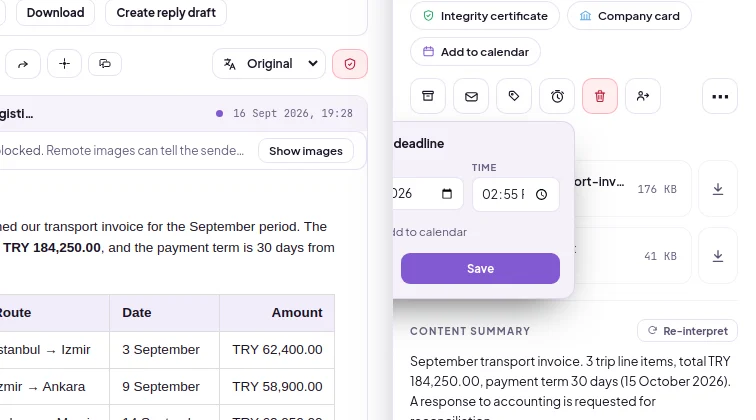
A reminder one hour before expiry to everyone who can see the mailbox.
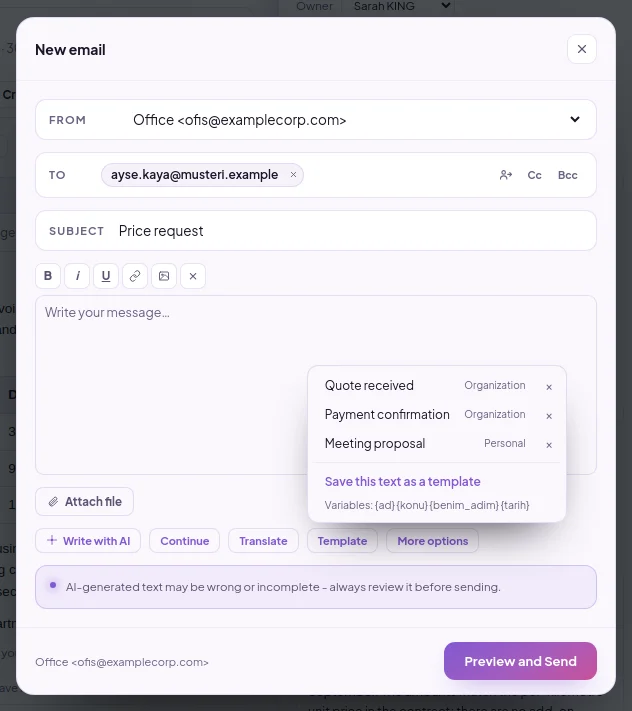
One-click template with variables such as {ad}, {konu} and {tarih}.
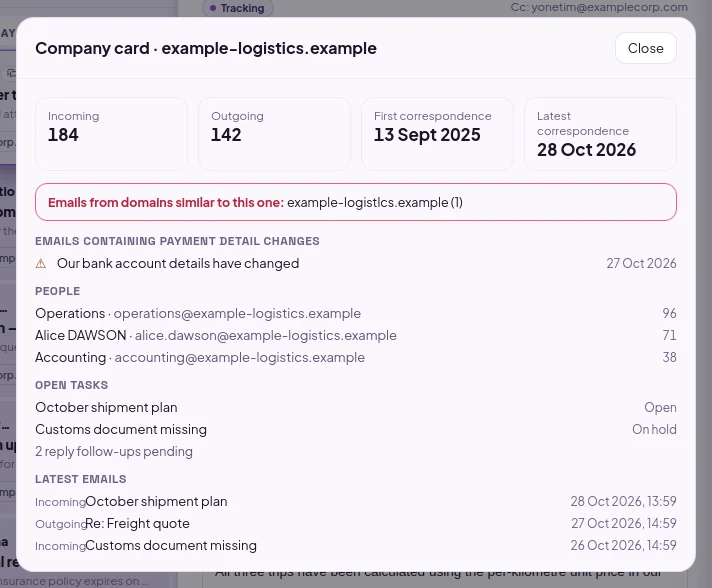
All correspondence with a company at a glance: incoming and outgoing counts.
Response times, follow-ups and meetings in a single calendar.
Automatic reply by date range; starts at the start and stops at the end.
In organizations using SmartFiles, an email attachment is saved to SmartFiles with one click; the person selects the target and optionally the folder from the areas with writing permission, and if an area is specified by the administrator, it is pre-selected.
Response time to customer emails is shortened by assigning each email a visible owner and a deadline
Work division in a shared email mailbox is done by handing the email over to the relevant person without forwarding it outside the mailbox
Yes, from two places. The per-email activity log shows who read, labelled, added a note to and replied to it and when. The audit log on the admin side, on the other hand, records operations such as opening a mailbox, granting access, changing settings and sending for approval with the actor, time and IP address. Approval decisions are also written to the request's history with their date and time.
Manage shared mailboxes as a team
SPF, DKIM, DMARC and quarantine
Approval for mail sent on behalf of the organization
Summary, attachment analysis, classification
Mailboxes, nine permissions, audit log
Every task step by step, with screenshots.
Select the number of mailboxes and start now. Migration and analysis of your old emails are free during the initial setup.