How to design an e-commerce site without knowing code?
Set up a store window without coding: drag ready-made sections, preview on every device, work in draft and publish when ready.
The homepage of an e-commerce site is often set up once and remains unchanged for months because every change requires writing code for a developer. However, promotional periods, new collections, and seasonal transitions require frequent changes to the storefront. Designing without code means the store team can make these changes themselves.
What does designing without code mean?
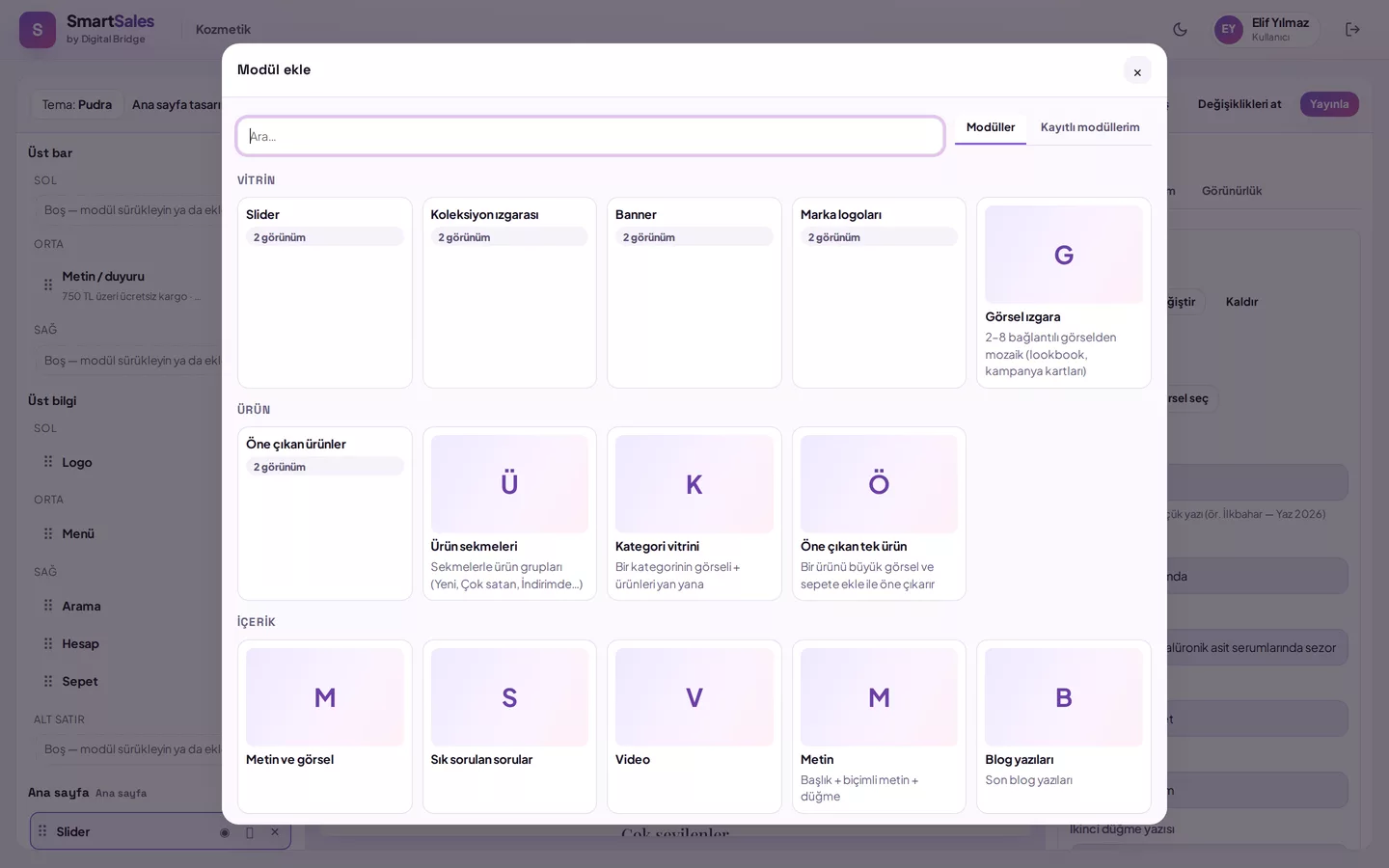
Instead of writing the page line by line, arrange ready-made sections: product showcase, banner, category grid, countdown, newsletter signup, etc. The content and appearance of each section are adjusted via a form; layout changes via drag-and-drop. In a good editor, the preview you see is the actual page the customer will see.
What must you decide before starting?
- The homepage should have a single purpose: best-selling products, new collection, or promotions?
- Think mobile-first; most visitors come from phones.
- Choose the logo, primary colour, and fonts from the start; correcting them section by section later takes time.
- Set start and end dates for campaign banners in advance.
Step-by-step first storefront
- Open the Appearance › Storefront Editor screen in the panel; the homepage of your store is visible in the preview.
- Open the library with + Module; view and select from the small previews of each module.
- Drag the module to the desired location in the preview; change the order again by dragging.
- Adjust content, appearance, and style in the right panel.
- Preview with desktop, tablet, and mobile buttons; if ready, click Publish.
How do you undo a wrong change?
Every change you make in the editor is automatically saved as a draft; the live store does not change until you publish. While editing, you can step back using Undo and Redo buttons or Ctrl+Z. To abandon publishing, simply click Discard changes. If you notice an issue after publishing, you can select one of the last 30 published versions and click Roll back to this version.
Display sections based on device and date
You can hide each section separately on desktop or mobile. A section with a start and end date is only visible during that interval; the storefront updates automatically when the date arrives. This allows you to prepare holiday banners in advance without having to manually remove them when the campaign ends. You can also create separate homepage designs for holidays or seasons and publish them with a single click when ready; the old version is not deleted.
How does theme selection affect design?
The theme determines the store's header layout, homepage structure, and page templates. In SmartSales, the theme is selected when purchased and fixed to your store; within the theme, layout, sections, colours, and homepage design can be changed as much as needed. Therefore, browsing the demo store closest to your sector when selecting a theme provides the most accurate comparison.
How SmartSales solves this
- Drag-and-drop editor: Top bar, header, homepage, and footer are edited from the same screen.
- Drafts and version history: The live store does not change until published; you can roll back to any of the last 30 published versions.
- Registered module: Saves a configured section so you can add it elsewhere with the same settings.