
Up to 100 variants per product
Options such as size and colour become variants; each variant has its own SKU, price and stock. The plan limit counts only the parent product, not variants.
Variants, prices, stock and images are in a single catalogue; the storefront, marketplace and feed are all powered from the same source.
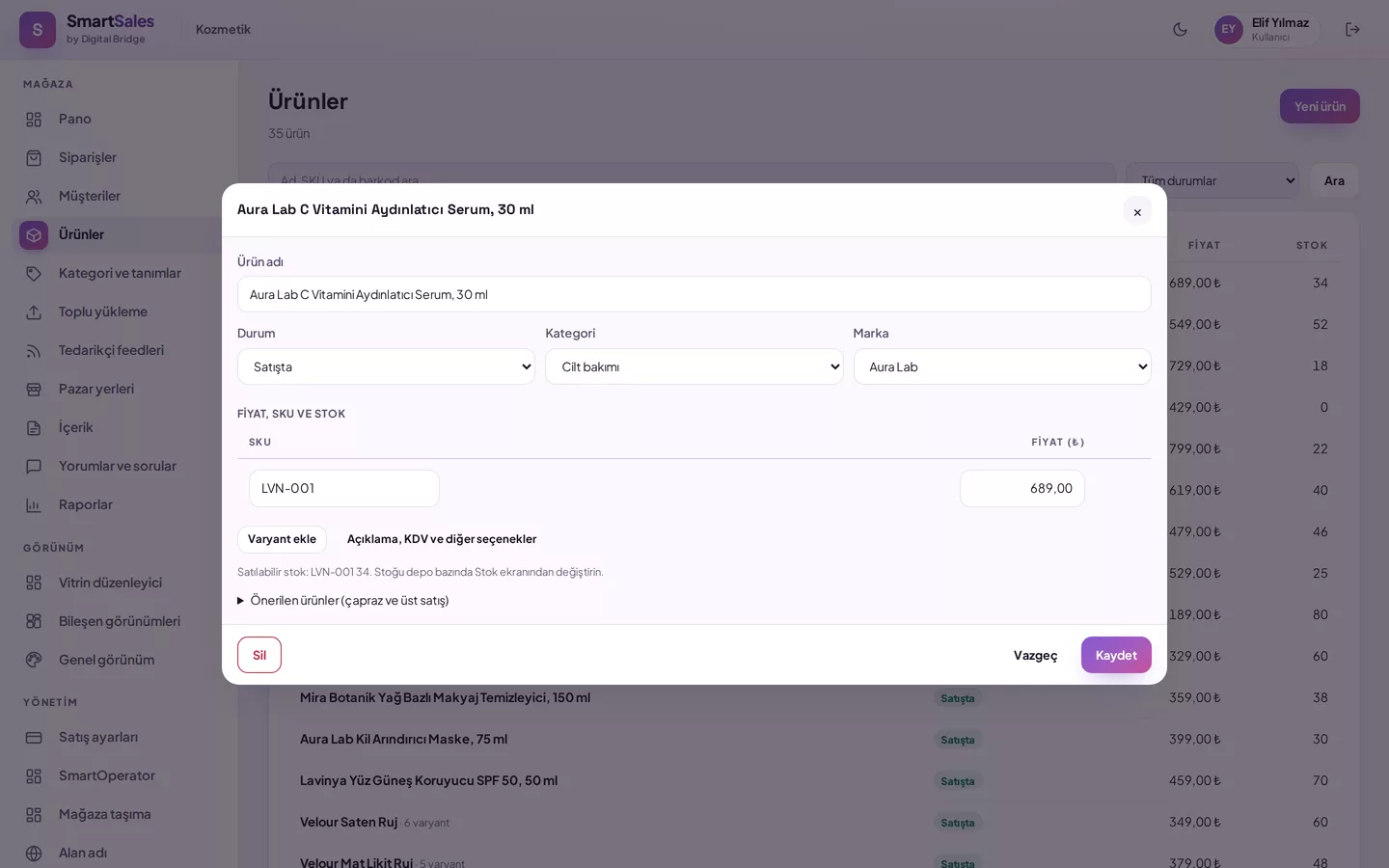
Up to 100 variants can be added per product. Options such as size and colour become variants; each variant has its own SKU, price and stock. The plan limit counts only parent products, not variants. Products with sales cannot be deleted; they are removed from the storefront so that past orders and reports remain intact.
Upload your CSV or Excel spreadsheet; rows with the same product code become variants of a single product. A dry-run summary appears first: how many products will be added, how many updated, which rows have errors. On confirmation, records are written. If the number of new products exceeds the remaining allowance in the plan, no rows are written; partial uploads do not occur.
You add vehicles compatible with the product by brand, model, year range and optionally engine; for example, Renault Clio 2016–2020. For many vehicles, you can paste a list or fill the compatible_vehicles column in Excel/CSV. When a customer selects their vehicle in the storefront, they see only products that fit; on the product page, they can also read whether a part fits their vehicle.
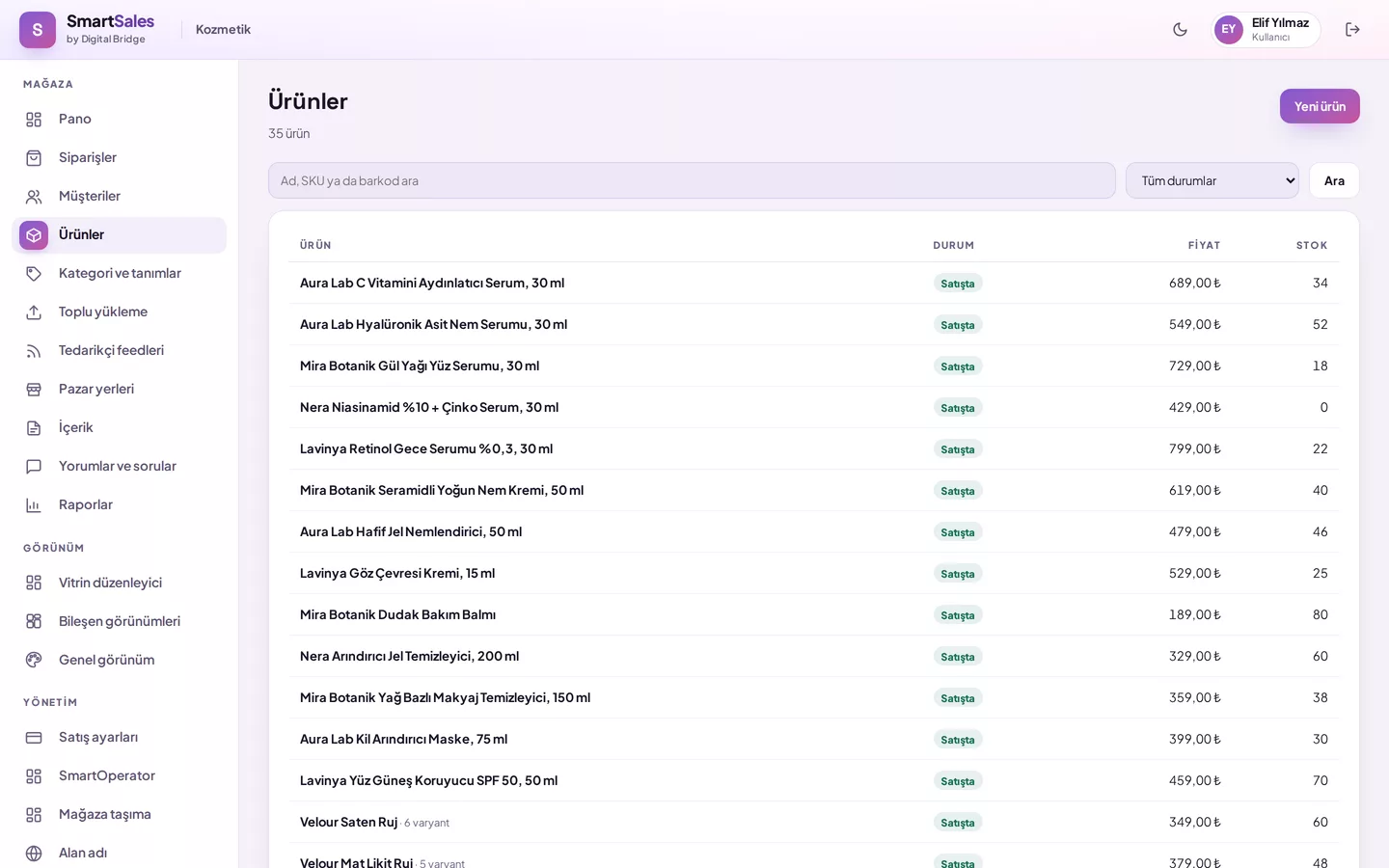
Options such as size and colour become variants; each variant has its own SKU, price and stock. The plan limit counts only the parent product, not variants.
If you sell spare parts or accessories, add the vehicles each product fits: brand, model, year range and, if necessary, engine. If the model is left blank, the product is considered compatible with all models of the brand. The customer selects their vehicle once, and the storefront lists only products that fit.
If the number of new products exceeds the remaining allowance in the plan, no rows are written; partial uploads are not allowed. In bulk uploads, price and stock changes depend on the team member’s price and stock permissions.
Upload your table; rows with the same product code become variants of a single product.
View the dry-run summary: rows to add, update, or with errors.
Confirm; records are written in batches of 200.
The type of the uploaded image is determined by its content, not the filename; copies at different widths for the storefront are generated automatically. The same image is not uploaded twice. Product descriptions, page and blog content are published after being safely sanitised.
You edit pages such as About Us, Contact, blog posts and the menu from the Content screen in the panel.
Enter your sector and number of products; let’s clarify your theme and offer together.