
Four regions, one editor
Top bar, header, homepage and footer are edited on the same screen. In custom layouts, add rows and columns to place sections side by side (up to 20 rows).
Edit every section of your store, from the top bar to the footer, from the panel. No coding required.
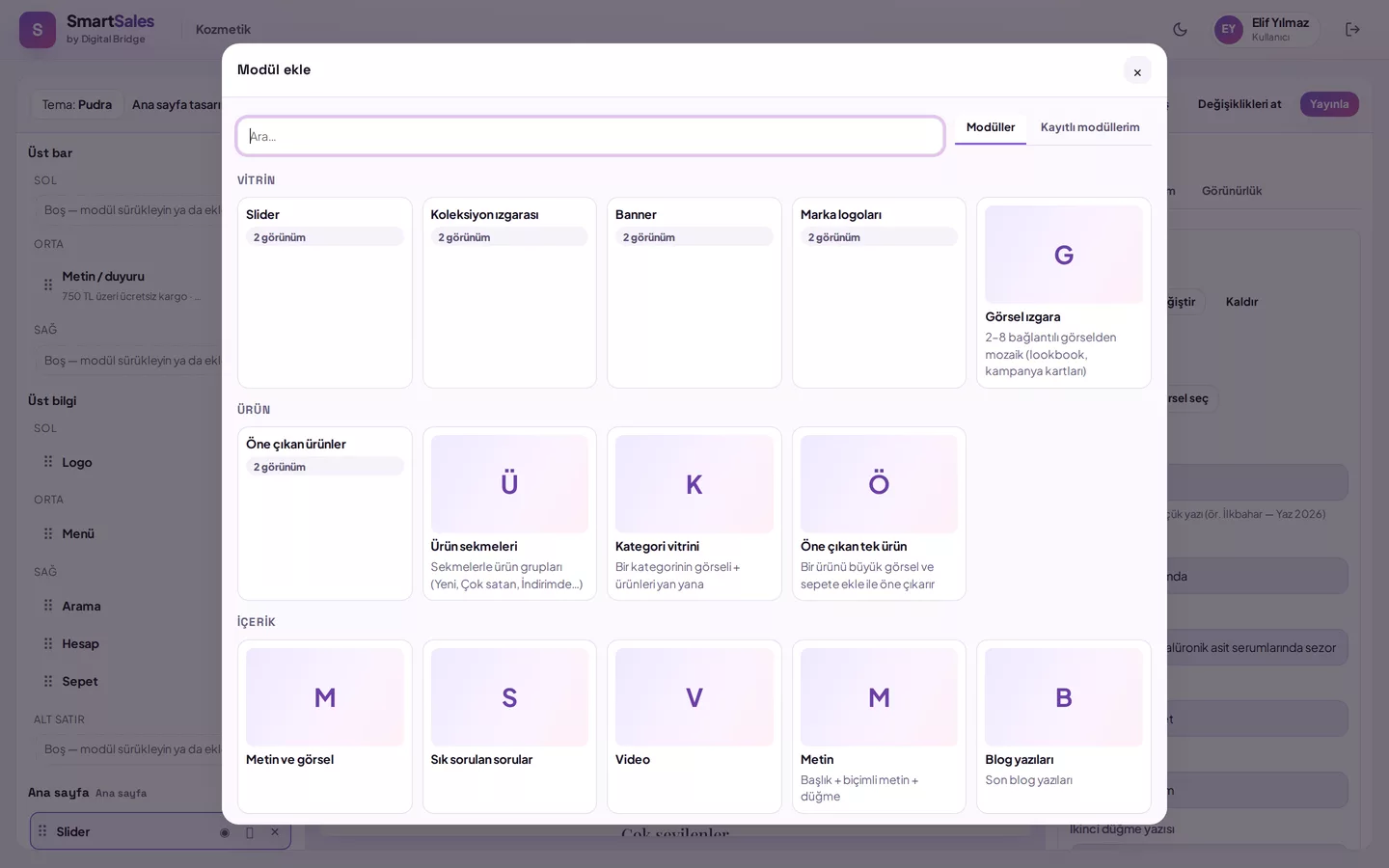
In the Dashboard under Appearance › Storefront editor, select a section from the module library and drag it to your desired position in the preview. Content, appearance and style are adjusted in the right-hand panel. Every change is automatically saved as a draft; after previewing on desktop, tablet and mobile, click Publish to push to the live store. No coding knowledge required.
Use Undo and Redo buttons or Ctrl+Z to step back while editing. To discard changes before publishing, simply click Discard Changes. If you notice an issue after publishing, select one of the last 30 published versions from History and choose 'Revert to this version'; it loads as a draft for review and republishing.
Yes. Enter start and end dates in the Module Visibility tab; the module appears only within that period and is marked with a Scheduled badge in preview. The storefront updates automatically when the date arrives, requiring no further action from you. From the same tab, you can also choose to show the module on desktop only or mobile only.
Open Dashboard › Appearance › Storefront editor; the homepage preview is displayed.
Open the library with '+ Module'; browse and select from small previews of each module.
Drag the module to your desired position in the preview; reorder by dragging.
Adjust content, appearance, and style in the right panel.
Preview with desktop, tablet and mobile buttons; if ready, click 'Publish'.
Every change you make is automatically saved as a draft. You can publish the draft or discard changes using 'Discard changes'.
You can hide each module separately on desktop or mobile. Modules with start and end dates appear only within that period; the storefront updates automatically when the date arrives.
Upload your logo and site icon; choose colours and heading/body fonts from Appearance › General view. Selection applies across all pages of the theme.
Top bar, header, homepage and footer are edited on the same screen. In custom layouts, add rows and columns to place sections side by side (up to 20 rows).
Create a separate homepage design for holidays or seasons. When ready, publish with one click; the previous version is not deleted, allowing you to revert later.
Save a configured section as a 'Saved module' via 'Make into Saved module'; then add it again from the library with the same settings.
No. Sections are placed via drag-and-drop, and settings are configured via forms.
No. Changes remain in draft until published.
Selected at purchase and locked to your store. Within the theme, layout, sections, colours and homepage design can be changed as often as needed.
The storefront editor is used by those with the "Pages, blog and menu" permission, while theme selection and settings are managed by those with the "Colours and fonts" permission. Security and KVKK
Enter your sector and number of products; let’s clarify your theme and offer together.