AI sales assistant setup for e-commerce sites: 2 lines of code
Adding an AI sales assistant to your e-commerce site starts with a two-line tag. We explain all steps from the tag to going live.
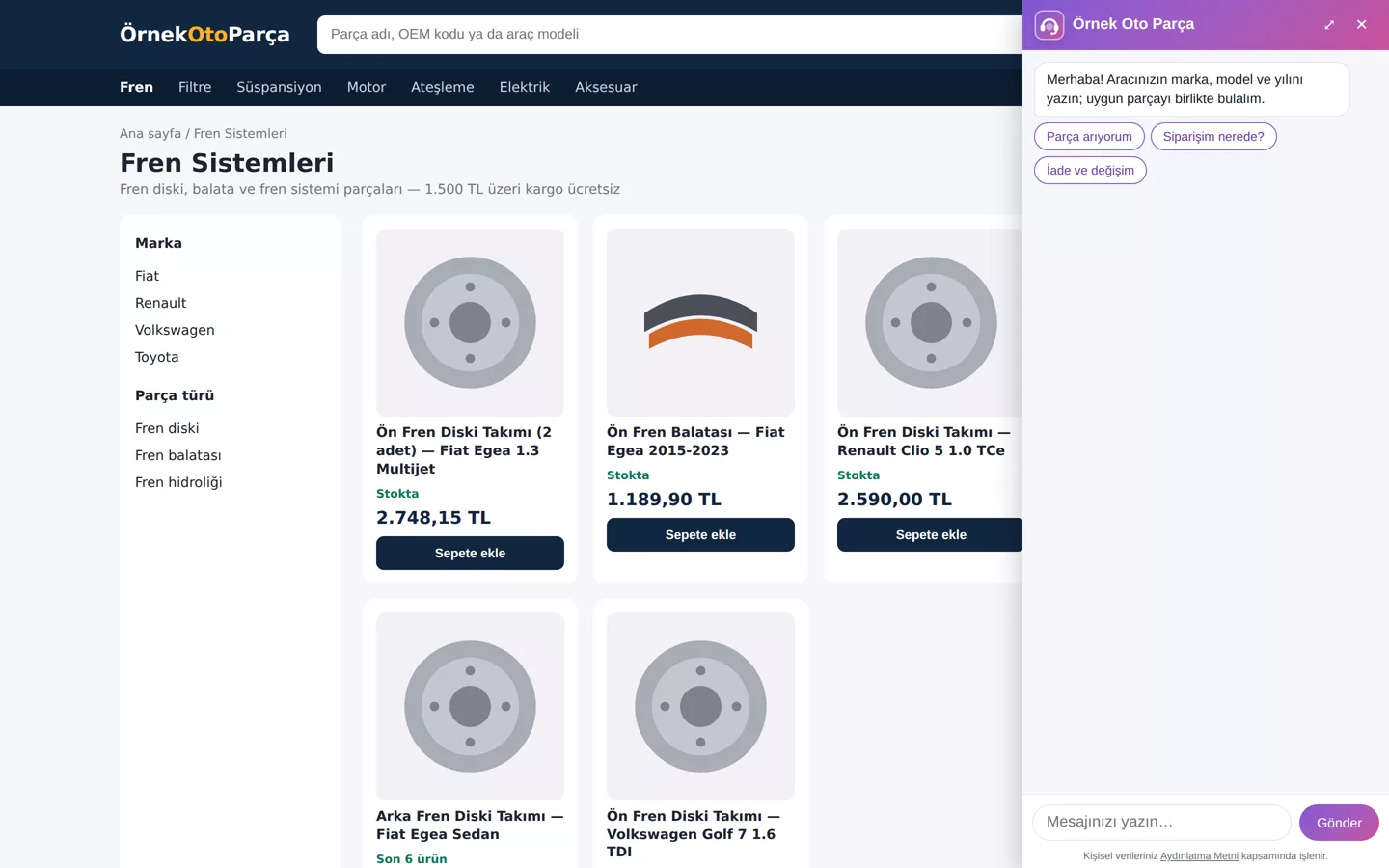
The biggest barrier to sales on an e-commerce site is unanswered questions: "Will this part fit my vehicle?", "When will the delivery arrive?", "Do they have this in a large size?". An AI sales assistant answers these questions within the site, based on your product catalogue. The technical part of the setup is short; the real work lies in preparing what the assistant should know.
How to install an AI sales assistant on an e-commerce site?
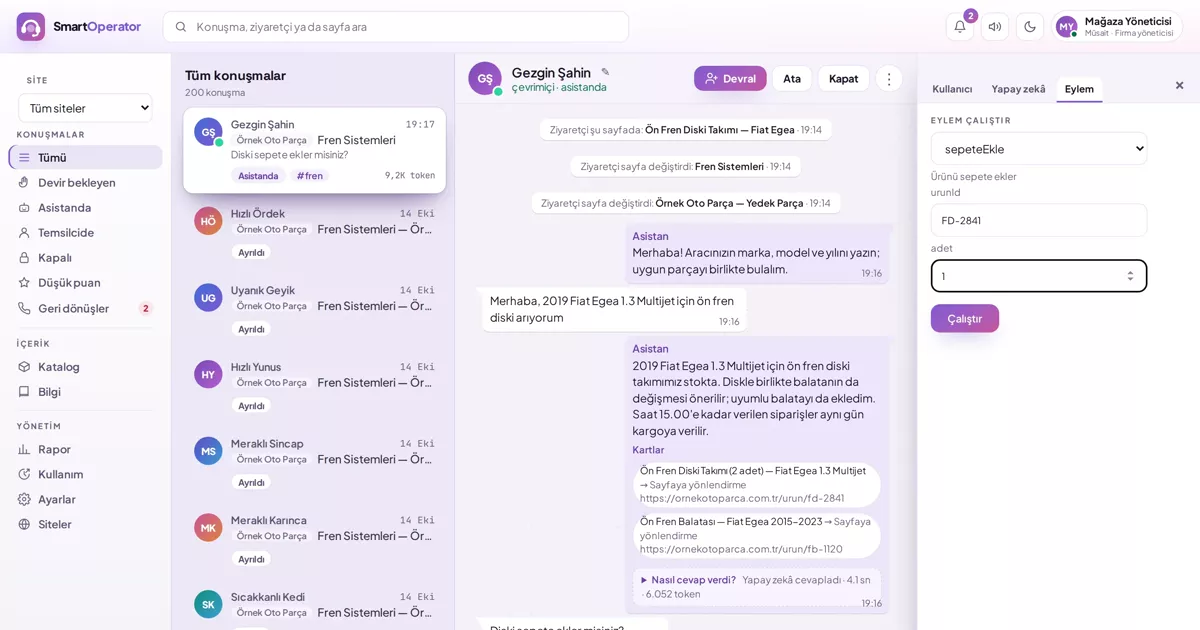
You add your site and domains in the panel, then paste the provided two-line tag once into your site's common template. Next, you import your catalogue via CSV or XML, enter shipping and return rules into the knowledge base, and define actions such as 'Add to cart'. You test in hidden mode without customers seeing it, and remove hidden mode when ready.
Does the sales assistant affect site speed?
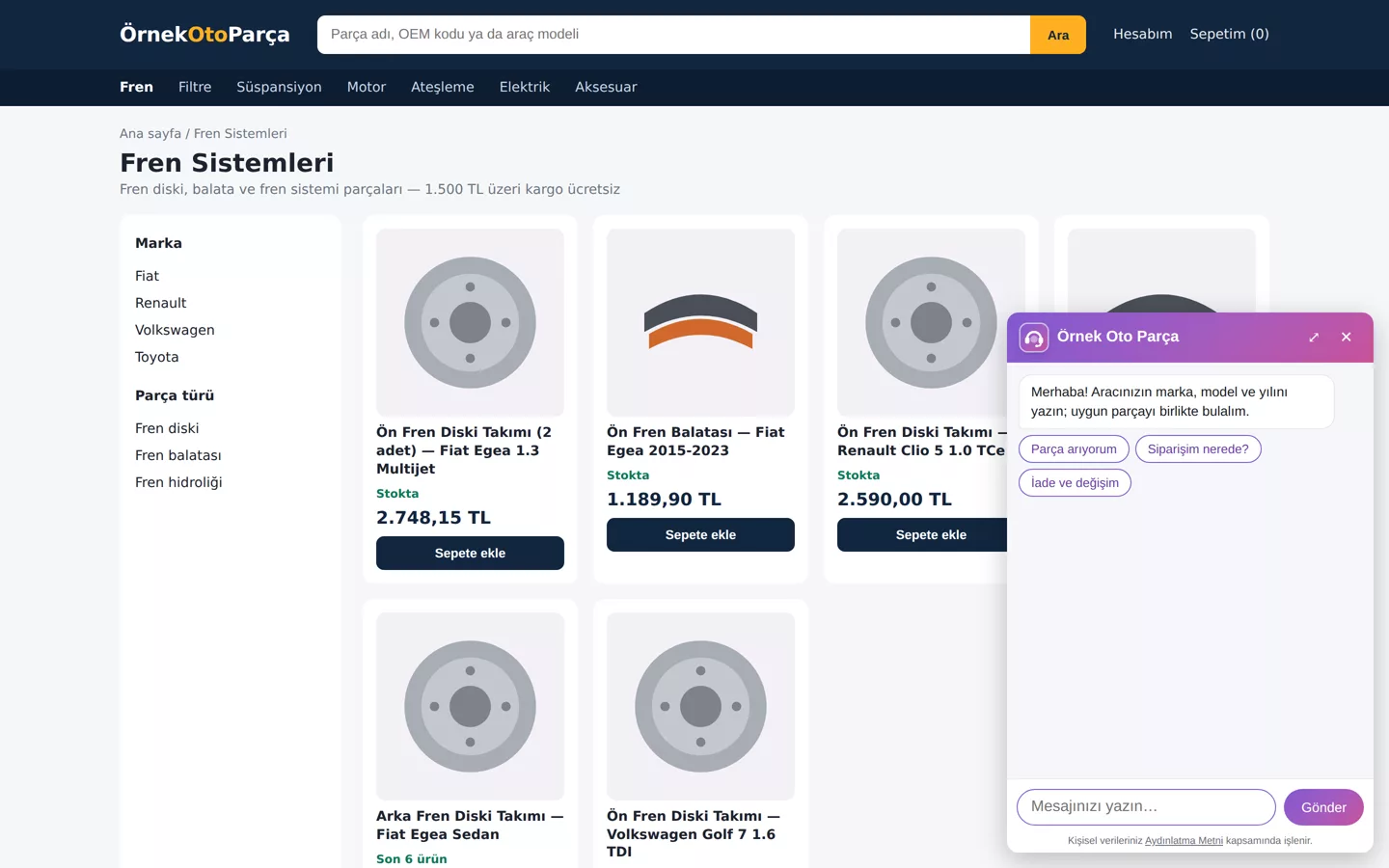
The script loads asynchronously and does not block page rendering. Only a small bubble is drawn while the page loads; the chat window itself loads when the visitor hovers over or clicks the bubble. Since conversations are stored on the server, the window reopens with the same conversation when the visitor changes pages, preserving initial load speed.
Before setup: preparation checklist
Before setup, prepare your product list export (CSV or XML), frequently asked questions and policies, tasks for the assistant, and payment page addresses.
- Export of your product list (CSV or XML) including product code, name, price, stock, page URL, and image.
- Frequently asked questions and policies: shipping, returns, warranty, promotions.
- Assistant tasks: adding to cart, navigating to page.
- Addresses of your payment and cart confirmation pages.
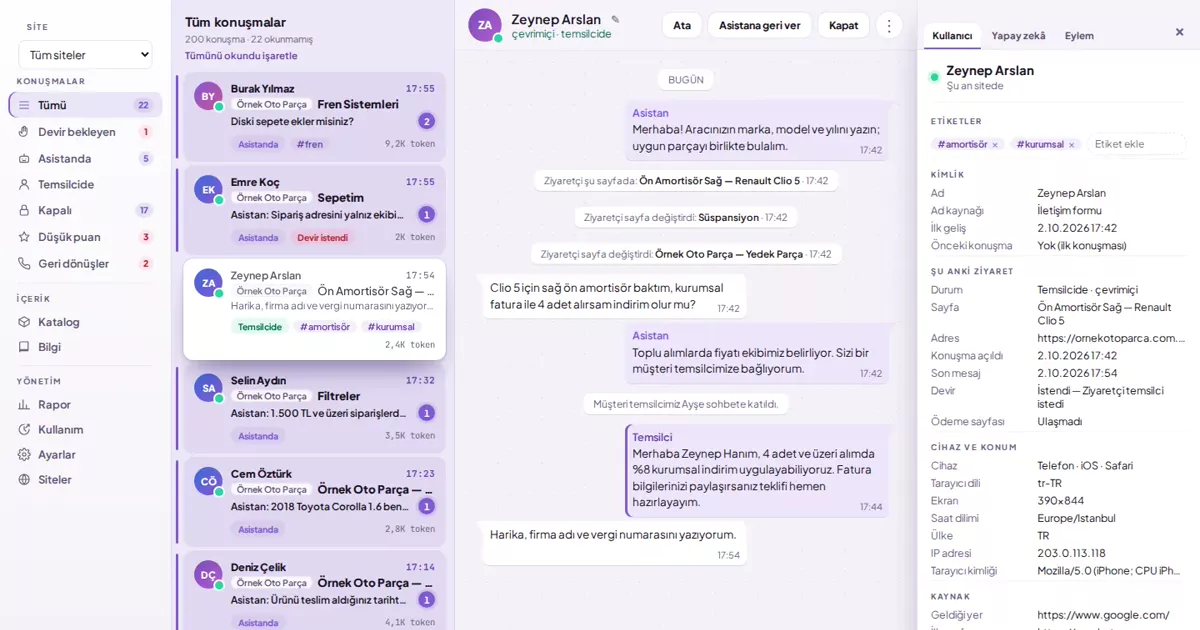
- Operating hours and notification email address.
Step-by-step setup
Setup begins by adding the site in the panel; the tag, catalogue, and knowledge base steps are described below in order.
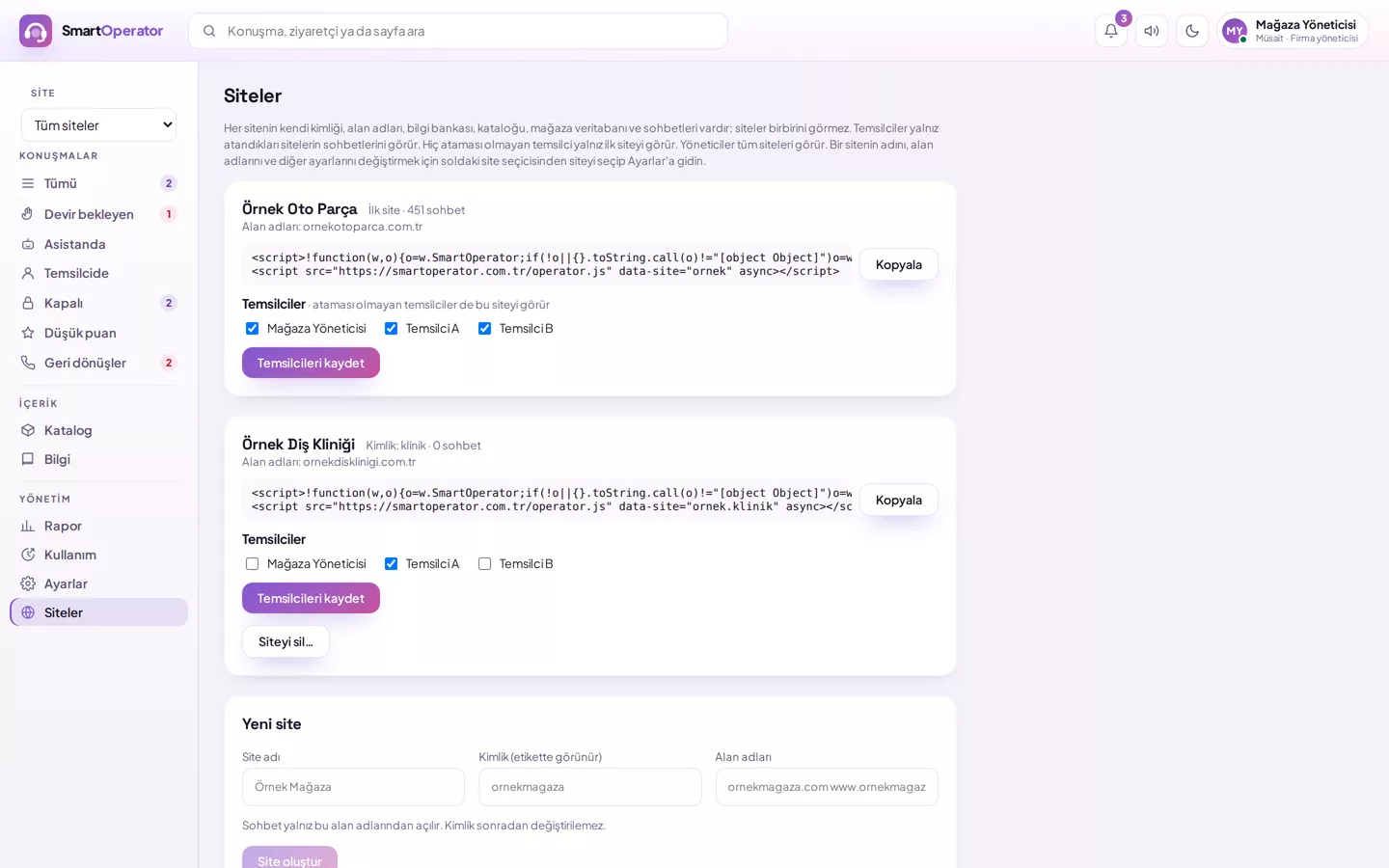
- Add the site: In the Panel under Management → Sites screen, enter the site name and your domains. The tag only works on these domains.
- Paste the tag: Add the provided two-line tag once to your site's common template, usually at the end of the page.
- Import the catalogue: Upload your CSV or XML file in the Catalogue screen; fields map automatically.
- Fill the knowledge base: Enter your shipping, return, and promotion rules as Q&A or policy items.
- Define actions: Define tasks such as adding to cart on your page.
- Test in hidden mode: Add hidden mode to the tag; only you can see the bubble when opening the test address. Remove hidden mode when ready.
<script>!function(w,o){o=w.SmartOperator;if(!o||{}.toString.call(o)!="[object Object]")o=w.SmartOperator={};o.q=o.q||[];"eylemTanimla baglamSaglayici odemeSayfasi ac kapat musteriBaglami".split(" ").forEach(function(a){o[a]=o[a]||function(){o.q.push([a,arguments])}})}(window)</script>
<script src="https://operator.dblinx.net/k/<kurum-kodu>/operator.js" data-site="SITE_ANAHTARI" data-api="https://operator.dblinx.net/k/<kurum-kodu>" data-embed="https://operator.dblinx.net/k/<kurum-kodu>" async></script>
Adresteki <kurum-kodu> kurumunuza özeldir. Etiketin tamamı panelde Siteler ekranında hazır verilir; oradan kopyalayın.
The first line sets up a small tail so your page can define actions before the tag loads; the second line loads the script.
Is site speed affected?
The script loads asynchronously and does not block page rendering. Only a small bubble is drawn while the page loads; the chat window itself loads when the visitor hovers over or clicks the bubble. Since conversations are stored on the server, the window opens with the same conversation when the visitor changes pages.
Window view
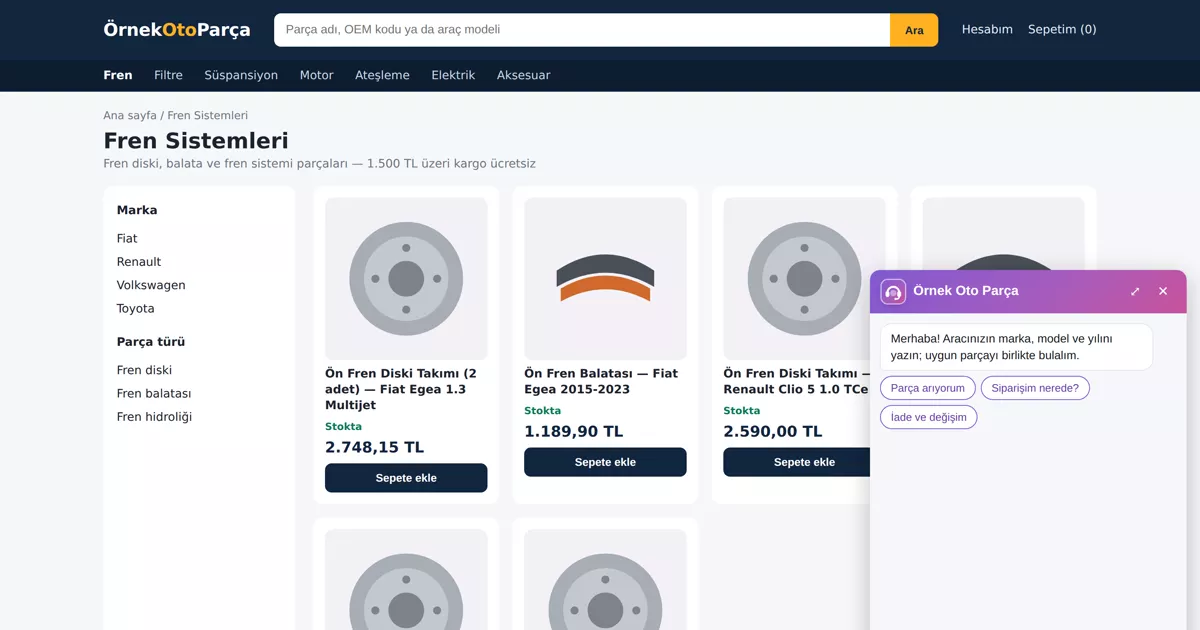
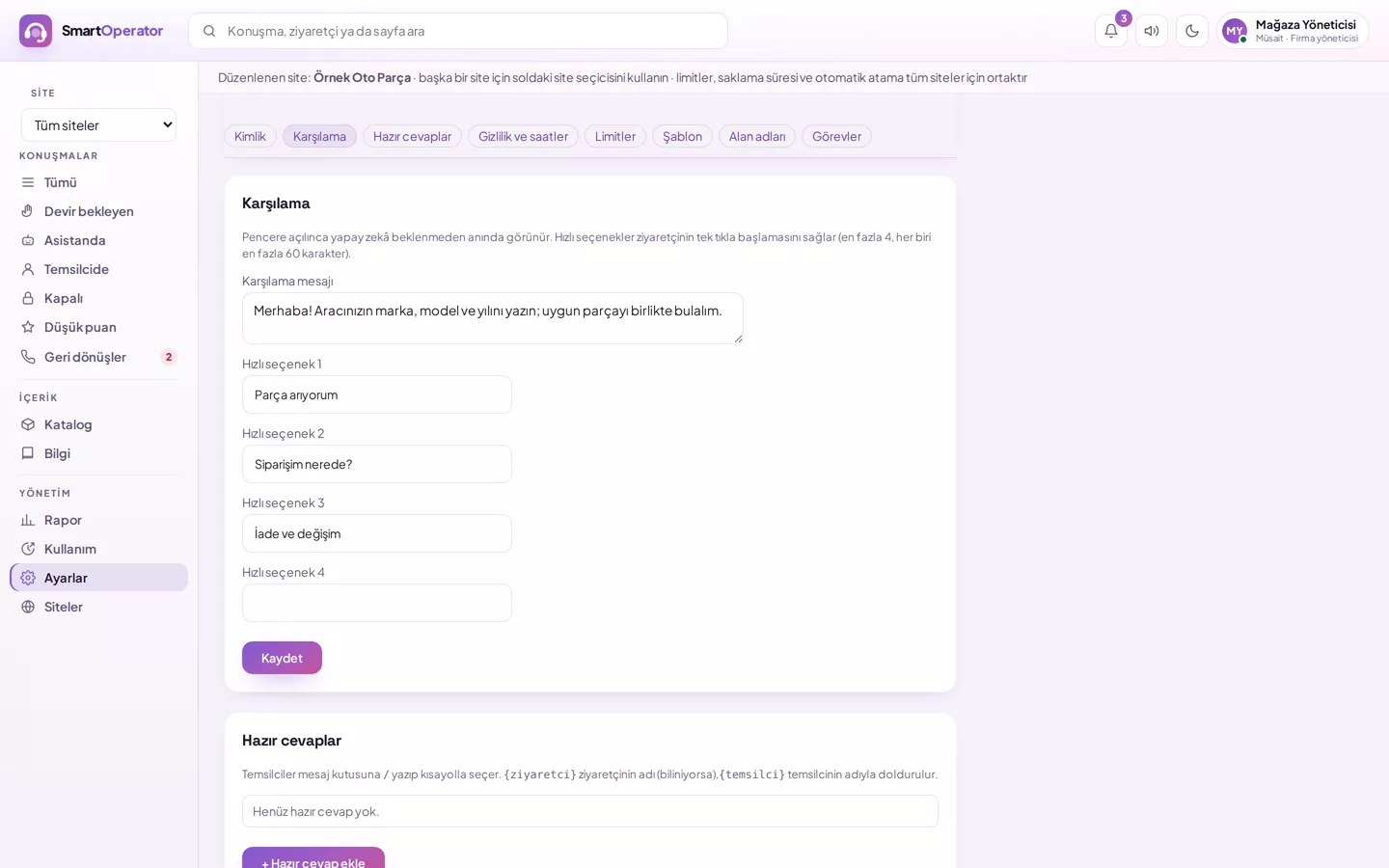
The window can open in the bottom-right, bottom-left, side panel, or full-screen; you choose the default. On mobile devices, the window always opens in full-screen. The representative’s name, tone, greeting message, and quick options are set from the Settings screen.
Large catalog, store database
The catalog is not sent to AI in bulk; each query searches your catalog and uses only a few relevant products. If prices and stock change constantly, instead of importing the catalog via file, a read-only connection can be established to your store database; our setup team will configure this connection with you. MySQL/MariaDB, PostgreSQL, and SQL Server are supported.
How SmartOperator solves this
SmartOperator is installed with a two-line tag added once to the shared template; the catalog is transferred via CSV/XML feed or a read-only connection to the store database.
- Two-line tag: Added once to the shared template; works on registered domains.
- Catalog transfer: Via CSV/XML feed or read-only connection to the store database.
- Hidden trial: Test on the live site without customers seeing it.
- Preserves site speed: Script loads asynchronously; the window loads when the balloon is hovered.