 Artificial intelligence
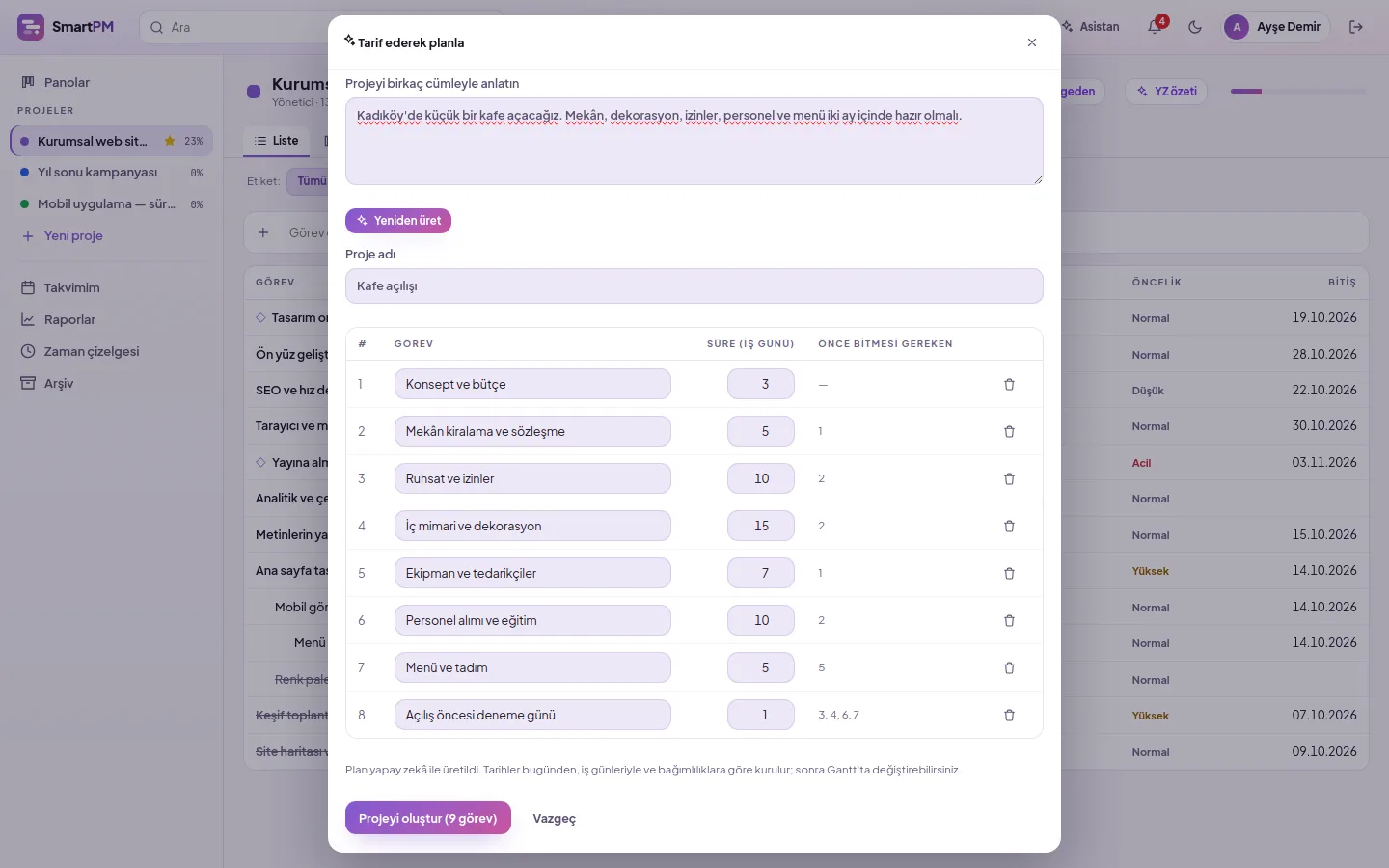
Describe the plan, let AI generate a draft
SmartPM AI features are assistants that suggest task plans from project descriptions, break down large tasks, and summarise project status. Describe your project in a few sentences; tasks, durations, and dependencies will be ready. Break large tasks into subtasks, and summarise project status and risks with one click. Every suggestion is saved upon your approval.
AI in five places
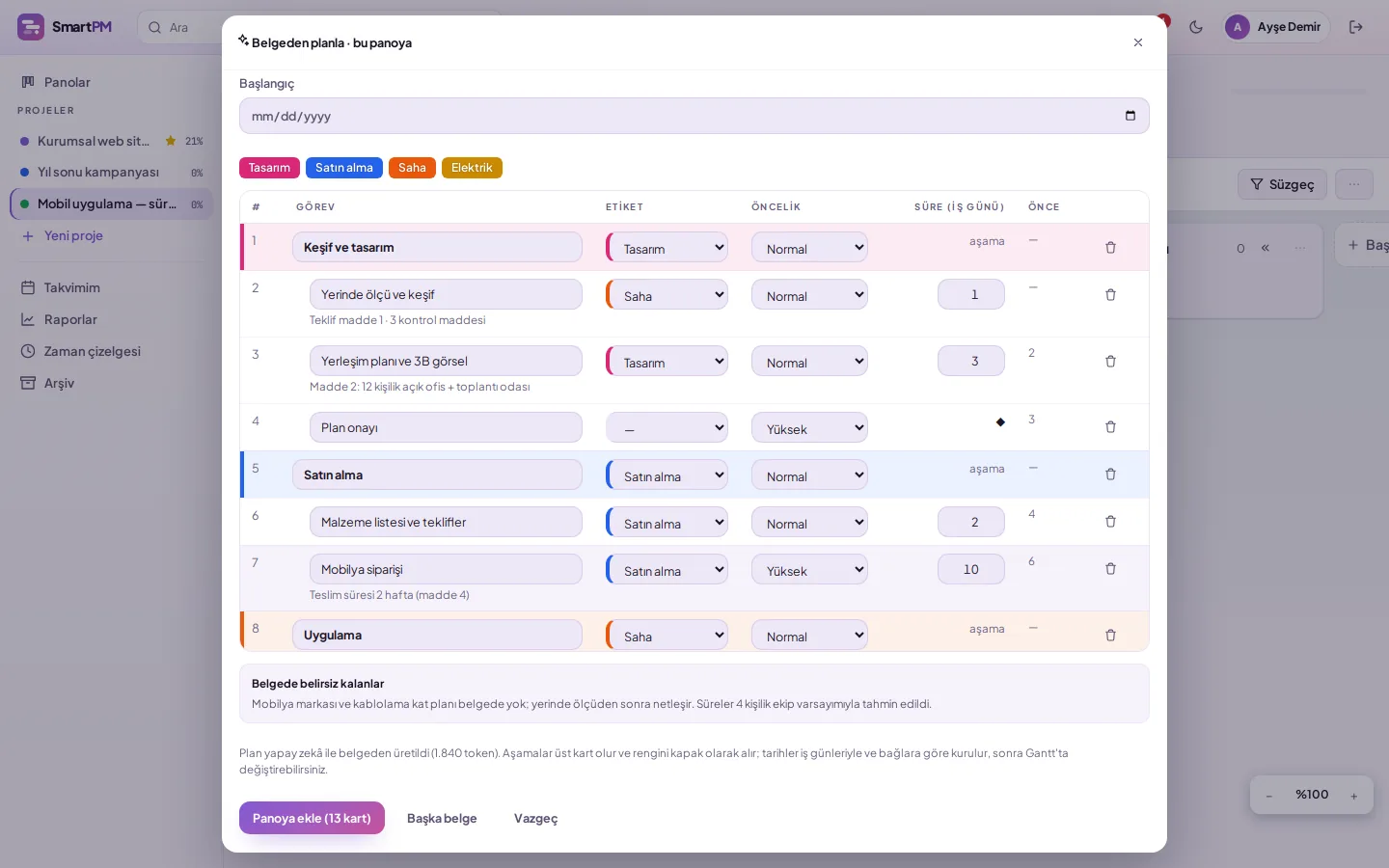
Plan from document
Drag and drop a quote, specification, or task list; items turn into phased, timed, linked cards with coloured labels.
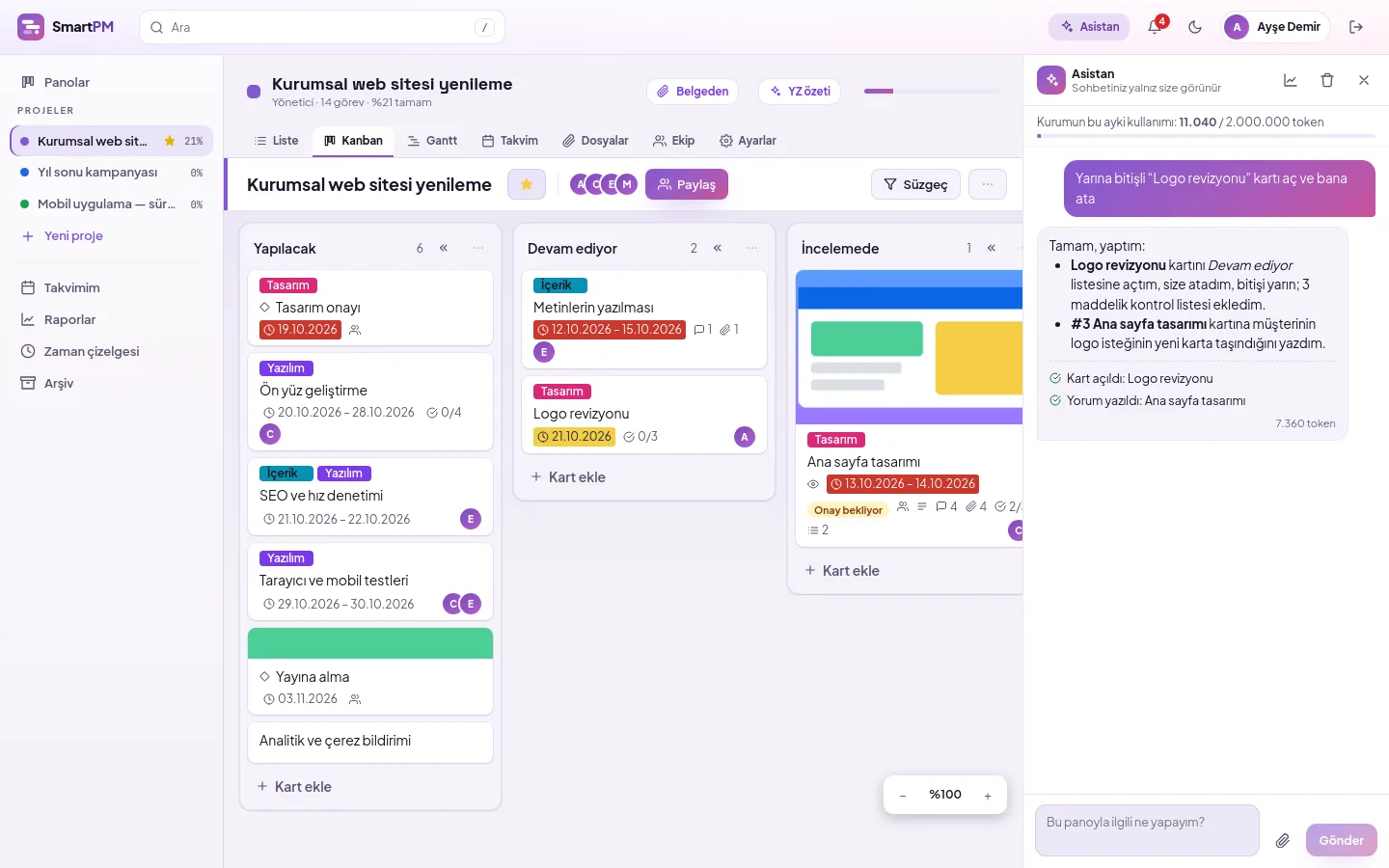
Assistant
Write to the assistant in the right sidebar; it opens, moves, assigns, adds dates and checklists. Changes appear immediately on everyone's screen.
Plan from description
Describe the project; tasks, durations in working days, sequence links, and milestones are suggested. Edit and open the project with one click.
Subtask suggestion
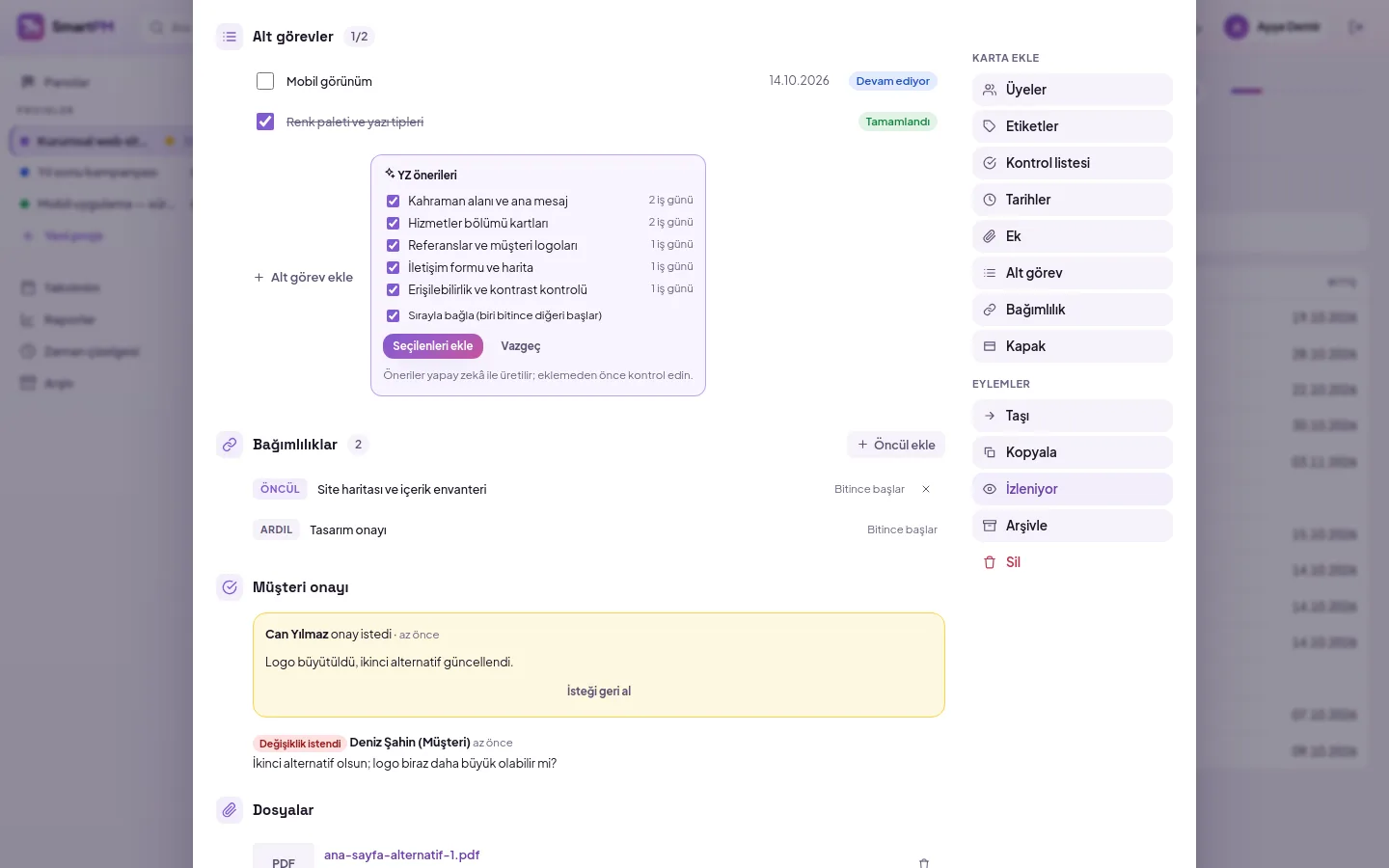
Open a large task, press Suggest with AI; selected subtasks are added with durations and, if desired, in sequence.
Status summary
Overall status, risks, and this week's recommendations based on delays, critical path, upcoming deadlines, and latest comments.
Type, and your board changes
Define tasks by chatting with the assistant: 'Open a card for tomorrow's logo revision, assign it to me, add a pre-launch checklist.' The assistant performs the actions and lists what it did; the board, list, and Gantt update automatically on your and your team's screens.
- Card creation, moving, assignment, dates, labels, checklists, comments, dependencies
- Works only with your permissions, does not delete cards
- Chat is private; every change appears in the card history
- Monthly usage limit per organisation and person
Tasks from Word, PDF, or Excel
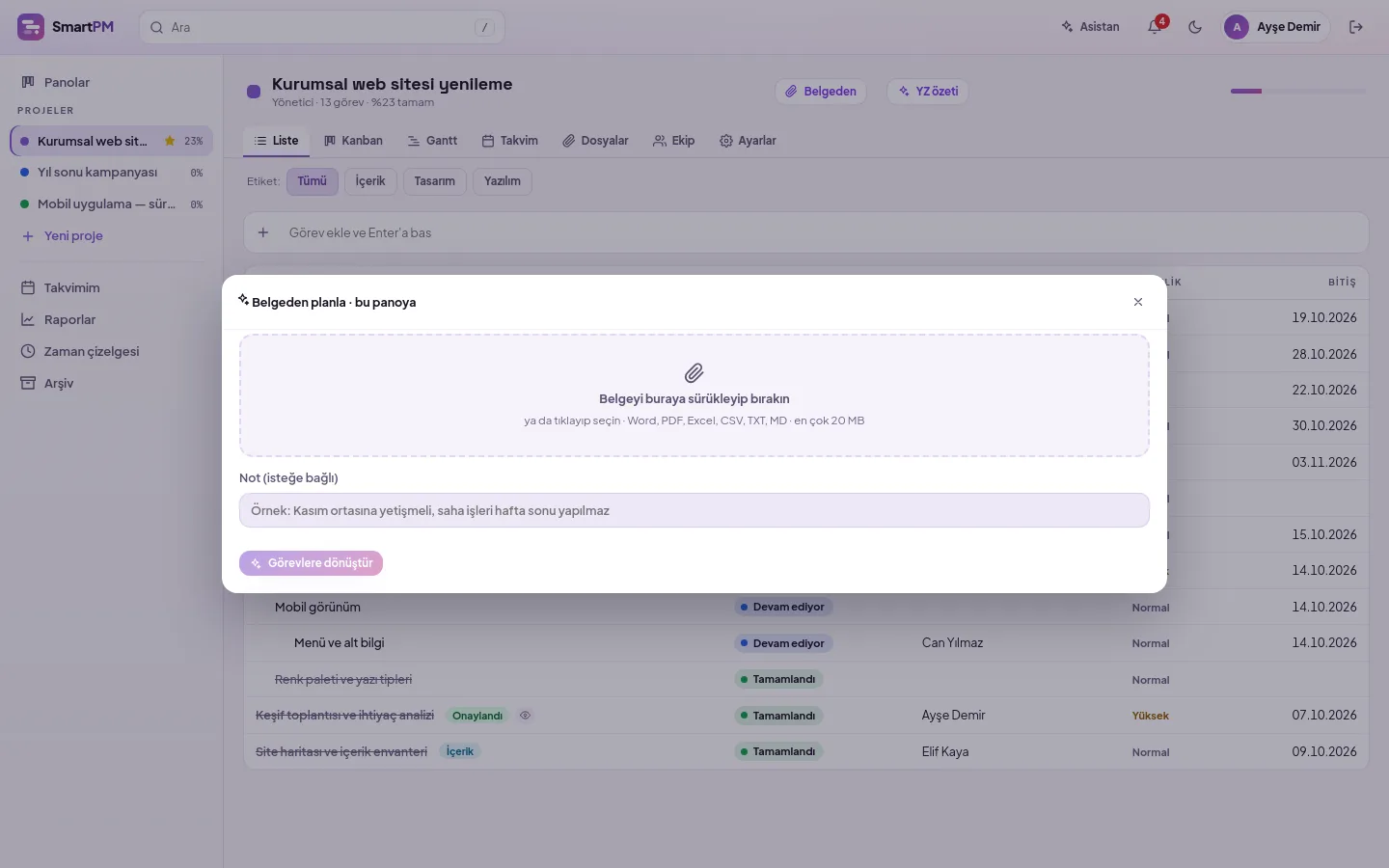
Drag and drop your customer's quote, specification, or survey report into the window. The tasks inside are drafted as main stages and sub-tasks, including estimated durations in working days, dependencies, priorities, and colour-coded labels. Refine the draft and add it to a new project or an open board.
- Word (docx), PDF, Excel (xlsx), CSV, TXT, MD
- Stages shown as coloured header cards, tasks as sub-cards
- Sub-items from the document become checklist items
- Deleted after the document is read; you correct it before saving
Where is the project? Where are the risks?
The AI summary reviews the project on your behalf: which tasks are delayed, which are on the critical path, and what the customer expects. It writes a short report and concrete recommendations for the project manager.
- Based solely on data within the project
- Not saved; generated with fresh data every time it opens
- Customer role cannot use this
Break down large tasks
Actionable sub-tasks and estimated durations are derived from the task title and description. Select the ones you want; they will be planned sequentially starting from the parent task's date.
- Existing sub-tasks are not re-suggested
- Link sequentially: one starts when the other finishes
- Nothing is saved unless you add it
Frequently asked questions
Are AI suggestions saved directly?
Plans, sub-tasks, and summaries are always displayed as suggestions; you save the plan and sub-tasks only after selecting and correcting them, while the summary is never saved. The assistant, however, acts directly on your request: it works only with your permissions, does not delete cards, lists every change made in its response, and logs changes to the card history under your name.
How is AI usage restricted?
Usage deducts from your organisation's monthly DBLinx AI allowance; the organisation administrator can view current month usage by feature via the Usage and limits screen in the assistant panel and set per-person monthly limits if needed. When the allowance is exhausted, SmartPM clearly notifies you, while all other features continue to work.
Which documents can generate tasks?
Word (docx), PDF, Excel (xlsx), CSV, TXT, and MD; up to 20 MB each. Any document describing work to be done—such as quotes, specifications, survey reports, task lists, or measurement tables—is suitable. Scanned PDFs without selectable text cannot be read. Documents are uploaded solely for reading and deleted immediately after processing.
Can my customers use AI?
No. AI features are for internal teams; persons with the customer role cannot use them or access summaries.
Start planning with AI
Let us plan the setup suitable for your organization.