 Kanban and tasks
Tasks at a glance, drag-and-drop workflow
The SmartPM kanban board is a task management view that displays tasks as cards in lists and advances them through the workflow by dragging. Moving a card from one list to another changes its status and updates instantly on everyone's screen; dropping it into the Completed list finishes the task.
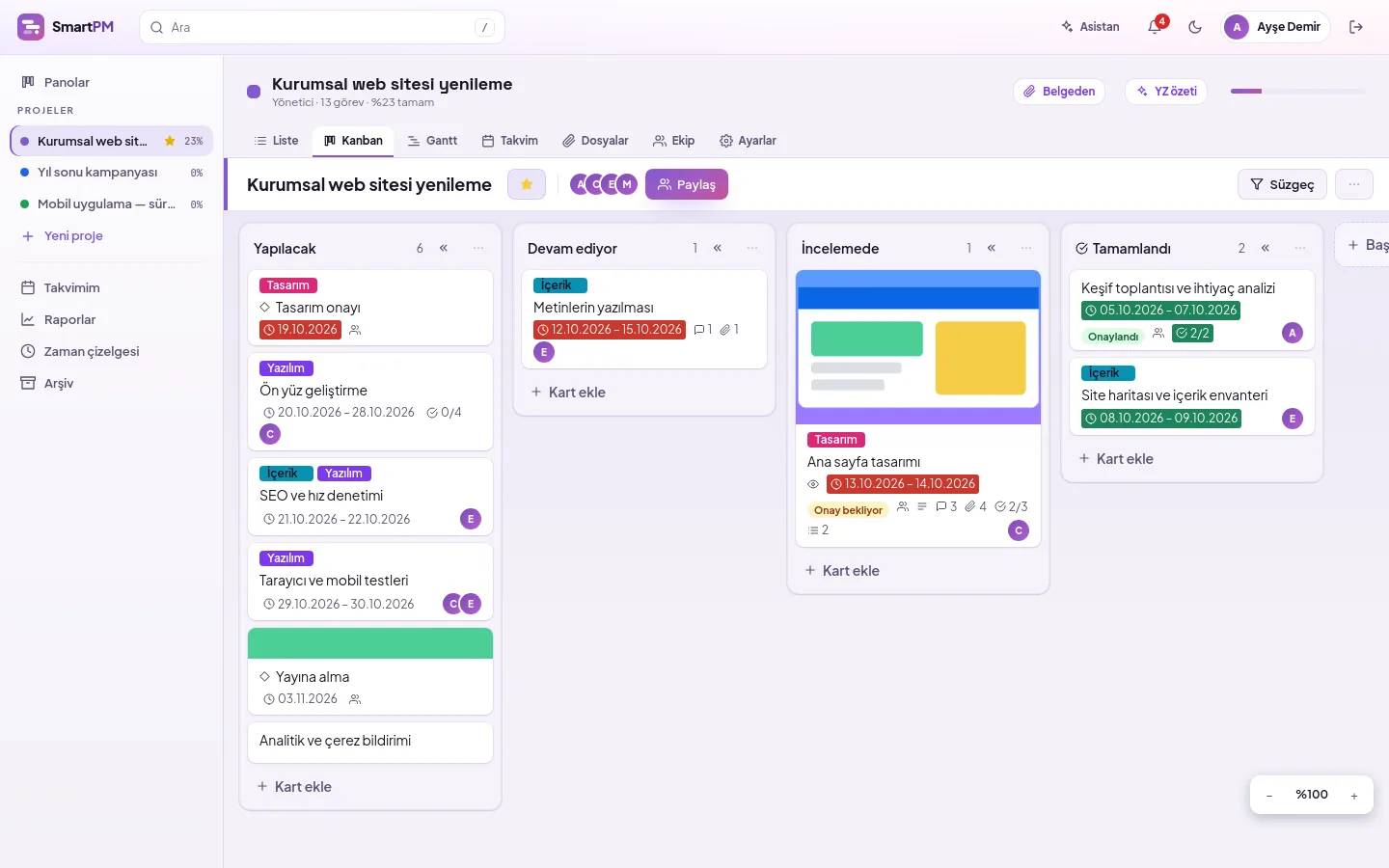
Board: lists and cards
Each project opens with To Do, In Progress, Review and Done lists. Arrange cards and lists by dragging; pan the board by holding empty space, zoom in and out, and focus with filters.
- Card placement appearing while dragging, auto-scrolling board at the edge
- Adding cards sequentially from the bottom of the list, new list at the end
- Cover, label strips, due date, comments, files and checklist badges on the card
- List menu: sort, copy, collapse, move all cards or archive
- Quick editor and keyboard shortcuts on the card
- Undo with Ctrl/Cmd+Z, redo with Ctrl/Cmd+Shift+Z; linked cards in one step
- Drop a file onto a card to add it, drop onto a list to create a card
- Dashboards homepage and starred dashboards
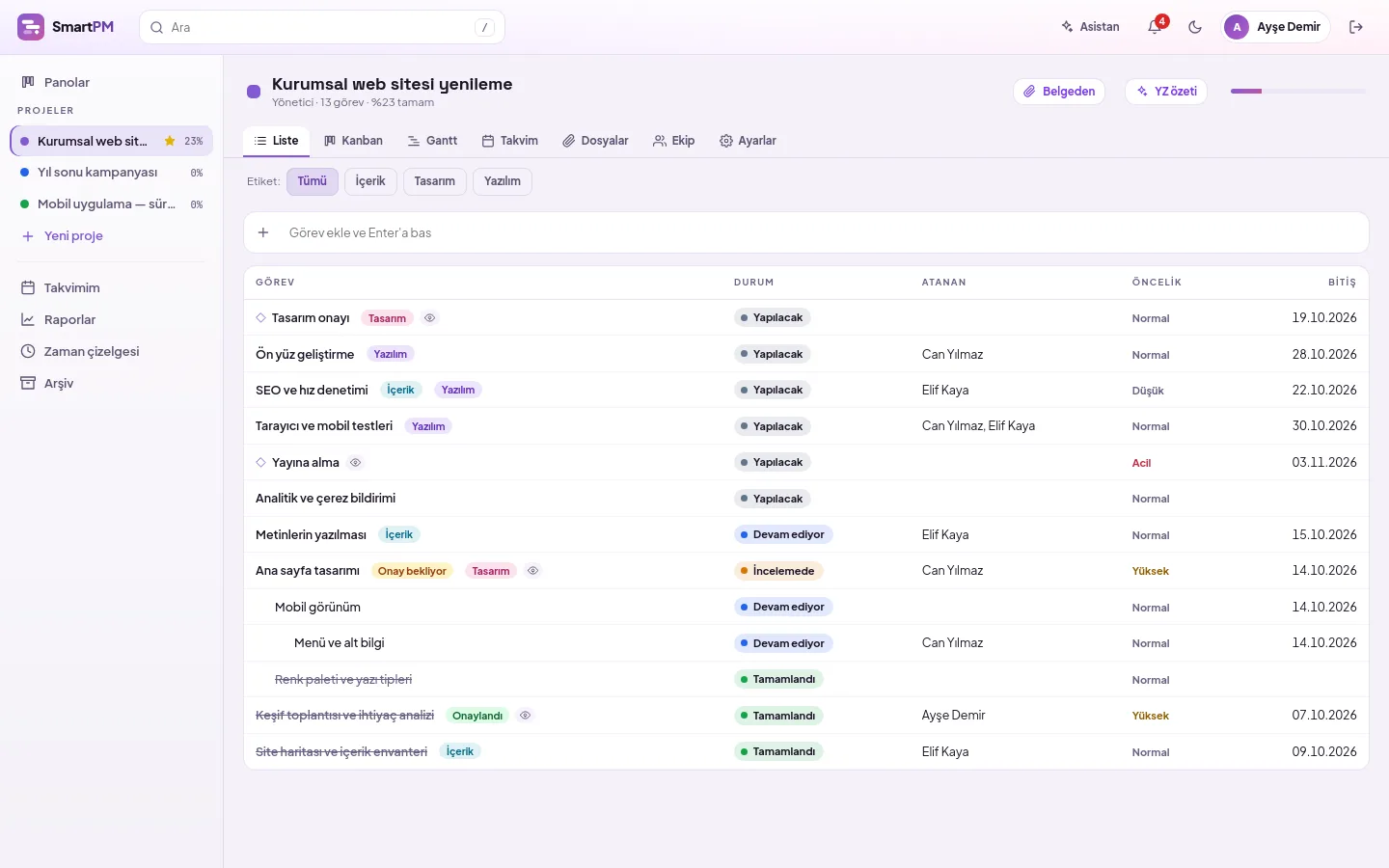
All tasks, in a single table
The table view shows tasks in status order; subtasks are indented under their parent task. Click column headers to sort, group by status, priority, assignee or label, and edit directly in cells.
- Status, assignee, priority, start, due, label and progress columns; hide any you don't need
- Inline editing: select from dropdown, change date, assign person
- Collapsible groups and card count per group
- Bulk edit: move, assign, label or archive selected cards together; undo in one step with Ctrl+Z
- Saved filters: personal or team-shared, common across Kanban, Table and Calendar
- Task templates: save cards with subtasks and checklists, reopen with one click
- Custom fields: text, number, date, select and checkbox; on cards, in tables and filters
- Visible table exported to Excel as CSV
- Clicking a row opens the task panel
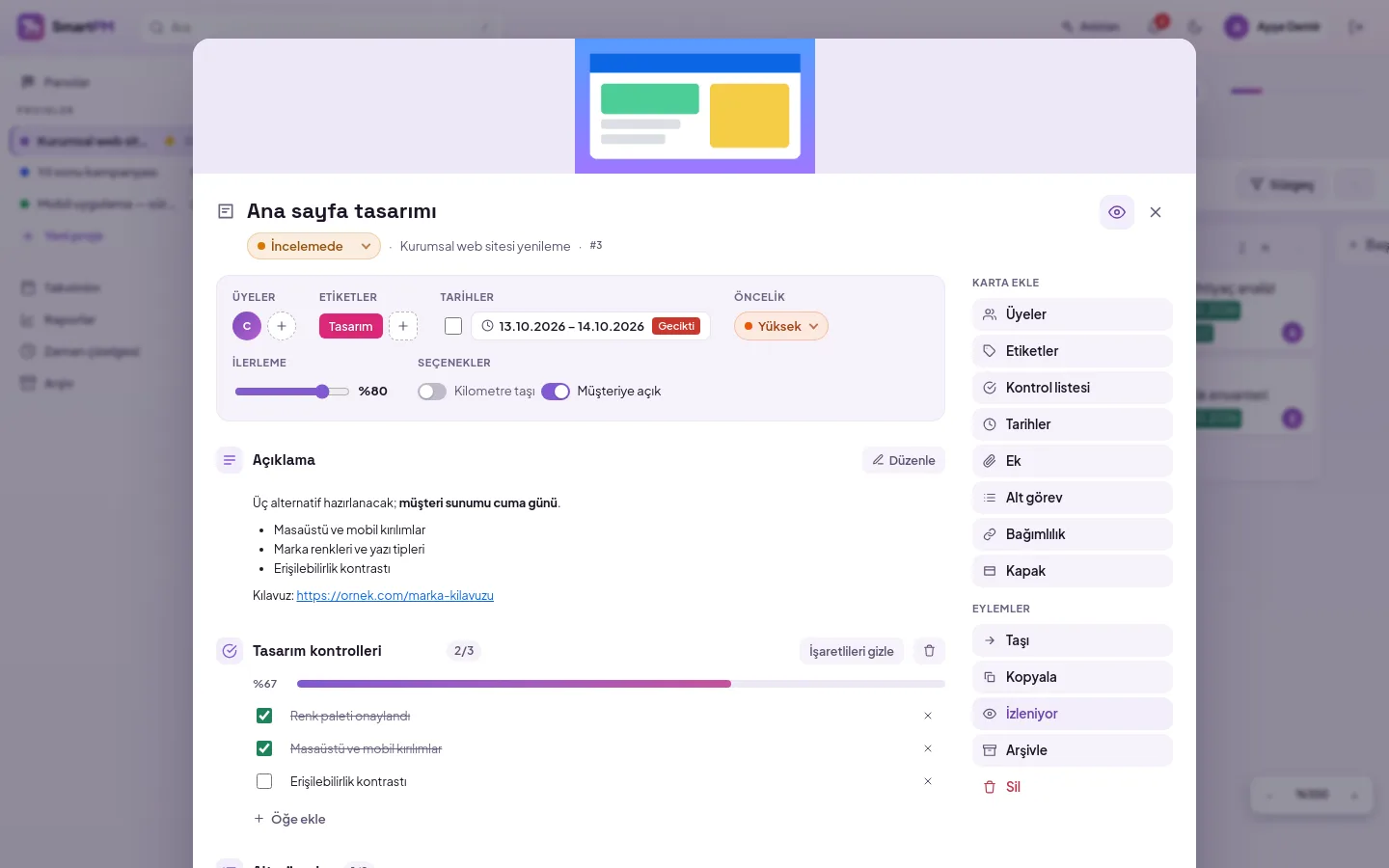
Everything about the card in one window
Clicking a card opens a central window showing status, dates, assignees, labels, description, checklists, files, subtasks, dependencies, time tracking and comments; right sidebar for card actions.
- Checklists and progress bar
- Coloured list and priority chips, feature strip at a glance
- Complete subtasks with one click without leaving the window
- Colour or visual cover; reorder, copy, archive as needed
- Watch the card, formatted descriptions and comments
- Four priorities, multiple assignees
- Recurring cards: daily, working days, weekly, monthly or yearly; upon completion, the next dated copy opens automatically
Frequently asked questions
Can a subtask have subtasks?
Yes. A task's subtasks can themselves have subtasks; up to five levels deep. Subtasks appear indented according to their level in lists and Gantt charts; deleting a parent task deletes all tasks beneath it.
Are there keyboard shortcuts on the board?
Yes. When the mouse hovers over a card, e opens the quick editor, l labels, m members, d dates; Space adds you to the card, c archives the card. n adds a card to the list where the cursor is, q shows only cards assigned to you, f opens the filter. Press ? for the full list.
Can I undo a change made by mistake?
Yes. Ctrl+Z (Cmd+Z on Mac) undoes your last change, Ctrl+Shift+Z or Ctrl+Y redoes it. Linked cards moving together in Gantt, setups by a plan or assistant messages revert in one step. You can only undo your own changes; deleted cards cannot be recovered.
Can I delete a column?
A project manager can delete an empty column from Settings. Columns containing tasks cannot be deleted; you will be prompted to move tasks to another column first. At least one column must remain in the project.
What happens when a task is deleted?
The task is deleted along with its subtasks, comments and dependencies. Time entries logged against the task are not deleted; they continue to appear in the timesheet under the task's name.
Set up your team's workflow
Let us plan the setup suitable for your organization.